


Brands and locations
Decide when to create a brand or location and plan how your business will grow.
A brand represents a commercial identity: its name, logo, colors and shared menu. A location is a branch that operates under that identity. An organization can contain several brands.
Choose a structure
| What to create | When |
|---|---|
| A location | Another branch with the same identity, under the existing brand (Create and publish a location). |
| Another brand | A different concept with its own name, look and menu, with its own locations. |
| A shared space | A food court with shared tables and several locations, under its host brand (What is a shared space?). |
| A kitchen station | A new prep area at the location (Kitchen stations). |
You do not need a brand for every branch. A chain with three locations can use one brand and have three separate operations. You also do not need a shared space to group branches at different addresses; the brand already does that.
Create a brand
- Choose the organization with Switch place.
- Open Brands and select Create brand.
- Enter a Name and review the Identifier.
- Select Create brand.
- Open the brand to set up its menu, appearance and locations.
You can open Brands (opens in a new tab) from the organization. You need permission to create them and available capacity under your plan.
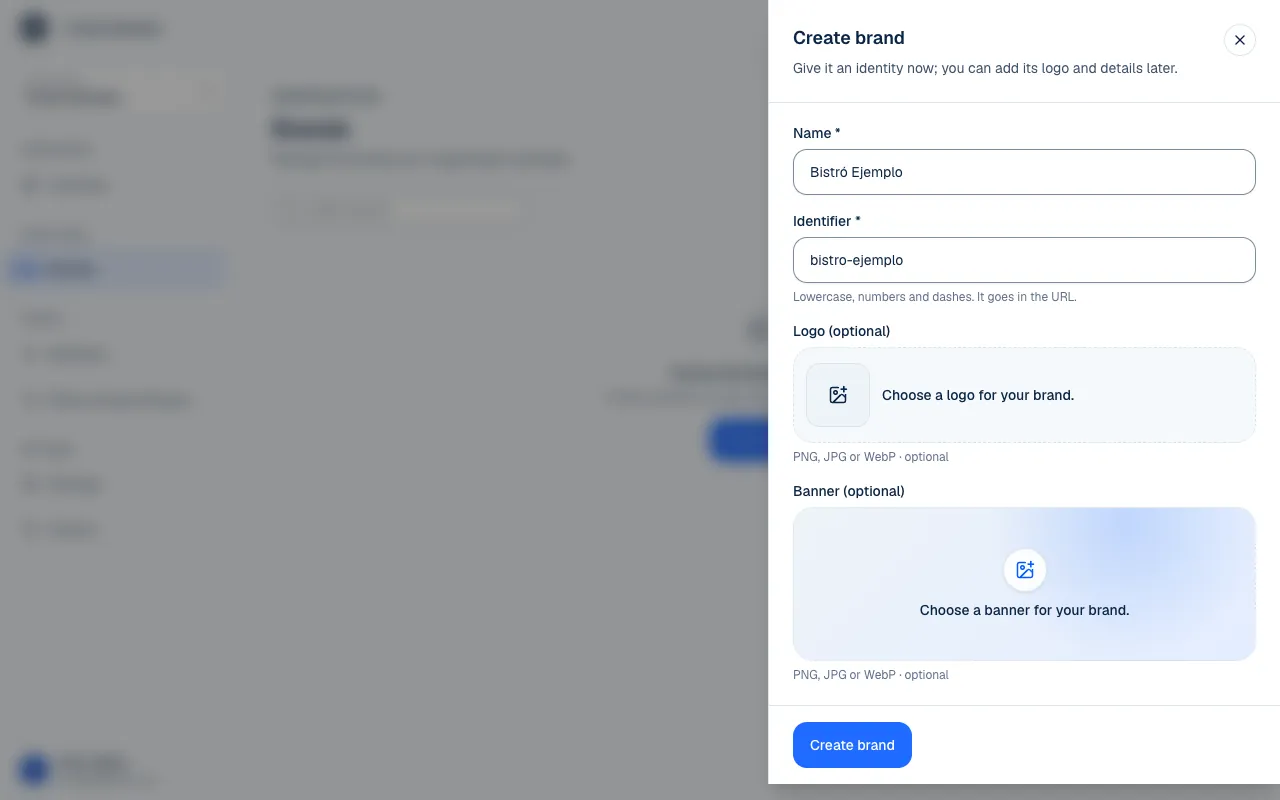
The identifier uses lowercase letters, numbers and hyphens, and is part of the web address. Add the logo and appearance later under the brand's settings.
Add locations
Choose the brand, open Locations and select Create location. The new location inherits the brand's products and sections and shares its identity. Then set up its hours, payment methods, floor plan and kitchen.
Each branch can have its own products and sections in addition to the shared ones. If the brand allows it, it can also set its own prices. See The brand menu before entering every product separately.
Roles also have a place and scope. When you open another branch, check whether the manager already has access through a cascading role from the brand or needs a role at that location (Where each access applies).
Archive and restore
Archive a brand to stop changes and close its places to customers. Data and history remain available to team members with access. Do not use archiving as a kitchen pause; use the order settings for a temporary stop.
Under Brands, turn on Show archived and select Restore to bring a brand back. If a place above it is still archived, restoring a lower-level place does not make it operational by itself.
Before expanding, review your plan. If a limit prevents you from creating or restoring something, Piqero tells you the relevant amount.
If something isn't working
- That identifier is already taken. Another brand uses it. Change the Identifier, for example by adding the city.
- The identifier allows only lowercase letters, numbers and dashes. Remove spaces, accents and capital letters.
- You've reached what your plan includes… Your plan does not allow more brands or locations. Archive one you no longer use or review your plan.
- You do not have permission to do this. Creating or archiving brands needs a permission at the organization. Ask whoever manages your team to check your role.
If the problem continues, email support@piqero.app (opens in a new tab). Help and support lists what to include.