


Call the team from your table
Request help from a table QR code and see whether the location has seen your call.
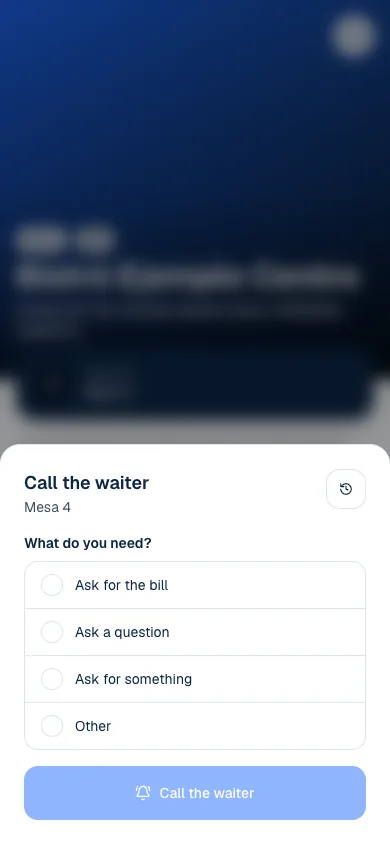
Call the waiter lets you request help from your phone without placing another order. The button appears when you opened the menu from a table's QR code and that place has enabled calls. Opening the general menu link does not identify your table.
The location chooses which reasons to offer and who receives calls. In a shared space, the space's team or the location you choose may handle your call. Options may differ between tables and places.
Make a call
- Scan the QR code at your table and open its menu.
- Select Call the waiter.
- If Which venue? appears, choose who you want to contact.
- Under What do you need?, choose a reason.
- Confirm and wait for Done: … has been told.
Reasons may include Ask for the bill, Ask a question or Ask for something. The place can hide some reasons or add its own. Choose the one that best describes what you need; the team gets the table reference and reason.
Ask for something asks someone to come over. It does not add products to your order or replace the cart. To order another item from the menu, build and confirm an order through the usual flow.
Wait for a reply
After you confirm, the screen says You called …: somebody will be with you shortly. Avoid tapping the button repeatedly; there is a wait between calls. When available, You can call again in… shows how long until you can send another notice.
| Status | What it means |
|---|---|
| Waiting | The call is still open. |
| Answered | The team marked it as answered. |
| No answer | The call expired without a recorded reply. |
Under Recent calls, you can review calls from the last few hours. This short history supports current service; it is not a permanent record of every visit.
When the team replies, … saw your call appears. The location may also send a message. Read it for instructions, such as waiting or going to the counter. A recorded reply means the team took the call; it does not mean someone has reached your table yet.
If you cannot call
If the screen says you just called, wait the time shown before trying again. There may also be a wait after a reply before you can make another call. These intervals help avoid duplicate notices while the team is already responding.
If the place or reason is no longer available, open the options again. If the call could not be sent, check your connection and try again. If you need immediate help or the button is missing, speak directly with the dining room team.
You do not need to keep the calls panel open to browse the menu. If you enabled notifications and your browser supports them, you may also receive the reply on your device.
If the page isn't working, email support@piqero.app (opens in a new tab).