


Brand settings
Manage your shared identity, online orders, local prices and notices for your locations.
Brand settings coordinate what its locations share. Choose the brand with Switch place and open Settings. A change here may affect several branches, so review its scope before saving.
General
General includes Name, Identifier, Prices by venue and the archive control. The identifier is part of the web address and uses lowercase letters, numbers and hyphens.
Under Prices by venue, Allow venues to change prices determines whether each branch can set its own price for a shared product. It does not control availability. A location can sell out or archive a product even when it has to use the brand's price.
If you turn this setting off, saved custom prices stop applying but remain saved for later. See the shared menu before changing this setting.
Online orders
Under Settings → Online orders, use Online orders for the brand. When it is off, none of the brand's locations can receive online orders, even if they are turned on in each location's own settings. Counter orders continue.
- Open Online orders at the brand.
- Decide whether to stop orders for the whole brand or for one location.
- To stop the whole brand, turn off the setting and confirm Turn off for the whole brand.
- Turn on the setting again to allow orders.
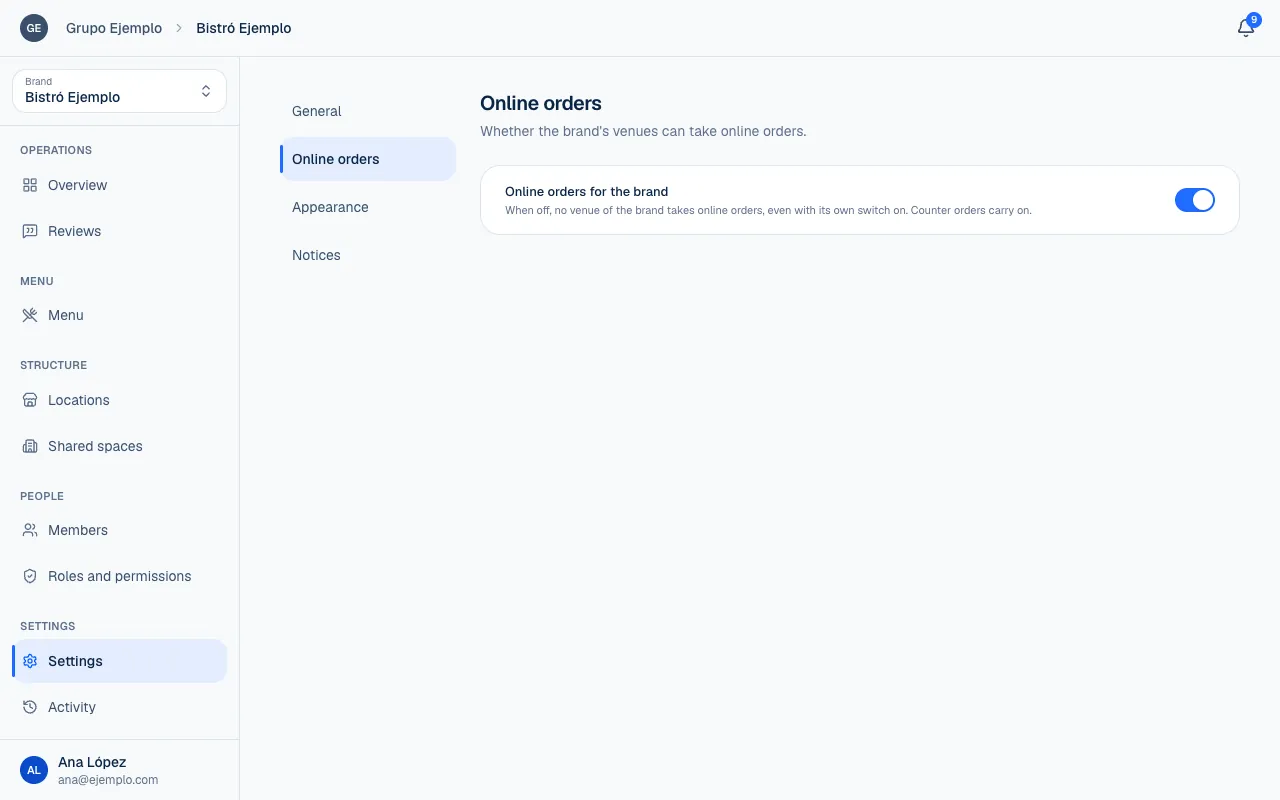
Turning on orders for the brand does not remove a location's own restrictions. Its hours, pauses, payment methods, publication status and plan still apply. If only one location needs to stop because of a delay, pause that location's orders (Configure orders).
Appearance
Appearance controls the logo, default cover, colors, mode, visible photos and how locations appear in the brand's spaces. Use the preview to check changes before saving.
| Item | How it is shared |
|---|---|
| Logo, colors and mode | Shared across the brand's menus. |
| Cover | Each location or space can have its own. |
| Product photos and presentation | Configured from the brand's appearance settings. |
| Console theme | A personal preference; it is not changed here. |
For details on the Simple and Advanced editors, see Appearance.
Notices
Under Notices, choose which notices the brand sends to the team. Places below can follow that setting or choose a closer one. Go back to what's above returns to the inherited rule.
Each person needs permission for a category and chooses their own channels and preferences. Turning on a notice at the brand does not grant access to data a person cannot see. Each notice is described in Notices and sounds.
Hours, the floor plan, kitchen stations and payment methods are set up at each location. Do not copy them from a branch with different needs.
If something isn't working
- That identifier is already taken. Another place already uses that address. Choose another identifier.
- Confirm the change to return to brand prices. When you turn off Allow venues to change prices, review the own prices that will stop applying and confirm.
- This brand is archived. Everything is visible, but nothing can change at the brand or its locations until someone selects Restore.
- You do not have permission to do this. Your role does not let you change the brand's settings (Roles and permissions).
If the problem continues, email support@piqero.app (opens in a new tab). Help and support lists what to include.