


Leave reviews and use your account
Rate completed orders, save favorites and manage your sign-in details.
Under Me, you can open your history, saved items, details and preferences. You can browse and order as a guest or sign in with an account. Reviews are left from completed orders; they are not general ratings that anyone who viewed the menu can submit.
Rate an order
- Open the order from History.
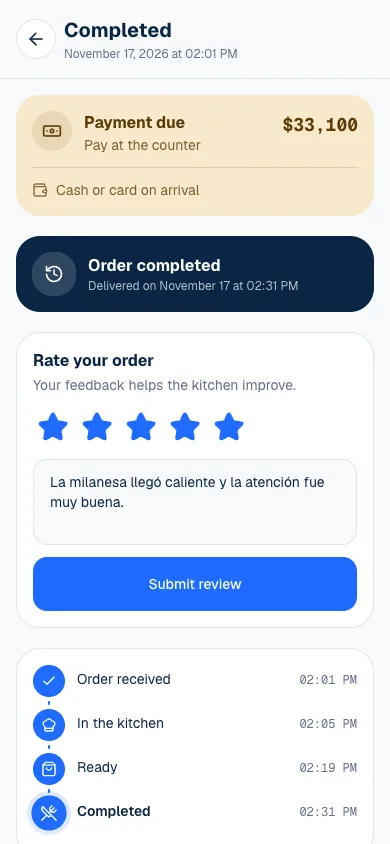
- When it is Completed, find Rate your order.
- Choose one to five stars under Your rating.
- Add an optional comment if you want to explain your experience.
- Review your text and select Submit review.
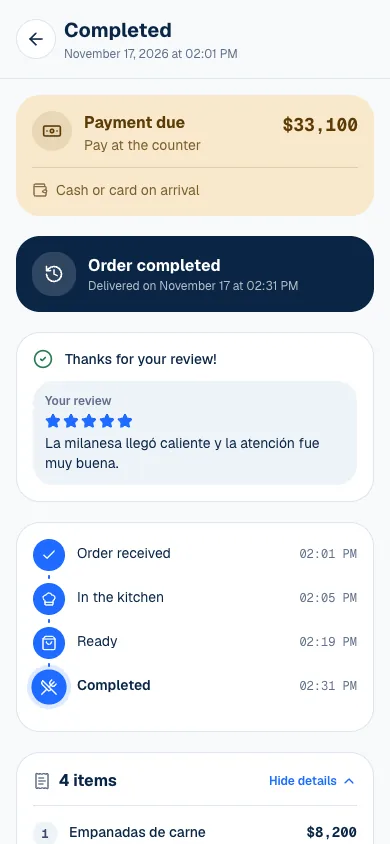
Each order can have one review. You've already reviewed this order means one has been submitted; you do not need to send it again. You need to keep access to the order through your session or its tracking link, depending on how you placed it.
The location can reply. If it does, you will see Response from the restaurant with Your review. A reply can explain what happened or what the team will improve. If you need to resolve a charge or delivery right away, contact the team directly instead of waiting for a public reply.
Use your account
Under Me → Personal info, you can view your Name, Phone and Email. Select Edit to open Edit profile, where you can change your name and select Save changes. You cannot change your phone or email from this screen.
| Section | What you will find |
|---|---|
| Order history | Your active and previous orders at the place. |
| Saved items | Products you marked so you can find them again. |
| Table & pickup | Your selection for receiving an order. |
| Preferences | Language, appearance and notifications. |
Under Preferences, Language lets you choose Español or English. Dark mode changes the appearance. Notifications also depend on each browser's permission; if you switch devices, check that notifications are allowed there too.
Save products
On a product, tap the star or select Save. Then open Saved to return to your favorites at that place or food court. Remove from saved takes a product off the list; it does not change an order you already placed.
Saving a product does not reserve stock or lock in its price. When you order it later, check current availability, options and price. If the location changed its menu, the product may no longer be available as it was on your last visit.
Switch from guest to an account
If you see You're browsing as a guest, select Sign in or create account. You can use a phone or email and the verification code they send. Do this from the guest session you want to link; its orders move to your account when you sign in. How guest sessions work is covered in Order without an account.
Do not share verification codes so someone else can see your order. If you need help, show the location's team the order number (Order #…, on the last line of the order screen). If Order not found appears, first check the account and session you used to place it.
If something isn't working
- Couldn't send the code. Please try again. Check that the phone or email is spelled correctly and request the code again.
- That code is invalid or expired. Request a new code and use the latest one you received.
- Couldn't submit your review. Please try again. Check your connection and select Submit review again.
- You do not see Rate your order: you can review an order once it is Completed, and only once per order.
If the page is not working, email support@piqero.app (opens in a new tab).