


Host locations
Invite locations to a space, review delegated access and end hosting when needed.
Hosting manages the relationship between a host space and each location. You invite a location with its identifier; this is not an email invitation to add a person to the team (that is done in Invite and manage members). What a space is is covered in What is a shared space?.
Invite a location from the space
- Choose the space and open Hosting.
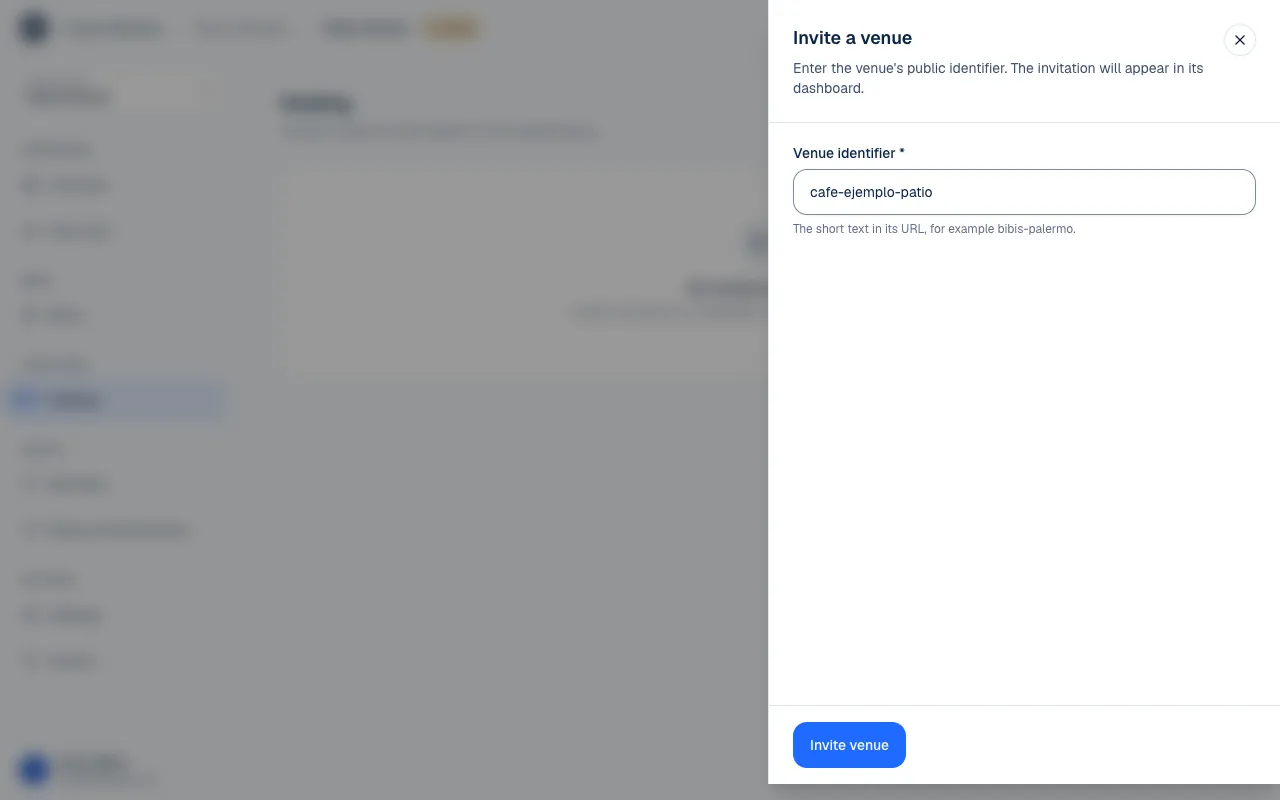
- Select Invite venue.
- Enter the Venue identifier, the short text in its URL, such as
bibis-palermo. - Select Invite venue to send the proposal.
- Follow its status in the list.
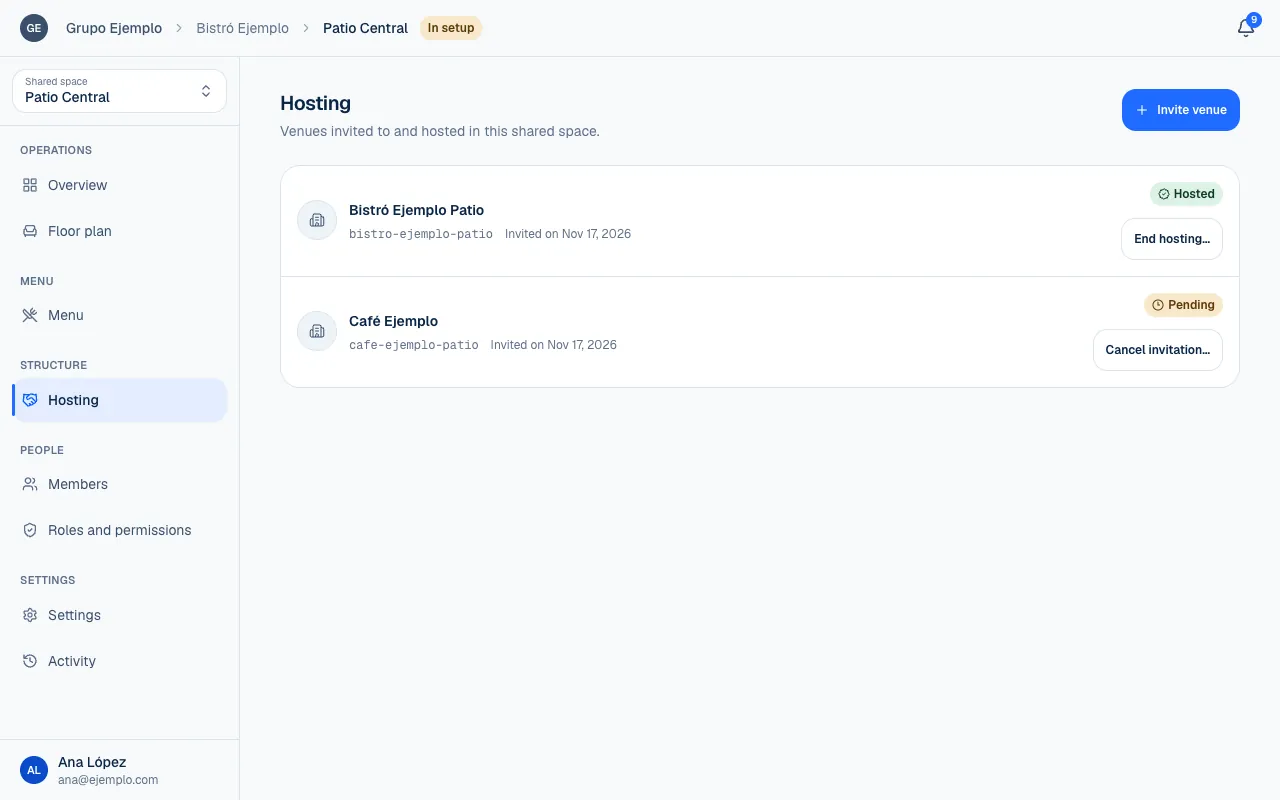
If the location belongs to another organization, its team sees the invitation in its console. It stays Pending until they respond. It does not change the hosting relationship or grant permissions while pending.
Within the same organization, hosting completes directly if you have permission to invite from the space and respond for the location. Approval from another organization is not needed.
Review the invitation from the location
Under Hosting at the location, someone authorized can select Review and accept or Reject. When accepting, they review required and optional access, then confirm with Accept hosting.
A location can be hosted in one space at a time. It can receive another proposal while hosted, but it must leave the current space before accepting the next one.
| Status | What it means |
|---|---|
| Pending | The location has not responded yet. |
| Hosted | The relationship is accepted and active. |
| Rejected | The location rejected the proposal. |
| Invitation cancelled | The host withdrew the pending invitation. |
| Ended | Hosting has ended. |
Choose which access to accept
For a location in another organization, Required access includes viewing its products and categories to build the shared menu. Optional access lets the host select additional tasks: view orders, update their statuses, read reviews or reply to them.
It does not include managing the register, viewing sales or managing people. Those tasks stay with authorized members of the location's organization.
What happens to the floor plan and menu
The location starts using the space's shared tables. Its own floor plan is saved but no longer used, and cannot be edited while it is hosted. The host manages the shared layout (The space floor plan and QR codes).
The space can feature the location on its menu. To add products to shared sections, each location uses its own Menu or Add dishes in the hosting summary. The host does not become the owner of those products (The food court menu).
Cancel or end hosting
Cancel invitation… withdraws a pending proposal. It does not end active hosting.
End hosting… is available to an authorized person at the space or location and asks them to confirm the consequences. The location leaves the food court menu and returns to its own floor plan; the host's team loses delegated access. Past orders and the location's menu are not deleted.
Changes to the relationship appear in each party's Activity. If the other party ends hosting, the relevant people may receive a notice.
If something isn't working
- No venue has that identifier. Check it and try again. Ask the location for its exact identifier: it is the lowercase text in its web address.
- That venue already has a pending invitation from this shared space. Wait for an answer, or cancel it before sending another.
- The venue is already hosted in another shared space. A location can be in only one space. It has to end that hosting first.
- The invitation has already been answered. Reload to see its current status. Someone else accepted, rejected or cancelled it.
- This hosting is no longer active. Reload to see its current status. The other party ended it first.
If the problem continues, email support@piqero.app (opens in a new tab). Help and support lists what to include.