


Take an order at the location
Add products, options and notes in the operator, then charge for the order at the register.
Under Orders → New order, you can take a counter order or an order for a table without using the customer's phone. The ticket uses the location's menu and its options. You need permission to take orders; viewing the list and taking payments are separate permissions.
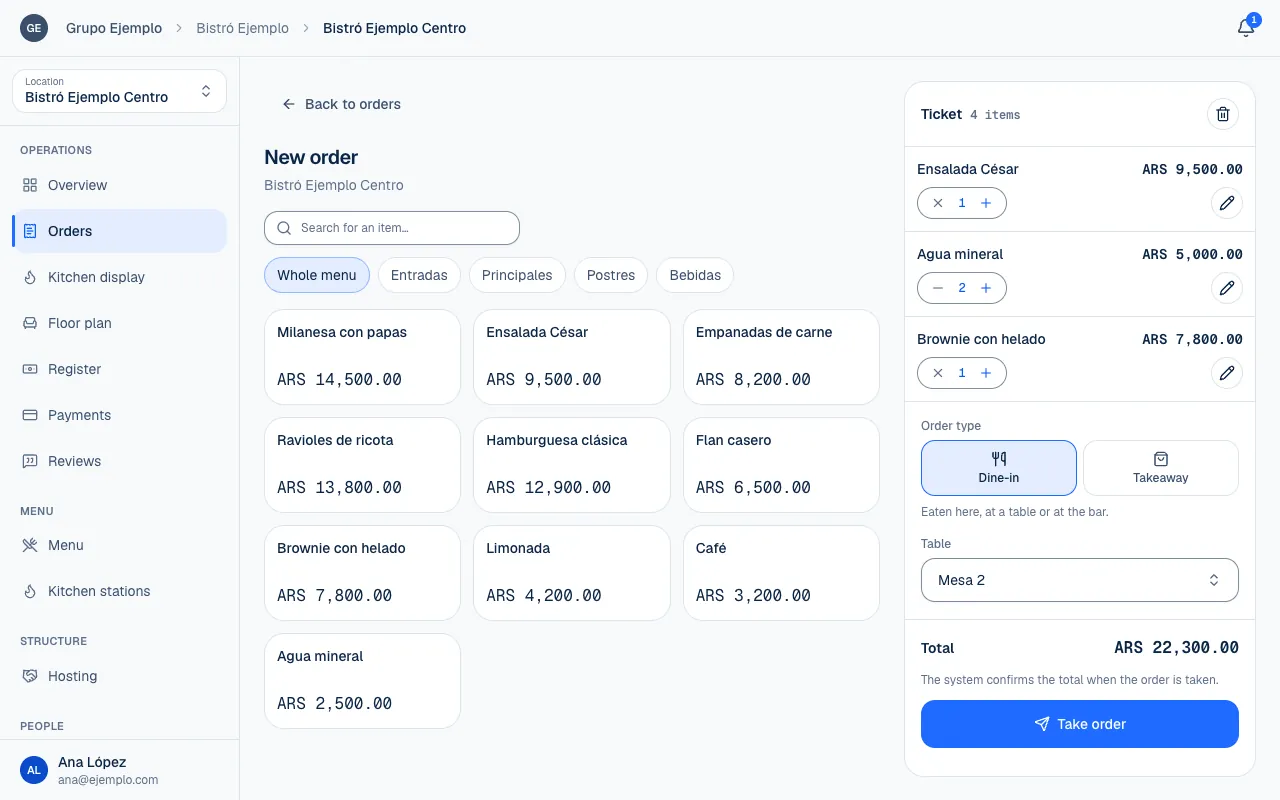
Build the ticket
- Open the location and go to Orders → New order.
- Search under Search the menu or choose a section. Whole menu shows everything again.
- Select a product and choose its options, if it has any.
- Choose the Quantity and, if needed, add a Note for the kitchen. Select Add to ticket.
- Repeat for other products, then review the Ticket before taking the order.
Products marked Sold out are not available for an order. If the menu does not appear, select Try again. A read error does not mean there are no products at the location.
Option groups explain what you still need to choose: Pick one, Pick at least…, Pick up to… or a range. Complete every required group and follow its maximum. If you reach a group's limit, deselect one option before replacing it. An extra may change the price per item.
Add order details
Under Order details, review these fields:
| Field | How to use it |
|---|---|
| Order type | Dine-in for eating there or Takeaway for pickup. |
| Customer | A name that helps the team identify who will pick up the order. |
| Table | The dining table, when applicable. You can also choose No table. |
| Order note | A general instruction for the kitchen, up to 500 characters. |
A product note goes with that line; an order note applies to the whole order. Write clear instructions and review them with the customer. Use the options on the menu to record available variations.
If you started from a table on the Floor plan, it may already be selected in the form. Confirm it is still the right one. The table selector depends on the tables on the floor plan and your account's access to view it. If a table is missing, that does not necessarily mean it was deleted.
Review and take the order
On the ticket, you can Edit a line, Remove a product or change quantities. Clear the ticket asks you to confirm and removes the entire draft without taking the order.
The draft Total is an estimate. The system confirms the amount when you take the order. Select Take order once and wait for confirmation. The new order appears in the list if you have access to view it, and the ticket clears so you can help the next customer.
Charge the order and send it to the kitchen
Creating an order does not record a payment. Open it from Orders and select Charge, or find it under Register, depending on your access. The register must be open to record cash or start an in-person payment (Use the register).
Before starting preparation, follow the payment workflow your team agreed on. If the customer pays first, check that the order is Paid. A ticket appearing in the kitchen does not confirm payment: the kitchen sees the order as soon as it is taken, and any outstanding balance is checked separately. Statuses and cancellation are in Receive and follow orders.
If something isn't working
- An item on the ticket is no longer available. Remove it and try again. It sold out or left the menu while you built the ticket. Remove the flagged line and select Take order again.
- An option on the ticket is no longer available. Edit that line and try again. Edit the flagged line and choose another option.
- You do not have permission to take orders at this location. Your role does not allow taking orders there, or the organization does not have a plan with orders (see the note above).
- Your session ended. The ticket is still here. Sign in to the operator again (Sign in and get back in) and take the order.
- The order could not be taken. The ticket is still here. Wait a moment and select Take order again. First, check in Orders that it did not go through.
If the problem continues, email support@piqero.app (opens in a new tab). Help and support lists what to include.