


Configure orders
Turn on online orders, pause order intake, and set the preparation time your customers see.
Under Settings → Orders for a location, you control when customers can order from the menu and how the kitchen works. Start with the Status section: it shows whether the location is Taking online orders or what is preventing it. Turning on one switch is not enough if another part of the setup is blocking orders.
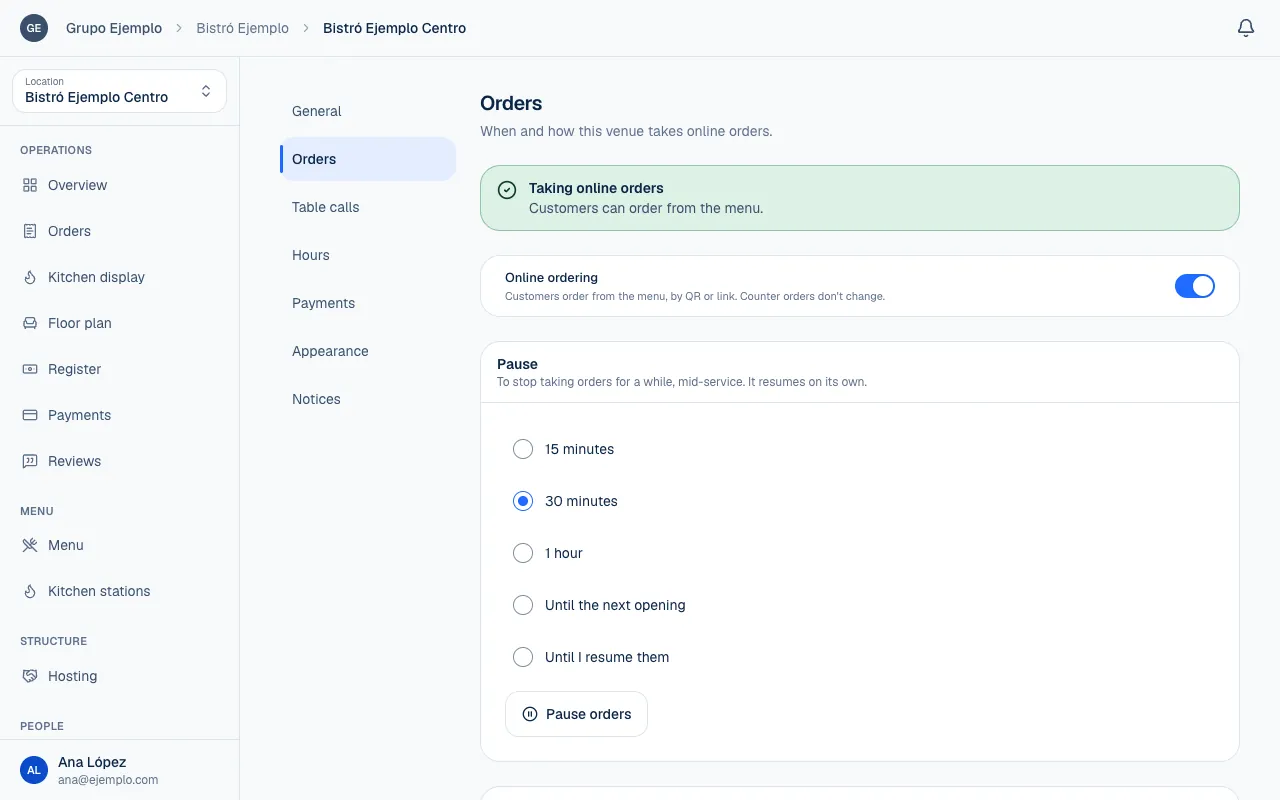
Turn on online orders
- Choose the location under Switch place, then open Settings → Orders.
- Turn on Online ordering.
- Read Status. If something is blocking orders, follow the link to General, Payments or Hours (hours, payment methods).
- Open the menu as a customer and check that you can start an order.
Online ordering controls orders placed by QR code or link. It does not affect counter orders. For a short interruption, use a pause so you do not have to remember to turn the switch back on when the pause ends.
| Status | What to check |
|---|---|
| Not published | Publish the location under General. |
| Online ordering off | Check the location, its brand and its host space, if it has one. |
| No payment method | Activate a method under Payments. |
| Orders paused | Wait for the pause to end or resume orders. |
| Closed by hours | Check the next opening time. |
| Orders not included | The plan does not include new orders. Ask whoever manages the plan. |
If the organization has no plan or the plan has lapsed, the menu stays public but no new orders come in, from customers or at the counter. Orders that already came in can still be viewed, charged and moved forward. A location hosted in a space with a plan keeps receiving. The details are in Choose and review a plan and in Manage your subscription.
Pause orders
Under Pause, choose a duration under Pause for, then select Pause orders. Choose 15 minutes, 30 minutes, 1 hour, Until the next opening or Until I resume them. The next-opening option is available only if you have set opening hours.
Pauses with an end time lift automatically. With an indefinite pause, someone must select Resume orders. You can also resume orders early. During service you do not need to go back to the settings: the status bar in Overview, Orders and Kitchen display has a Pause orders… button for people with permission to pause. A pause stops new online orders; orders you already received still need to be prepared, delivered or cancelled.
Set up the kitchen workflow
Under Kitchen, enter a Preparation time range using From and To, in minutes. Customers see this estimate when they order. Set a range your team can meet during service, and adjust it when the workload changes.
Today the Kitchen display shows every order as soon as it comes in, paid or not. The section also includes the The kitchen sees unpaid orders switch, but it does not change what the screen shows: do not use it to decide when preparation starts. If customers pay first, always check Payment status before you start and agree on the routine with your team: a ticket appearing in the kitchen does not confirm that it has been paid. Preparation and payment are separate statuses. Select Save changes to save the Kitchen settings. To split the dishes between stations, see Kitchen stations.
If you can see the settings but cannot change them, you may have read-only access. Pausing orders, changing order intake and configuring the kitchen are separate permissions. Ask whoever manages the location for the access you need.
If something isn't working
- There's no next opening: the venue is always open or doesn't open this week. A pause until the next opening needs a weekly schedule. Choose another duration, or set the hours in Opening hours.
- The minimum time can't be longer than the maximum. Check From and To under Preparation time.
- Use whole minutes, 0 or more. Enter the preparation time in minutes, without decimals.
- At least one payment method has to be on. Online ordering cannot be turned on without a payment method. Turn one on under Settings → Payments (Choose payment methods), then turn it on again.
- Status still shows a blocker: fix the condition it names, using the table in Turn on online orders.
If the problem continues, email support@piqero.app (opens in a new tab). Help and support lists what to include.