


Scan and browse the menu
Open the menu from a table or link and find what you want to order.
The menu opens in your phone's browser. Scan a table QR code or open the link shared by the location. You do not need to install an app to browse. You can place an order only if that place is taking online orders at the time.
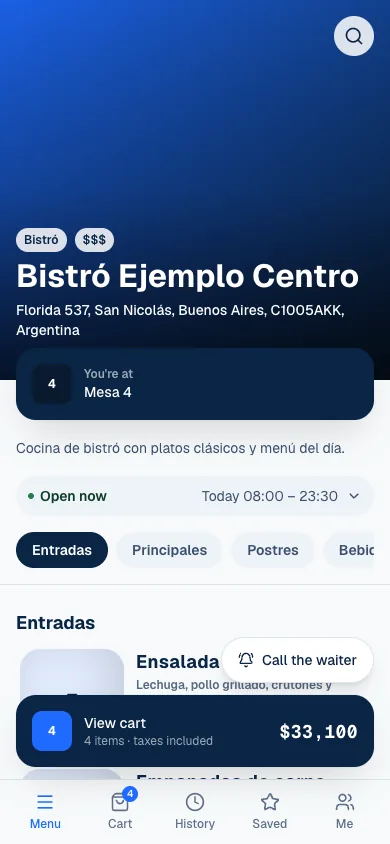
Open the menu
- Open your phone's camera and point it at the table's QR code, or tap the location's link.
- Open the link your phone recognizes.
- Check the place's name and You're at, if a table is shown.
- Browse the sections or use Search the menu.
- Select a product to review its details and options.
The QR code identifies the table so the order can include it. A general link does not show where you are sitting. If you changed tables, check your selection before confirming. You can scan the correct table's QR code again.
Find a product
Sections group dishes, drinks and other products. On each product, you can review its name, price, description and photos provided by the location. Its details also show any options you need to choose before adding it to your cart.
| Item | What it is for |
|---|---|
| Sections | Browse one part of the menu. |
| Search the menu | Find a product by text. |
| Sold out | Shows that a product cannot be ordered right now. |
| Hours | Check when the place is open. |
| Saved | Return to products you marked as favorites. |
If your search has no results, try another word or clear the filters. Clear search lets you browse the menu again. A product being visible does not guarantee it can be ordered; check its availability and the location's overall status.
Understand hours and pauses
The menu may stay open to browse when the location is closed by schedule, paused or has online orders turned off. A notice explains the situation and, when available, the next opening time or when the pause ends.
This table isn’t taking orders right now indicates a table-specific condition. Ask the team if you need another way to order. Do not try to work around a pause by repeatedly loading the same cart. Wait or ask someone at the location.
Browse a food court
In a shared space, Kitchens shows the available locations and their status. Open one to browse its menu. Each kitchen keeps its own hours and can pause orders separately. Open now refers to opening hours; also check messages about online orders.
Change your preferences
Under Me → Preferences, choose Language, either Español or English. The interface also offers appearance and contrast settings. Content written by the location, such as product names and descriptions, may stay in its original language.
When you have what you want, continue with Build and confirm an order.
If something isn't working
- This venue isn’t available with Its menu can’t be viewed right now. The location is not published, is archived or its link changed. Ask the location's team.
- That table isn’t available. Try another one. Scan your table's QR code again or choose another table.
- Page not found: the link or QR code is wrong or out of date. Ask the team for the current QR code or link.
- Something went wrong with An unexpected error occurred on our end. Please try again in a moment. Wait and select Try again.
If the problem continues, tell the location's team or email support@piqero.app (opens in a new tab).