


Availability and sold-out products
Mark products customers cannot order right now without removing their menu details.
If a product sells out during service, turn off Available. It stays visible to customers as sold out or unavailable, but cannot be ordered. Turn it on again when you have more.
Mark a product unavailable
- Choose the location and open Menu.
- Search for the product by name or description.
- Open it and look under Price and availability or Only at this venue if it comes from the brand.
- Turn off Available and save the relevant changes.
- Check the menu to confirm the result.
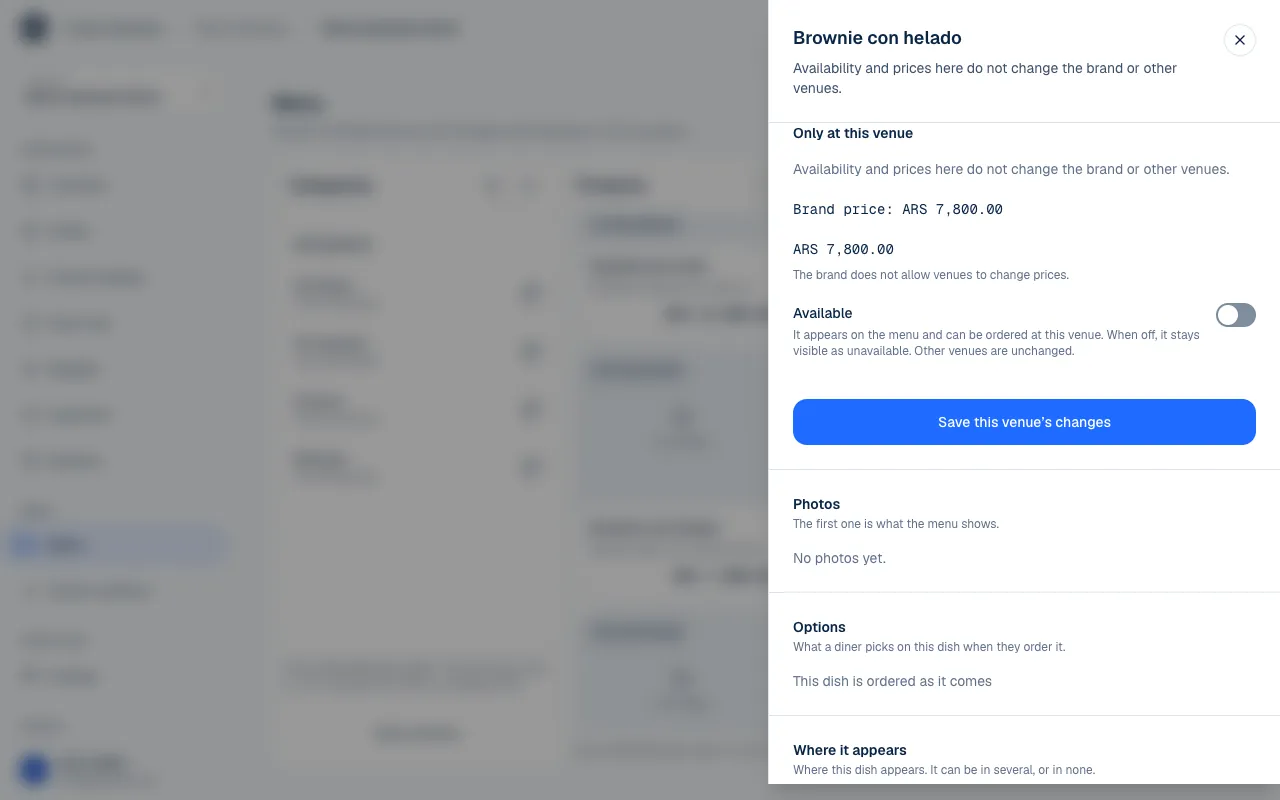
The Unavailable indicator helps the team find it in the list. To offer it again, repeat these steps and turn on Available. You do not need to upload photos, description or options again.
Unavailable or archived
| Status | What customers see | When to use it |
|---|---|---|
| Available | They can select and order the product. | It is normally offered. |
| Unavailable | Its details stay visible, but it cannot be ordered. | It is temporarily sold out. |
| Archived | It is removed from the active menu. | It is no longer offered. |
Archiving keeps the details so you can restore them later. When you open Archive dish, the confirmation offers Mark as unavailable as an alternative for a temporary sellout. Archiving and restoring are covered in Create and edit products.
Archiving a product at the brand affects its locations. Archiving it locally removes it from one branch. Check the scope shown in the confirmation so a shift's shortage does not remove a dish from the whole chain.
Availability by location
A shared product can be available at one location and sold out at another. For an inherited product, Only at this venue changes the status at that branch without changing the brand or other locations.
This works even if the brand does not allow custom prices. Pricing policy and availability are separate: a location can stop offering a product it has run out of, even if it must use the shared price.
Availability is managed for each location. Archiving the product at the brand affects the shared catalog. If it is archived there, restore it at its source first.
Mark one option unavailable
If you still have burgers but are out of bacon, you do not have to turn off the whole burger. Open Options (Options and extras), find the bacon settings and turn off Available. Customers can still see it, but cannot select it.
Product options are edited where the product lives. Marking a product unavailable at one location does not create a local copy of all its options.
What availability does not change
Marking a product unavailable does not cancel existing orders or change payments already collected. If you cannot prepare an order, work with the order (Receive and follow orders) and its payments (Review payments and issue refunds).
It also does not stop the location from receiving other orders. To stop all new orders for a while, use a pause for online orders. The menu remains ready for when you resume.
If something isn't working
- Set availability at each venue. Sold-out items are not marked from the brand. Choose the location with Switch place and do it there.
- This dish is archived: restore it to edit it again. Restore it where it was created (Create and edit products), then set its availability again.
- This product is not on this venue’s menu. The dish is not served at that location. Check the selected location or its brand's menu.
- You do not have permission to do this. Your role does not let you change the menu at that place (Roles and permissions).
If the problem continues, email support@piqero.app (opens in a new tab). Help and support lists what to include.