


Build and confirm an order
Choose options, review your cart and confirm how you will receive your order.
You can build an order from a location's menu or from kitchens in a shared space. Adding products to your cart does not send anything to the kitchen. First review the order, choose a table or pickup and complete checkout.
Choose products
- Select a product in the Menu to open its details.
- Complete groups marked Required and choose any extras you want.
- Review the price and quantity. If the product allows it, add Special instructions.
- Select Add to cart and repeat for other products.
- Open Cart to review everything.
Options show how many you need to choose: Pick …, Pick up to… or a range. An Optional group can stay empty; a required group needs the stated selection. Some options are Free and others add to the price. Review the combination before adding several units.
To correct an item, open it again and select Update item after making the changes. Instructions are for details the location allows; they do not replace required options or guarantee that the kitchen can fulfill every special request.
Review your cart
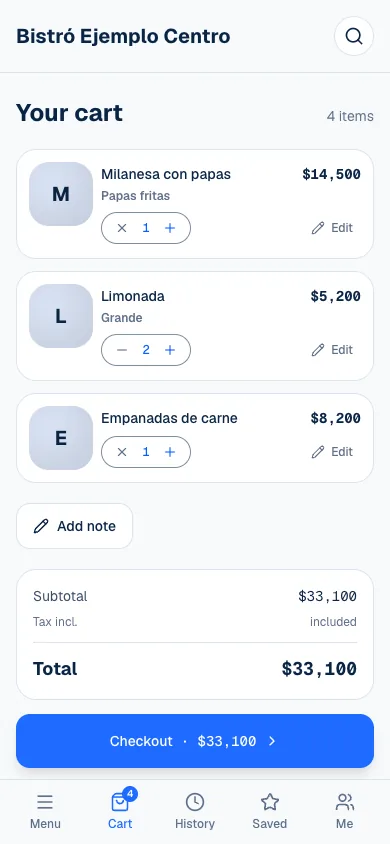
Under Your cart, check products, options, quantities and total. Order note adds a general kitchen instruction. It is separate from an instruction for a specific product.
| Detail | What to check |
|---|---|
| Products | The right dishes and quantities are included. |
| Options | Variations and extras on each item. |
| Table | It matches where you are sitting. |
| Total | The amount before confirming payment. |
A product may sell out while you are choosing. If the system tells you, remove the flagged item and check the order again. If a kitchen stops taking orders, you also need to resolve its items before continuing.
Choose a table or pickup
Under How are you ordering?, choose Pickup at counter or an available table, depending on the place. Confirm your selection; Change lets you correct it before finishing. If you came from a table QR code, still check that the table is right.
Pickup means you collect the order at the counter. It does not mean home delivery. While it is being prepared, tracking shows We'll let you know when it's ready to collect., and when it is done, Ready for pickup. In a shared space, each kitchen prepares its part as a separate order, with its own number.
Sign in and confirm
You need a session to order, and it can be a guest session. If you do not have one yet, the screen offers Continue as guest, Sign in or Create account. As a guest, enter your name and continue (Order without an account). With an account, use your phone or email and the verification code.
From Cart, select Checkout to review Payment. Choose an available method and confirm with Pay (Pay and leave a tip). Wait for Your order is placed before assuming it was sent. Check the wait estimate from the location; it is an estimate, not a guaranteed delivery time. To track it, see Follow your order.
If something isn't working
- An item sold out. Remove it to continue. Tap Remove on the flagged item and check your cart again.
- That table isn't available any more. Pick another one or collect at the counter. Choose another table or Pickup at counter.
- Ordering is paused for now. or Closed for now. The location is not taking orders right now. The notice says when it is back, if it knows.
- Couldn't place your order. Please try again. The order was not placed. Check your connection and select Pay again.
- Online payment isn't available right now — your order is placed; pay at the counter. The order already reached the location: pay for it at the counter.
If something about your order is wrong, talk to the location's team: they are the ones who can fix it. If the page is not working, email support@piqero.app (opens in a new tab).