


Your account
Change your details, adjust preferences and close sessions you no longer use.
Open My account from the user menu. The Your account page brings together your details and preferences, no matter which location you work at. You can open it directly (opens in a new tab).
Change your name
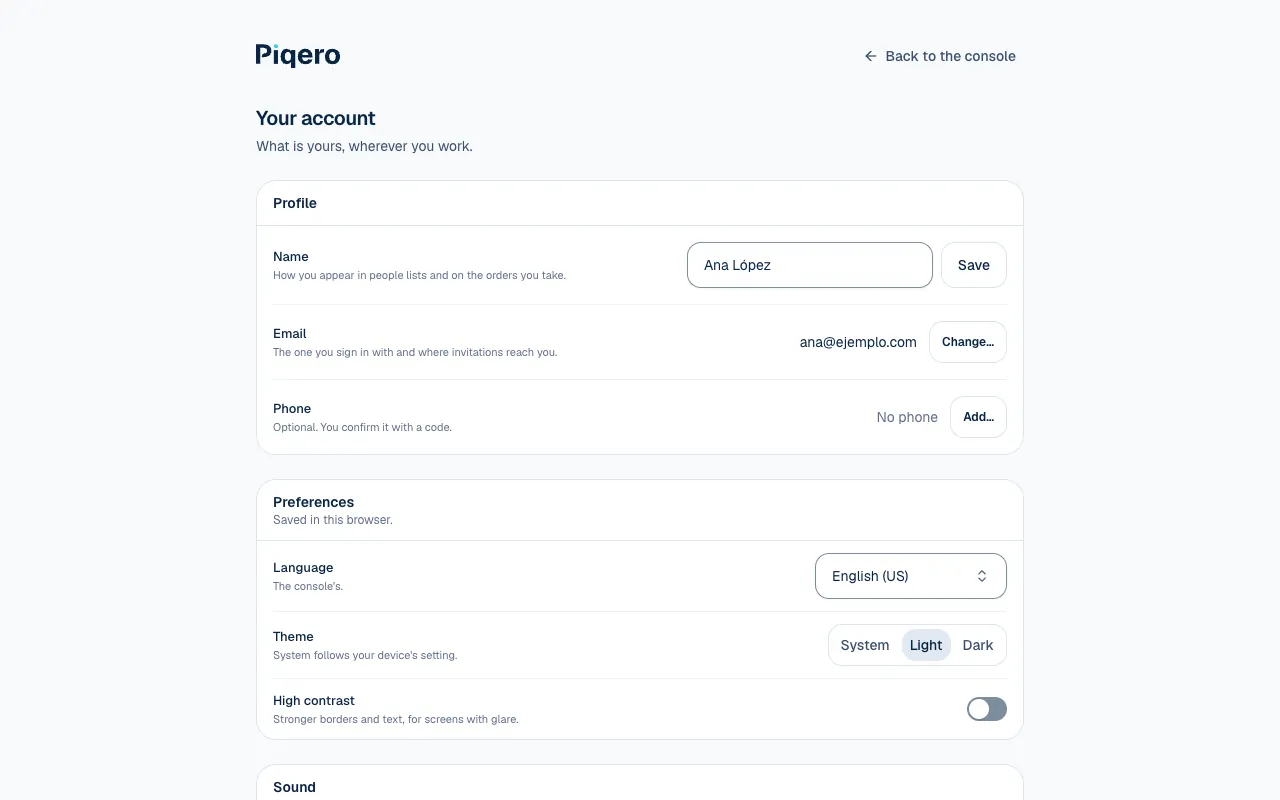
Under Profile, edit Name and select Save. Your team sees this name in people lists and on orders you take.
Your email is the address you use to sign in and receive invitations. A phone number is optional. To change either one, you first need to prove you still have access to your current email. If you lost it, see Sign in and get back in.
Change your email or phone number
There are two checks: one protects your account before the change, and the other confirms the new detail.
- Under Profile, select Change… next to Email or Phone. If you have not added a phone number yet, select Add….
- Under Confirm it's you, request the code sent to your current email.
- Enter the six-digit code and select Confirm.
- Enter the New email or Number, with country code, then request its code.
- Confirm the code for the new detail to complete the change.
You keep signing in with your old email until you confirm the new one. When the change is complete, a notice goes to both the old and new addresses.
If the code does not arrive, check the address and your spam folder. Resend code becomes available after the wait shown on screen. If the identity check expires, repeat it with your current email.
Preferences
| Preference | What it changes |
|---|---|
| Language | The console's language. |
| Theme | Light, Dark or System, which follows your device. |
| High contrast | Stronger borders and text for screens with glare. |
These preferences are saved in this browser. Changing the appearance on a tablet does not automatically change it on another computer.
Under Sound, choose whether the console makes sounds, set the Volume, and choose which sounds to hear: new orders, orders not taken or overdue, table calls, notices and confirmations. Select Play to hear them. Sound settings are saved to your account and follow you across devices.
Notice preferences are personal. They do not give you permissions or make a location send notices that it has turned off. See Notices and sounds to configure both sides.
Open sessions
Under Sessions, see the devices where your account is signed in, their latest activity and, when available, their connection address. The current one says This session.
Select Sign out for a session you no longer need, or Sign out the others to keep only this one. It may take a few minutes for the sign-out to appear on those devices. To sign out of the device you are using, select Sign out from the user menu. A session lasts up to 7 days and renews while you use it.
Delete your account
Under Danger zone, Delete account… opens a confirmation. If you own places, transfer ownership first. The screen lists them with a Transfer button.
Then confirm your identity with a code sent to your current email and type delete my account. Deletion is immediate and permanent. It removes your name, email and phone number, removes you from the organization and closes your sessions. Orders and reviews remain without your name. If you come back, you start with a new account.
If something isn't working
- The code is wrong or expired. Check it or ask for another. Enter the latest code you received, or select Resend code.
- Too much time went by. Confirm it's you again. The check with your current email expired. Request a new code and continue.
- You asked for too many codes. Wait a moment and try again. Wait a few minutes before requesting another.
- That number is already on another account. A phone number can be on only one account. Use another number.
- You own a place: hand it to someone else before deleting your account. Transfer each place on the list with Transfer, then try again.
If you lost access to your email, see Sign in and get back in. If the problem continues, email support@piqero.app (opens in a new tab). Help and support lists what to include.