


Use the register
Open a shift, charge for orders and close it by counting the cash in the drawer.
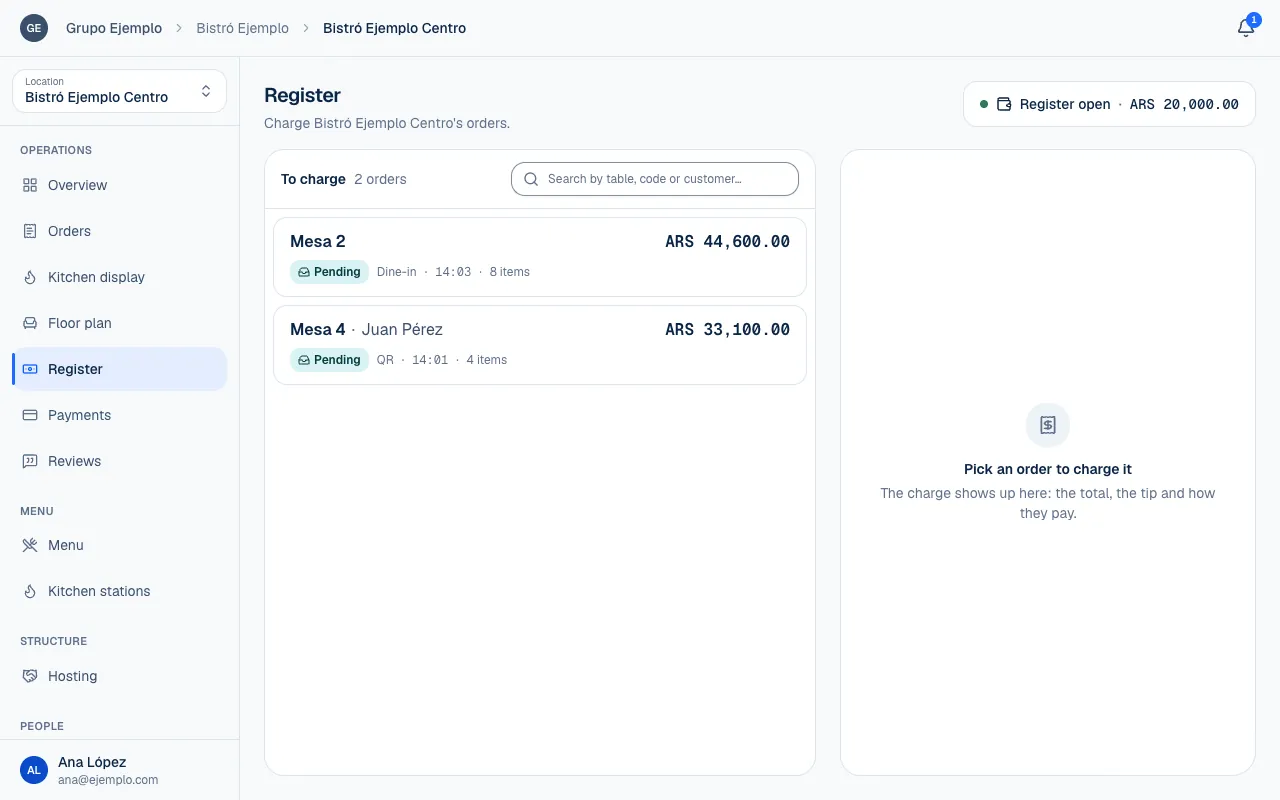
The Register screen brings together orders To charge and the Venue register panel, where you open and close the cash shift. Every cash payment belongs to an open shift. Mercado Pago QR payments can be associated with the shift, but they do not increase the cash that should be in the drawer.
Open a shift
- Choose the location and open Register.
- Open the Venue register panel.
- Enter the Opening float, the change already in the drawer. If it is empty, enter 0.
- Select Open register and check that the status says Register open before taking cash.
The opening float is not a sale. It is the starting amount Piqero compares with payments, refunds and the cash you count at closing. If the screen could not read the register, select Refresh before opening another one. A shift may already be open but not visible yet.
Charge an order
Under To charge, search by table, code or customer and choose the order. Review its products and balance; View order opens the details. The register charges the entire remaining balance; it does not let you enter an arbitrary part of the bill. It may show Partly paid if existing transactions cover only part of the order.
| Method | Steps |
|---|---|
| Cash | Choose the tip, enter Received if you need to calculate change, then select Charge. |
| Mercado Pago QR | Choose the tip, select Show QR and wait for payment confirmation. |
For cash, Received is the amount the customer handed you. If they paid the exact amount, you can leave it blank. Change calculates what to return. Use Change as tip if the customer asks to leave the change as a tip.
The QR expires after 15 minutes. An expired QR does not charge the customer. To charge by QR, the location needs Mercado Pago connected and QR payments enabled (Connect Mercado Pago). You can generate another or switch methods. If you switch from a pending QR to cash, the QR is cancelled first to prevent two payments. Wait for the result before moving on to the next customer.
Close the register and count the cash
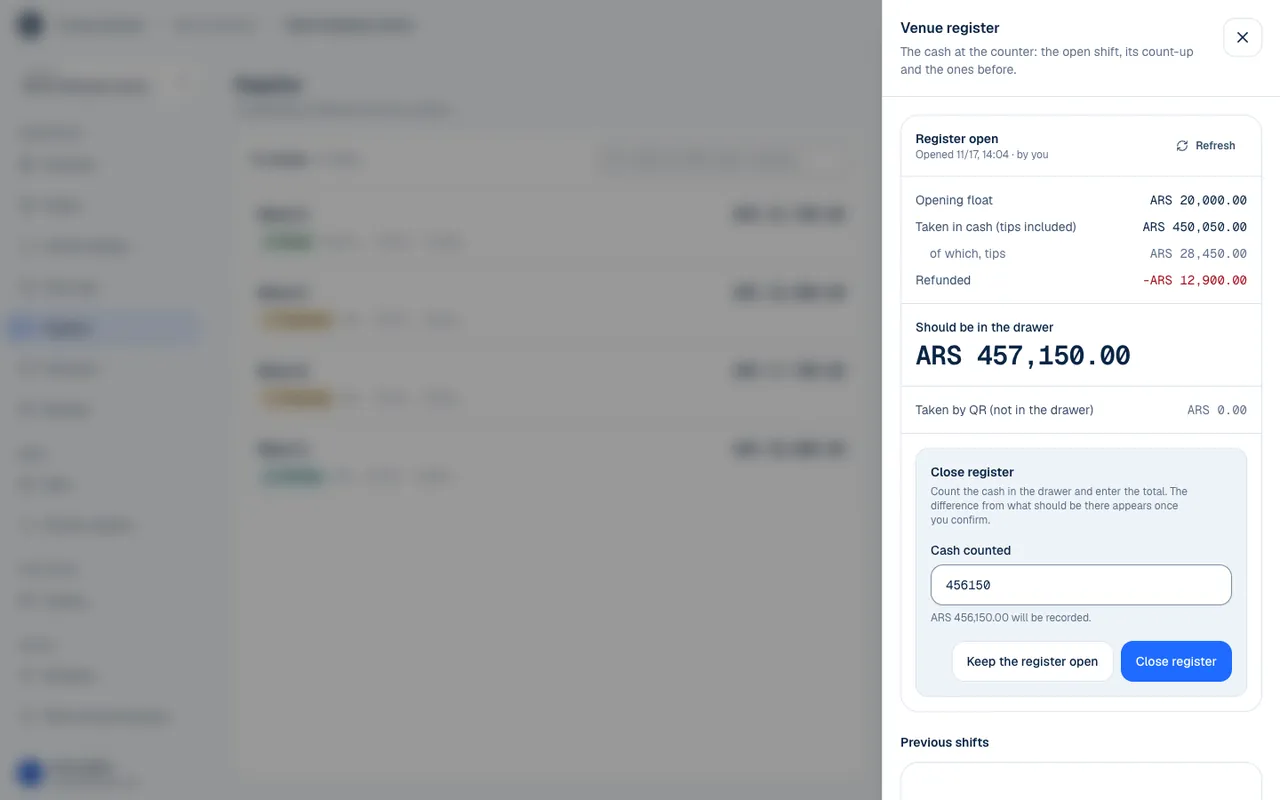
Open the panel and review:
| Amount | What it includes |
|---|---|
| Taken in cash | Cash payments for the shift, including tips. |
| Refunded | Refunded cash, which reduces the expected drawer amount. |
| Should be in the drawer | Opening float and cash transactions. |
| Taken by QR | Electronic payments, which are not in the drawer. |
Select Close register…, count all the cash, including the opening float, and enter Cash counted. Confirm with Close register. The result says Cash matches, Over… or Short…; the difference is recorded.
Under Previous shifts, you can review opening, closing, expected amount, counted amount and difference. Notices about a register left open too long or a difference can help spot issues, but they do not replace a cash count. After closing the shift, you cannot refund a cash payment from that shift through Piqero. Tips and change are covered in Record and review tips; refunds, in Review payments and issue refunds.
If something isn't working
- A register is already open at this venue: someone else opened it in the meantime. Your float wasn't recorded. Refresh to see that register. Refresh and charge on the register that is already open.
- This order is already paid. The screen has been refreshed. Someone else charged it, or an online payment went through. Check it under Payments before charging again.
- Mercado Pago couldn't generate the QR. Try again or charge another way. Select Show QR again, or choose Cash.
- The pending QR couldn't be cancelled, so no cash was taken. Try again or wait for the QR to expire. The previous QR is still active. Wait for it to expire, or try again before taking cash.
- Mercado Pago is connected, but the counter register for QR payments isn't enabled yet. Complete QR payments at the till under Settings → Payments (Connect Mercado Pago).
- The Mercado Pago connection expired. Reconnect it from Settings → Payments with Reconnect Mercado Pago. The message says "Integrations", but the connection is under Payments.
If the problem continues, email support@piqero.app (opens in a new tab). Help and support lists what to include.