


Your first order, end to end
Follow an order from the guest placing it on the menu to you charging it at the register and seeing it in Payments, with the guest on one side and your team on the other.
This guide walks through a complete order. It helps you check that your location is ready and lets your team see the journey before the first service. We use cash: there is no need to connect Mercado Pago.
Before you start
For a guest to be able to order, the location has to be published, with Online ordering on, with an active payment method, within its opening hours and with a plan that includes orders. If something is missing, the Status block in Settings → Orders tells you what. Each cause is in Configure orders and the full setup of the location is in Your first location, step by step.
On the guest side
- Scan a table's QR code with your phone. If you have not printed the QR codes yet, open the location's link: you will order with Pickup at counter. QR codes are prepared in Print and replace QR codes.
- Tap a product, choose its options and tap Add to cart. Repeat with other products.
- Open Cart, review it and tap Checkout.
- If the menu shows the welcome screen, tap Continue as guest, enter your name and tap Start ordering. The details are in Order without an account.
- Under Payment, check that your table is shown or choose Pickup at counter, choose Cash and tap Pay.
- Wait for Your order is placed.
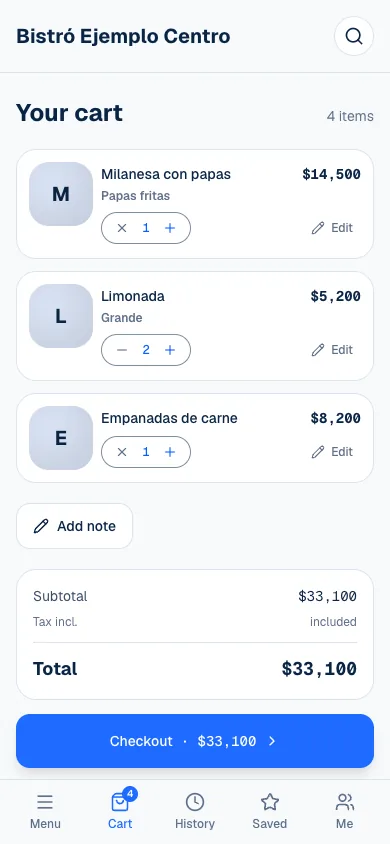
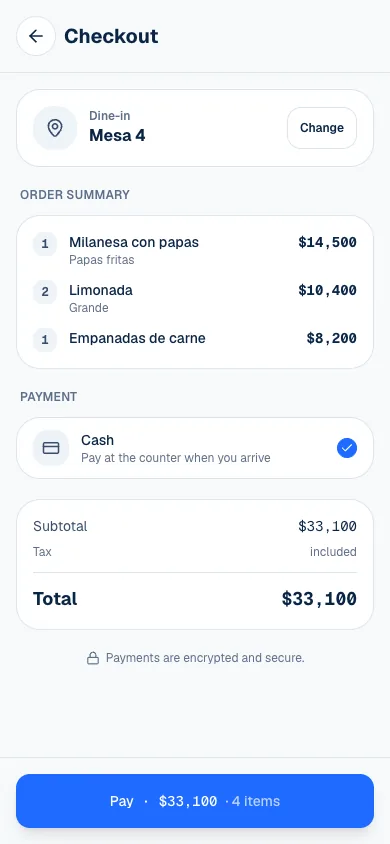
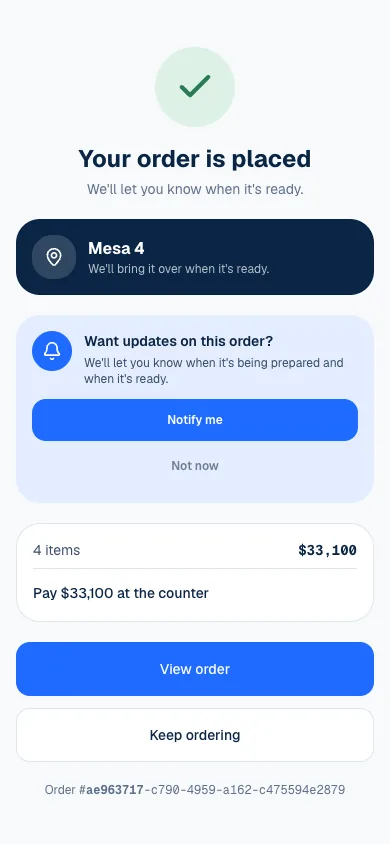
With Cash, the order is confirmed without being paid: your team charges it at the location. What the guest sees at each step is in Build and confirm an order and in Pay and leave a tip.
On your team's side
- Open Orders. The order is already in the list, as Pending and Unpaid, with its table and the guest's name. If you turned notices on, it also makes a sound and shows in the bell (Notices and sounds).
- On the Kitchen display it shows in the Pending lane. Open the order in Orders and select Start preparing: it moves to Preparing.
- When it is done, select Mark ready. If it is for a table, take it over and select Mark delivered.
- Open Register. If the register is closed, enter the Opening float, the change already in the drawer, and select Open register.
- Under To charge, choose the order, or select Charge in the order's detail. Choose Cash, enter Received if you need to work out the change and select Charge.
- Open Payments: the payment shows as Approved, with the method Cash. In Orders, the order moves to Paid.
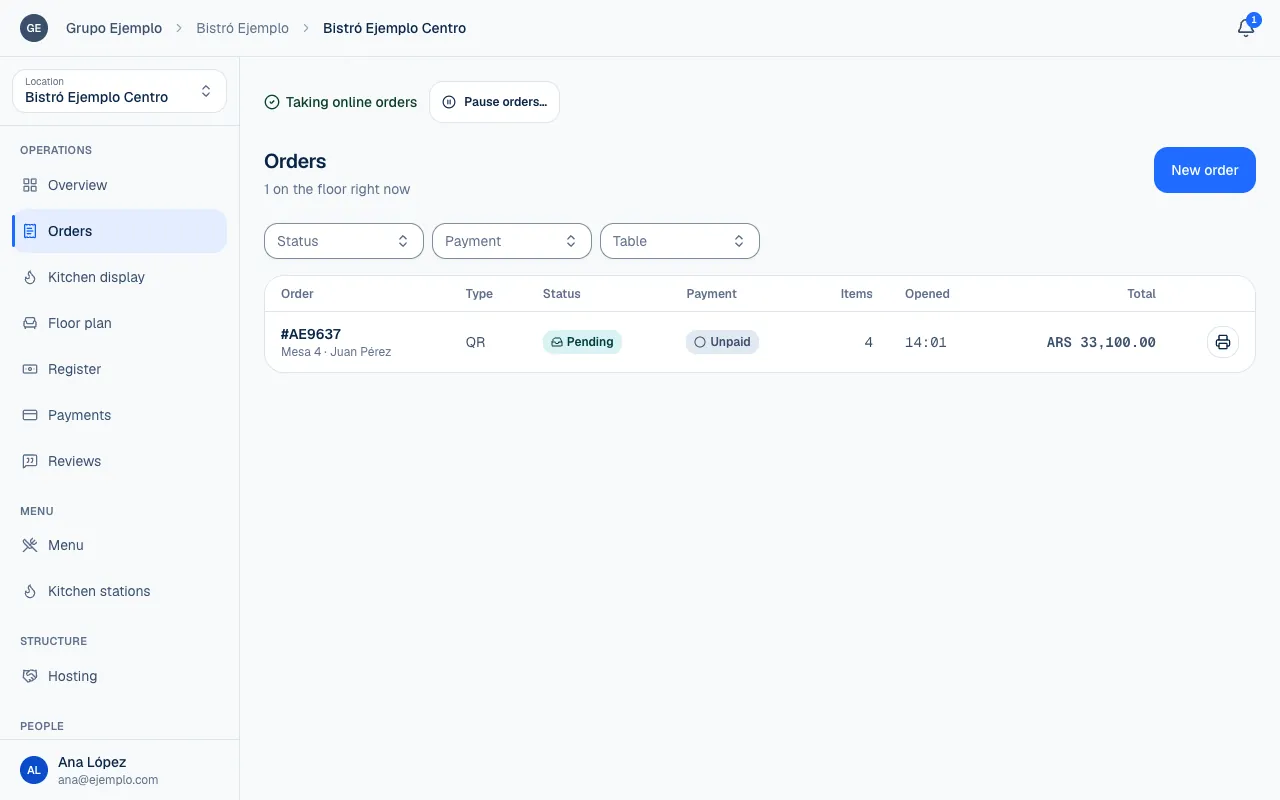
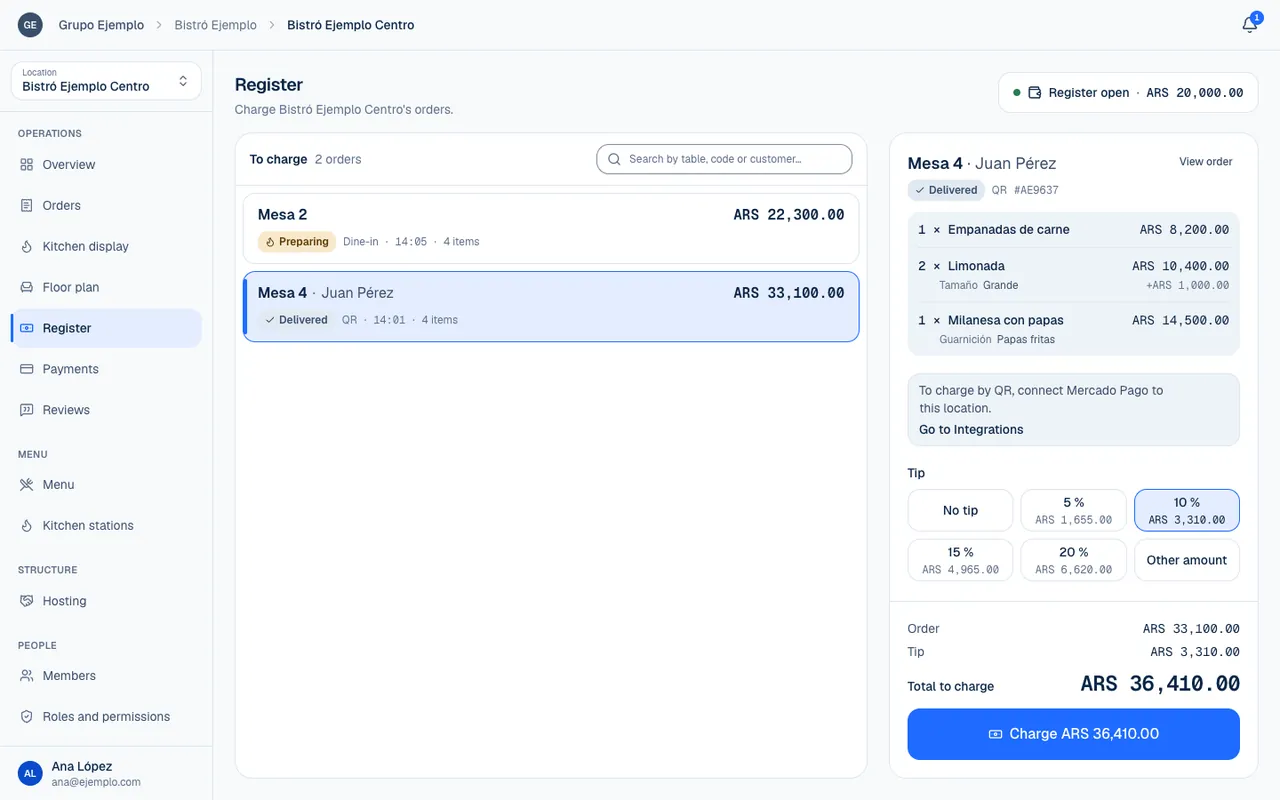
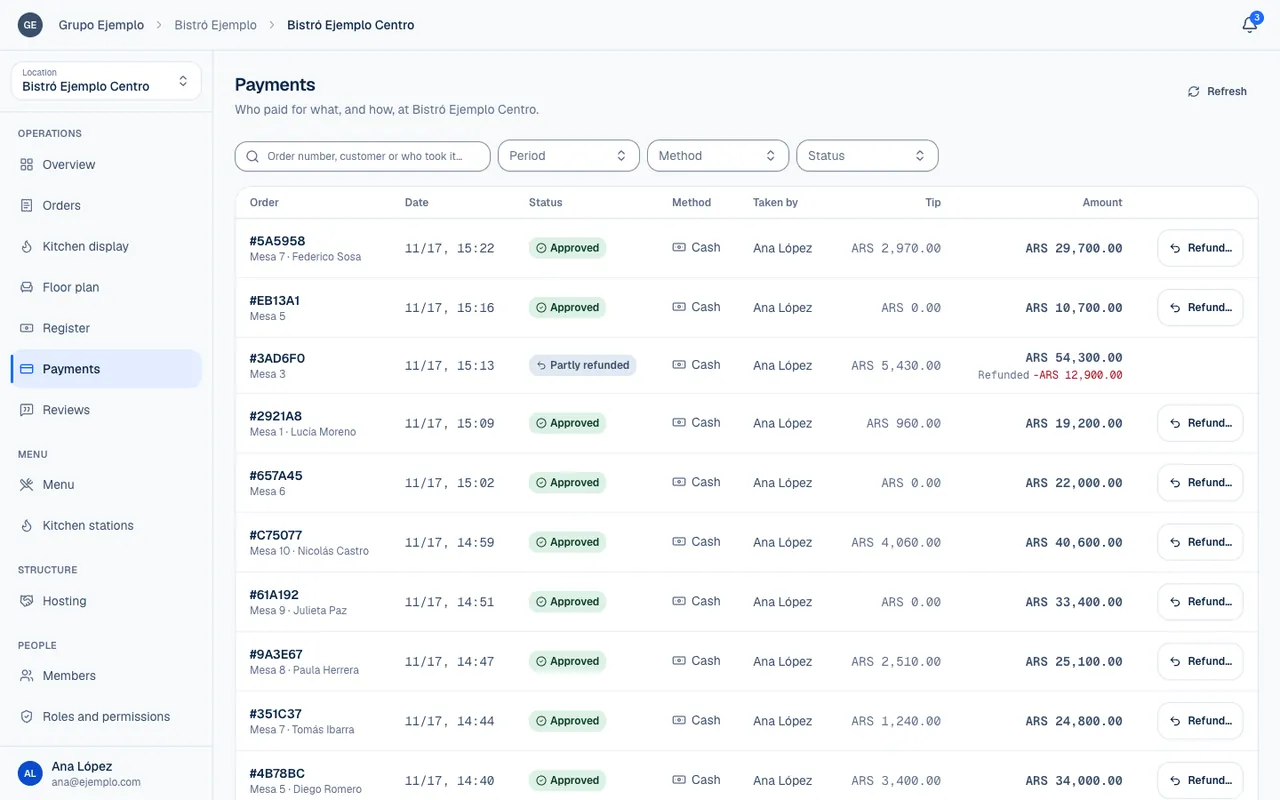
Preparing and charging are separate steps: an order can be Delivered and still Unpaid, or Paid and still being prepared. Each screen is explained in Receive and follow orders, Work with the kitchen display, Use the register and Review payments and issue refunds.
What the guest sees meanwhile
| You move the order to | The guest sees |
|---|---|
| Pending | Received |
| Preparing | Preparing |
| Ready | Ready |
| Delivered | Completed |
The guest follows the order from View order, or from History, in the same browser they ordered with (Follow your order). In the payment they see Payment due until you charge it and Paid afterwards.
If something isn't working
- The guest cannot order. Check Status in Settings → Orders. The list of conditions is at the end of Your first location, step by step.
- You do not have permission to take orders at this location. When you take a counter order, this message also appears when the plan does not include orders. Without a plan with orders, no new orders come in, neither from the QR code nor at the counter. Check it in Choose and review a plan.
- No register is open. Open it to take cash. Select Open the register, enter the opening float and charge again: without an open shift, cash does not count toward any shift.
- The status changed or this action is no longer available. We refreshed the order; review it before continuing. Someone else moved it while you had it open. Check the new status and continue from there.
- It was only a test. Open the order and select Cancel order…. If you already charged it, the shift's register has to still be open to refund the cash.
If the problem continues, email support@piqero.app (opens in a new tab). Help and support lists what to include.