


Roles and permissions
Create roles for your team and choose what each person can do at each place.
A role groups permissions for a job: serving tables, preparing orders or managing a location. You define roles, then give them to people under Members (Invite and manage members). Creating a role does not assign it to anyone.
Create a role
Open Roles and permissions at the place where you will assign the role. Brand roles are assigned at the brand; location roles are assigned at the location. For the whole organization, you can open the screen (opens in a new tab).
- Select New role.
- Enter a Name and, if it helps explain the role, a Description.
- Open the groups you need or use Search permissions.
- Choose a scope for each permission: No access, Here only or Here and below, where available.
- Select Save, then assign the role under Members.
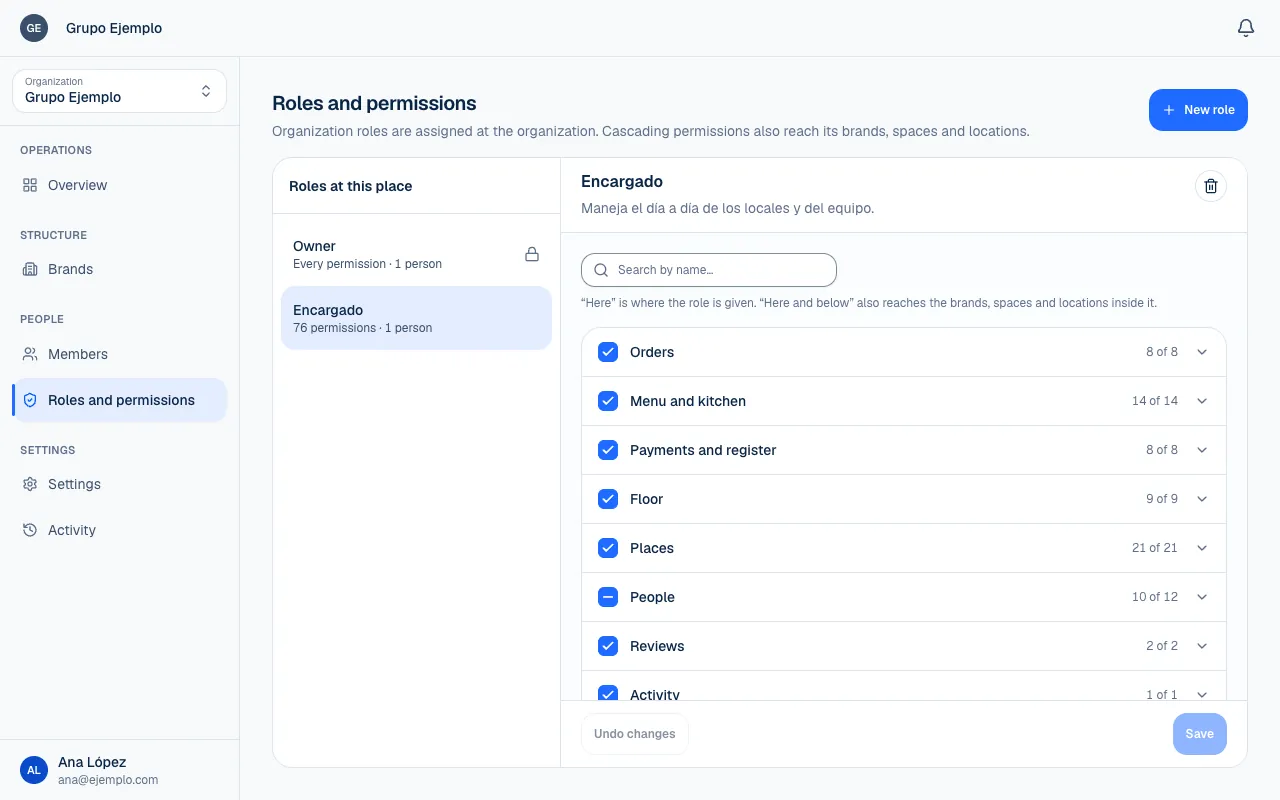
What each group includes
The screen only shows permissions that are valid at that level. Viewing and making changes are separate permissions: being able to view payments does not let you refund them. To decide where each permission applies, see Where each access applies.
| Group | What it is for |
|---|---|
| Orders | View, take, advance or cancel orders; configure online orders and table calls. |
| Menu and kitchen | Manage products, sections, prices and stations; configure kitchen settings. |
| Payments and register | View sales and payments, charge, refund and use the register. |
| Floor | View and edit tables and zones; replace QR codes. |
| Places | Manage brands, spaces, locations, hours, appearance and hosting. |
| People | Manage members, roles and exceptions. |
| Reviews | Read and reply to reviews. |
| Activity | See who changed what. |
| Notices | Choose which notices a place sends. |
| Integrations | View, connect or disconnect integrations. |
| Account | Change the organization, its ownership, plan and payment method. |
| Piqero support | View access, adjust the policy and answer support requests. |
The Owner role
Every place has an automatic role for its owner. The person who holds it can do everything there and below without selecting permissions. This role is Not editable and does not count toward your plan's custom role limit. A place can have only one owner.
Under Owner of this place, you can see who holds the role. Only an owner of that place or a higher-level owner can appoint another person. Only a higher-level owner can Leave vacant….
If the new owner already belongs to the organization, the change happens right away. Otherwise, they receive an invitation and the current owner stays in place until they accept it. Organization ownership is transferred from Settings with an email confirmation and cannot be left vacant. The confirmation link expires after an hour; the steps are in Change organization settings.
Who can give what
You need permission to create, edit or assign roles, and these rules also protect people's access. You cannot give permissions you do not have, or extend them to lower-level places unless your own access has that scope.
You cannot narrow or delete a role you hold, or change someone else's access if they hold, at or above that place, a permission you do not have. The rules also check who holds a role when you edit or delete it. An owner of the place or above can make these changes.
Edit or delete a role
Select the role, change its permissions and save. The changes apply to everyone who has that role. Undo changes removes edits you have not saved yet.
Delete role… removes that access from its holders and cannot be undone. They keep their other roles. Check how many people it affects before confirming.
Your plan limits how many custom roles you can have. If you reach the limit, you can keep using existing roles. Check your plan before creating more.
If something isn't working
- There is already a role with that name here. Each role at a place needs a different name. Change the name, or edit the role that already exists.
- That role has permissions you don't hold here. You can only build or give roles with permissions you hold at that place. Remove the ones you do not have, or ask an owner to make the change.
- One of those permissions only exists further down: give it as “Here and below”. That permission is used at places further down, like a brand's locations. Give it the Here and below scope (Where each access applies).
- You hold this role: you cannot narrow or delete it. Ask somebody else who may. This keeps people from removing their own access by mistake.
- Somebody who holds this role has permissions you do not hold here. Ask an owner of this place. The change would affect someone with more access than you.
- The owner role cannot be changed. It holds every permission. To change who the owner is, follow The Owner role.
- You've reached what your plan includes. You already use all the custom roles your plan includes. Reuse an existing one, or review the plan.
If the problem continues, email support@piqero.app (opens in a new tab). Help and support lists what to include.