


The brand menu
Share products and sections across locations while letting each location make the adjustments it needs.
The brand's Menu is the shared catalog for its locations. Adding products here saves you from maintaining a separate copy for each branch. Each location can add its own items and local settings to that base.
Set up the shared menu
- Choose the brand with Switch place, then open Menu.
- Create shared sections such as Starters, Mains and Drinks (Organize categories).
- Add products with their prices, photos and options (Create and edit products).
- Set the order of sections and products (Arrange the menu).
- Open a location's Menu to see how it combines with that location's own items.
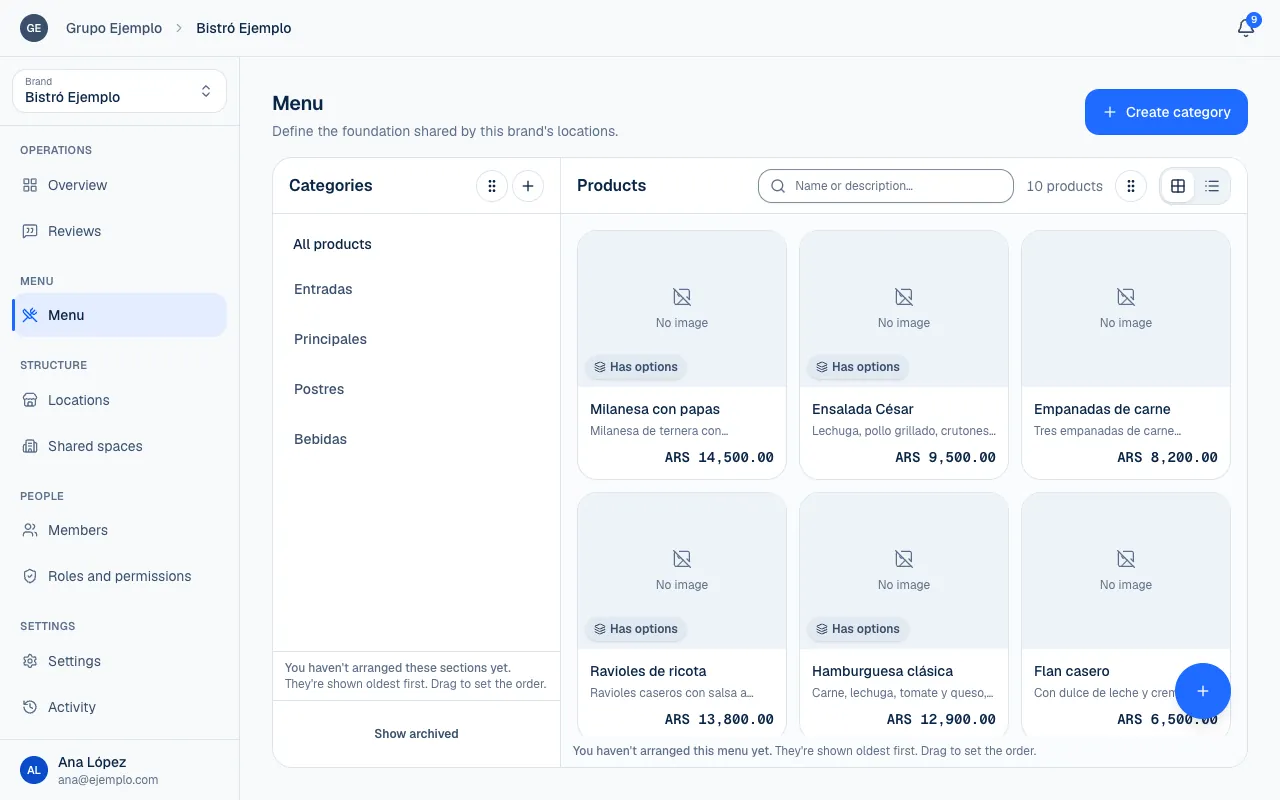
Changes to a shared product's details are made at the brand by someone with the right permissions. A location does not own a product just because it displays it.
What changes at each place
| What | At the brand | At the location |
|---|---|---|
| Product | Name, description, photos and options for the shared product. | Local availability and whether the product is archived locally. |
| Price | Base price. | Its own price, if the brand allows it. |
| Sections | Brand sections. | Location-specific sections and where products appear in them. |
| Order | Shared order. | Its own order, which can replace the inherited one. |
For an inherited product, On this location's menu lets you choose the location's own sections where it appears. Brand sections are still managed from the brand.
A product from the brand can be sold out at one location without being sold out everywhere. Even when local prices are disabled, each location keeps its own availability and archive settings (Availability and sold-out products).
Allow local prices
At the brand, open Settings → General (Brand settings). Under Prices by venue, turn on Allow venues to change prices, then select Save setting.
Then, on a shared product at a location, look under Only at this venue. With permission to change prices, turn on Use an own price, enter the amount and select Save this venue’s changes. Use the brand price removes the local choice.
The base price remains the default for locations without a custom price. Changing a local price does not affect the brand's price or another branch's price.
Inherited or custom order
When a location says You're inheriting this order, it follows changes from above. When you save an order at the location, it changes to This order is yours. Changes to the order above it no longer move its items.
Go back to the inherited order discards the location's own order. Review sections and products separately. You do not have to change product details to show them in another order.
Check the customer menu
After an important change, open the public menu for each location (Scan and browse the menu). Check prices, availability, sections and order. Two locations sharing a catalog does not mean they receive orders at the same time; each keeps its own hours, payment methods and operating status.
If something isn't working
- The brand no longer allows own prices. Reopen the product to see the current price. Someone turned off Allow venues to change prices while you were editing. Reopen the product: the location uses the brand price.
- Confirm the change to return to brand prices. When you turn off prices by venue, review the list of own prices Piqero shows and confirm.
- Set availability at each venue. Sold-out items are marked from each location (Availability and sold-out products).
- You do not see Use an own price at a location: the brand does not allow prices by venue, or your role cannot change prices there.
If the problem continues, email support@piqero.app (opens in a new tab). Help and support lists what to include.