


Choose payment methods
Enable cash and Mercado Pago so customers can pay for their orders.
Under Settings → Payments for a location, choose which payment methods customers can use when they order from the menu. You can offer Cash, Mercado Pago or both. This changes the customer's workflow: pay at the location later or pay online from their phone.
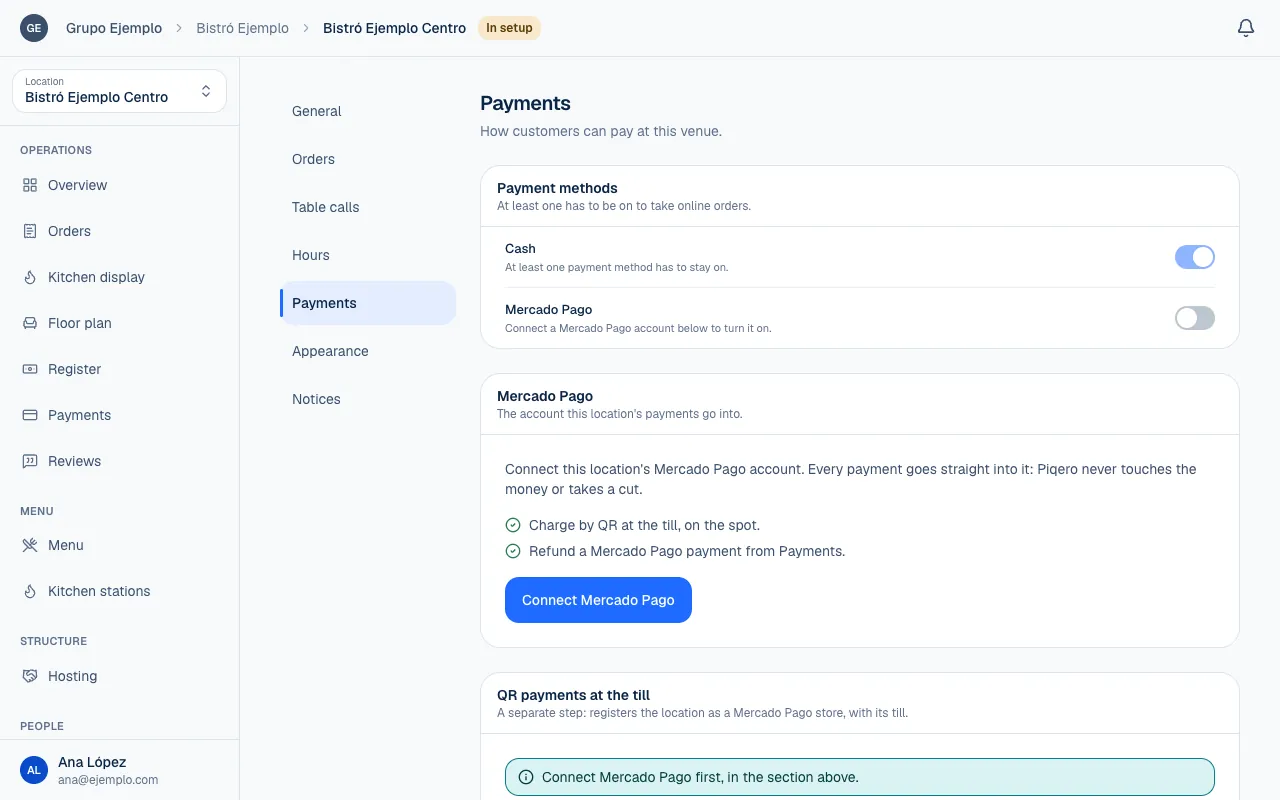
Enable payment methods
- Choose the location under Switch place, then open Settings → Payments.
- Under Payment methods, turn on Cash if you will accept it at the counter or table.
- To turn on Mercado Pago, first connect the location's account in the Mercado Pago section, further down this same screen (Connect Mercado Pago).
- Each switch saves as soon as you change it. Check the status under Settings → Orders.
| Method | What the customer does | What the team does |
|---|---|---|
| Cash | Confirms the order and pays at the location. | Records the payment under Register. |
| Mercado Pago | Pays online when placing the order. | Waits for payment confirmation and checks it under Payments. |
Customers cannot record that they handed over cash themselves. A team member with permission to charge confirms it in an open register. An order confirmed for cash may remain Unpaid while it is being prepared.
Keep a payment method available
At least one payment method must be active to receive online orders. If you try to turn off the last one, the screen warns you. If disconnecting Mercado Pago leaves the location without a payment method, online orders are turned off too.
In that case, turn on Cash or reconnect Mercado Pago and check which method is enabled. Then open Settings → Orders and turn Online orders back on. Restoring the connection does not turn order intake back on by itself.
Payment and preparation are separate steps
The kitchen sees every order as soon as it comes in, paid or not, whatever the payment method. If your location takes payment first, agree on the routine with your team and check Payment status on the order before starting: seeing a ticket in the kitchen does not prove it has been paid (Work with the kitchen display).
Changing the payment method does not change kitchen status by itself. Likewise, marking an order ready or delivered does not record cash received.
Check a payment that may be pending
Closing Mercado Pago or returning from its screen is not enough to consider an order paid. Check the status on the order and under Payments. If an online payment is pending, ask the customer before charging them another way. The first payment could still go through, leaving two charges. To charge at the register, see Use the register.
If you cannot change the payment methods, ask whoever manages the location for access. Being able to view orders or charge at the register does not include permission to change payment settings.
If something isn't working
- Connect a Mercado Pago account below to turn it on. The Mercado Pago switch stays locked until you connect the account in the Mercado Pago section of this screen (Connect Mercado Pago).
- At least one payment method has to stay on. The last method cannot be turned off. Turn the other one on first, then turn this one off.
- The customer started paying with Mercado Pago: when you charge an order at the Register that has an unconfirmed online payment, ask the customer before charging another way (Check a payment that may be pending).
If the problem continues, email support@piqero.app (opens in a new tab). Help and support lists what to include.