


Record and review tips
Learn which tip options customers have and how tips are kept separate from the order amount.
A Tip is optional and is recorded separately from the order amount. Customers can choose one when paying online, and the team can add one while charging under Register (Use the register). Keeping them separate lets you see how much was for the food and how much the customer left as a tip, without treating money for one as payment for the other.
When the customer pays
On the menu's online payment screen (what the customer sees), the Tip row offers No tip, 10%, 15%, 20% and Other. The default is 10%. Before continuing, the customer can choose another amount or set the tip to zero with one tap.
- Review the order amount on the payment screen.
- Choose No tip, a percentage or Other.
- If you choose Other, enter a valid Tip amount.
- Check the Tip line and total before continuing to Mercado Pago.
The online payment combines the order and tip in one payment to the account connected to the location. The tip is recorded as paid only after that payment is confirmed. Opening Mercado Pago or returning from its screen does not by itself confirm that the money arrived.
When the team charges the customer
Under Register, choose the order and review Tip before charging. You can select No tip, an available percentage or Another amount. For the last option, enter the Tip amount and check the total to charge.
For a cash payment, Received lets you enter the amount the customer handed over and calculate Change. If they ask to leave their change as a tip, use Change as tip so that amount is identified correctly. Do not add it to a product's price or record it as a separate order.
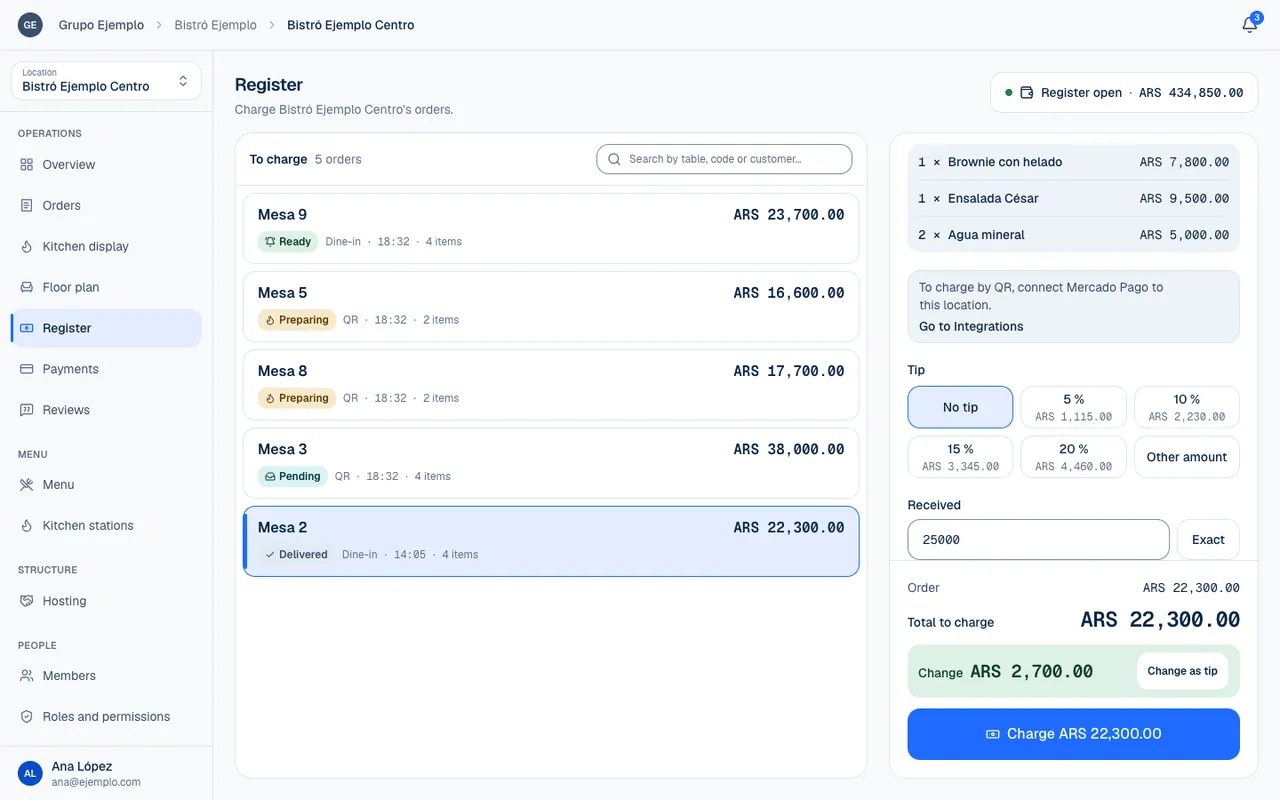
| Amount | What it means |
|---|---|
| Order | The food balance you are charging. |
| Tip | The optional amount added to the payment. |
| Total to charge | What the customer pays for both. |
| Received | Cash handed over, used to calculate change. |
Review recorded tips
Under Payments, the Tip column shows the tip for each transaction. You can also review an order's payments from its details. An order may have more than one transaction. Check the specific payment if you need to explain a difference.
In the Register panel, Taken in cash (tips included) counts everything that went into the drawer. The of which, tips line identifies the tip portion; it is not extra income to add again. Taken by QR (not in the drawer) appears separately because that money went through Mercado Pago.
If you issue a refund
A full Mercado Pago refund also returns the tip. With a partial refund, the tip is kept. The refund dialog shows which case you are confirming. Review it with the customer before issuing the refund; the order amount and tip have different effects on the records.
If something isn't working
- Enter an amount. You chose Another amount and left Tip amount empty. Fill it in or choose No tip.
- Enter the amount as a number, for example 20,000. Type only numbers, without the $ sign.
- What was received isn't enough: … short. The cash in Received does not cover the order plus the tip. Check the amount or lower the tip.
- An online tip does not show under Payments: the payment has not been confirmed yet. Wait for the transaction to become Approved.
If the problem continues, email support@piqero.app (opens in a new tab). Help and support lists what to include.