


Review payments and issue refunds
Find transactions, check their status and record a full or partial refund.
Payments is the record of who paid what and how at the location. Payments cannot be edited or deleted. To correct one, issue a refund. The original transaction and the refund remain available so you can see what happened. How payments are taken is covered in Use the register and Connect Mercado Pago.
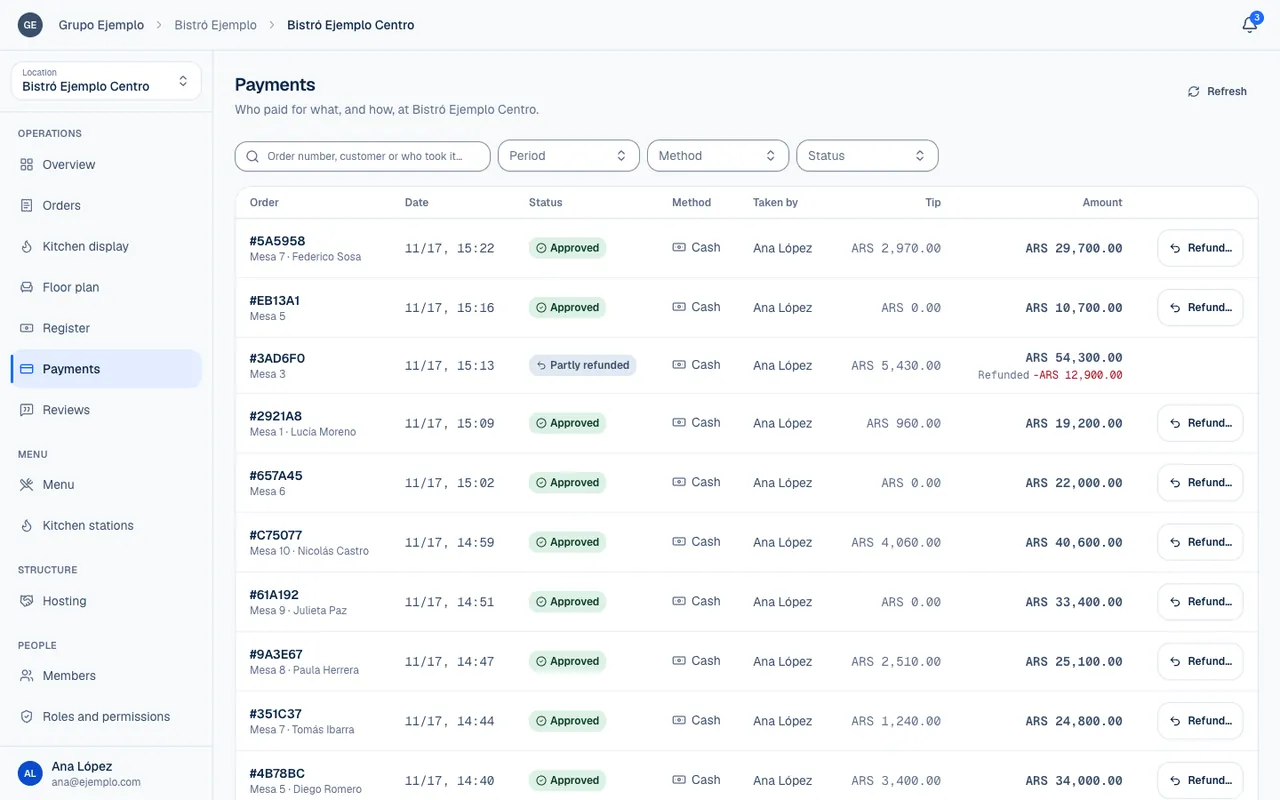
Find a transaction
- Choose the location and open Payments.
- Search by order number, customer or the person who took the payment.
- Narrow the list by Method, Status and Period.
- Open the associated order to review products, total or history.
Periods include Today, Yesterday, Last 7 days, Last 30 days and Pick dates…, with From and To fields. All time removes the date limit. If the list is empty, select Clear filters.
| Column | What it shows |
|---|---|
| Date | When the transaction happened. |
| Order | Reference for the associated order. |
| Method | Cash, Mercado Pago online or Mercado Pago QR. |
| Status | Payment result or refund status. |
| Taken by | The person who recorded it, or The customer. |
| Tip | The tip, recorded separately. |
| Amount | Amount charged for the order. |
Pending still needs confirmation. Approved is a confirmed payment. Rejected and Cancelled do not mean money was received. Refunded and Partly refunded identify transactions with a refund.
Set up a refund
You need permission to refund payments at the location. Find the right payment and select Refund…. Only a payment that can be refunded offers this workflow; do not refund a pending or rejected attempt as if it had been charged.
Under How much, choose All of it or Another amount. For a partial refund, enter an Amount to refund that does not exceed the maximum shown. Then choose Why: Overcharged, Charged twice, Wrong payment method, Problem with the order or Another reason. Enter What happened if asked. It is saved with the transaction.
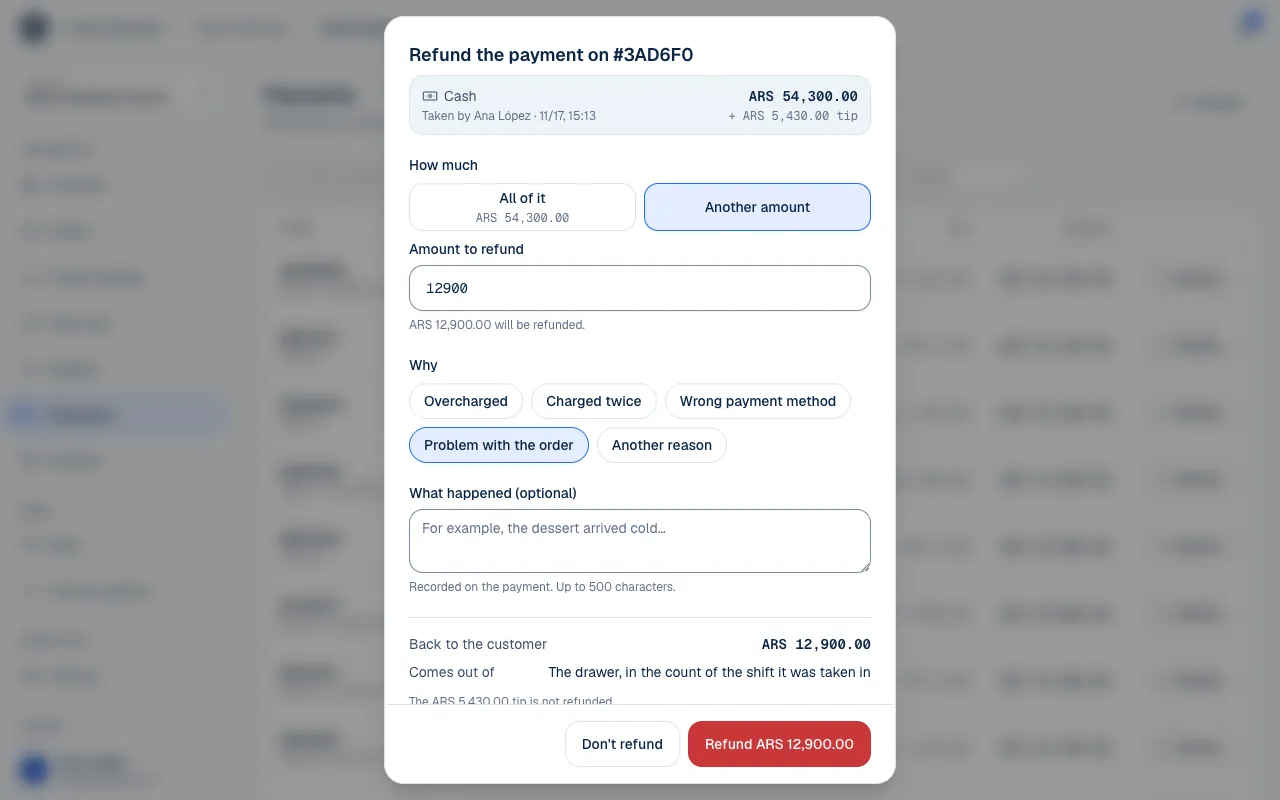
Confirm based on the payment method
| Method | What happens |
|---|---|
| Cash | The refund comes out of the drawer and changes the expected amount for the original shift, which must still be open. |
| Mercado Pago | The refund is requested from the location's account, and the system waits for the provider's response. |
A full Mercado Pago refund includes the tip because it was charged as part of one total. A partial refund returns the amount you enter and keeps the tip. The confirmation explains this before you proceed.
If Mercado Pago refuses the request, the payment does not change. If an error appears without confirmation, refresh before trying again: the transaction may already have been recorded. The order balance is recalculated from the amounts actually charged and refunded. A refund does not by itself cancel preparation of the order.
If something isn't working
- The register shift this was taken in has closed, so this cash payment can't be refunded. A cash payment can be refunded in Piqero only while its shift is open.
- You cannot refund more than… Lower the Amount to refund to the maximum the screen shows.
- This payment was refunded or changed while you had it open. We refreshed the list. Someone else refunded it first. Check its Status in the list.
- Mercado Pago refused the refund. The payment did not change. Mercado Pago's reason appears below. Check the payment in your Mercado Pago account before trying again.
- The refund could not be confirmed. Refresh before trying again: it may have been recorded. Refresh Payments and see whether the transaction already shows as Refunded before you repeat it.
- You don't have permission to refund payments at this venue. Ask whoever manages your team for the permission (Roles and permissions).
If the problem continues, email support@piqero.app (opens in a new tab) with the order number. Help and support lists what else to include.