


Notices and sounds
Choose which notices each place sends, what each person receives and how the console sounds.
Notices help you spot what needs attention without checking every screen. There are two decisions: each place chooses what to send, and each person chooses what to receive and through which channels. Permissions determine who can receive each kind (Roles and permissions).
Configure a place's notices
- Choose a place with Switch place.
- Open Settings → Notices.
- Review the notice types and turn on or off the ones you need.
- To inherit a rule again, select Go back to what's above.
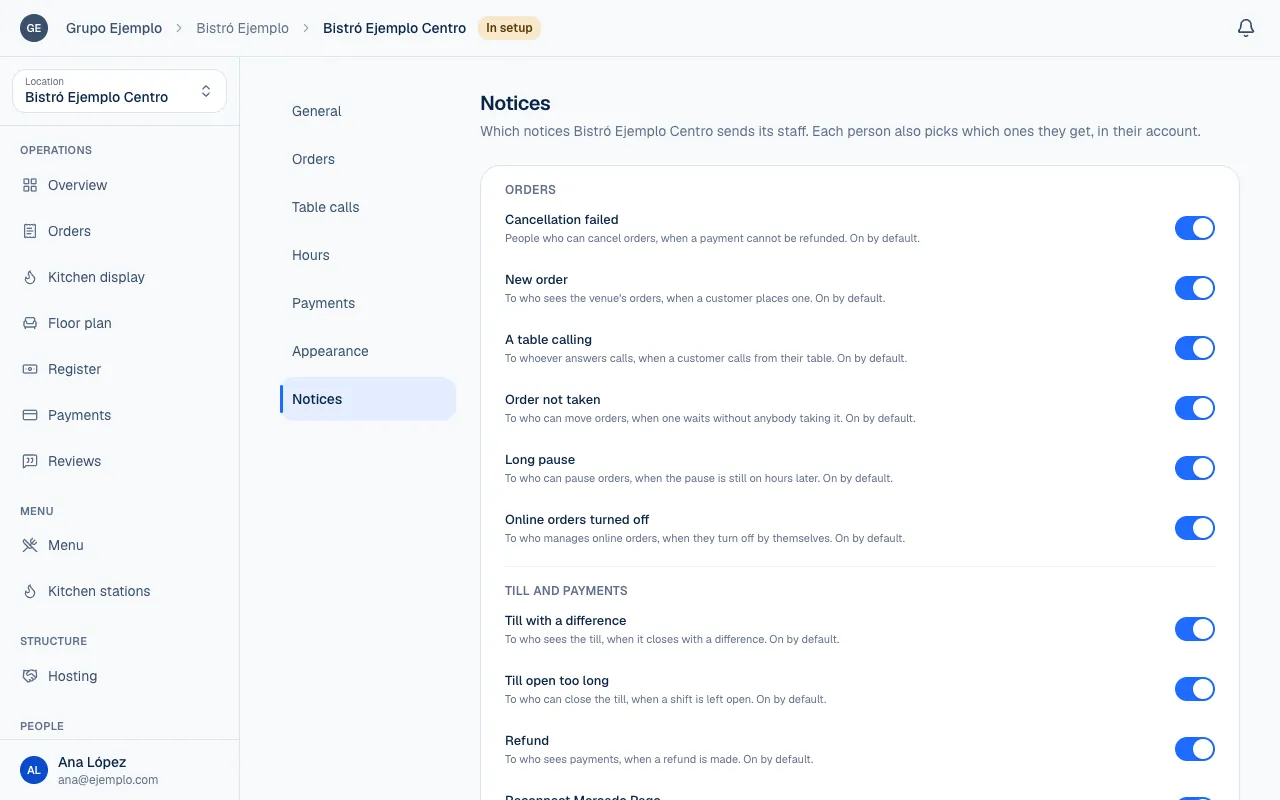
A rule can follow the organization, brand or space, or be Chosen for this place. The closest matching setting applies.
| Notice | Who it helps |
|---|---|
| New order | People who can view orders, when a customer places one. |
| Order not taken | People who can move an order that has been waiting. |
| Long pause | People who can pause or resume online orders. |
| Reconnect Mercado Pago | People who manage the integration. |
| Online ordering off | People who can address why they were turned off automatically. |
| Till with a difference | People who can view the register. |
| Till open too long | People who can close the shift. |
| Refund | People who can view payments. |
| Low review | People who can reply to reviews. |
| Shared space invitation | People responsible for the location. |
There are also notices for failed cancellations, ended hosting and plan issues. Each category explains who it is for. The person who caused an event does not also get the notice intended for their coworkers.
Your personal preferences
Under My account → Notices, choose what you want to receive. Available channels depend on the category.
| Channel | Where it appears |
|---|---|
| Inbox | In the bell and the console inbox. |
| Devices | As a device notification, even when the console is closed. |
| In your email, for categories that offer it. |
Under This device, select Turn on to allow notifications. If your browser blocks them, enable notifications in the site's settings. On an iPhone or iPad, add the console to your home screen to receive them.
For new orders, No screen open skips the notice when a kitchen display or Orders screen for the location is already open. Read When while configuring that category for details.
The bell and inbox
The bell shows a few unread notices. View all notices opens the full inbox, with pages and the All or Unread filter.
You can Mark as read, Mark all as read, delete one notice or Delete the read ones notices. Deleting clears your inbox and cannot be undone. It does not delete the order, payment or event that caused the notice.
Sounds
Under My account → Sound, turn on Sound, choose the Volume and select Play. You can choose sounds separately for new orders, orders not taken, overdue orders, table calls, notices and confirmations. The setting is saved to your account and follows you across devices.
The sound for an order while you work in the console and the bell's notice are related but separate settings. If something makes no sound, check both and allow sound when your browser asks.
If something isn't working
- Notifications are blocked in this browser. Allow them in the site settings. Open the site permissions in your browser, allow notifications and select Turn on again.
- This browser can't get notices. Use another browser. On an iPhone or iPad, add the console to your home screen and open it from there.
- That notice is no longer in your inbox. You deleted it, or another of your sessions did. Reload the inbox.
- A category does not reach you: check that the place sends it, that you have it on under My account → Notices and that your role lets you see what it is about.
If the problem continues, email support@piqero.app (opens in a new tab). Help and support lists what to include.