


Opening hours
Set the time zone and the hours when your location accepts online orders.
Opening hours show when the location is open. Outside those hours, customers can view the published menu but cannot place new online orders. These are not your team's shifts.
Set up the week
- Choose the location and open Settings → Hours.
- Check the Time zone. If you want to use your device's time zone, select Use this one.
- Under When it's open, choose Always open or On a schedule.
- For a weekly schedule, select the open days and enter Opens and Closes.
- Select Save hours.
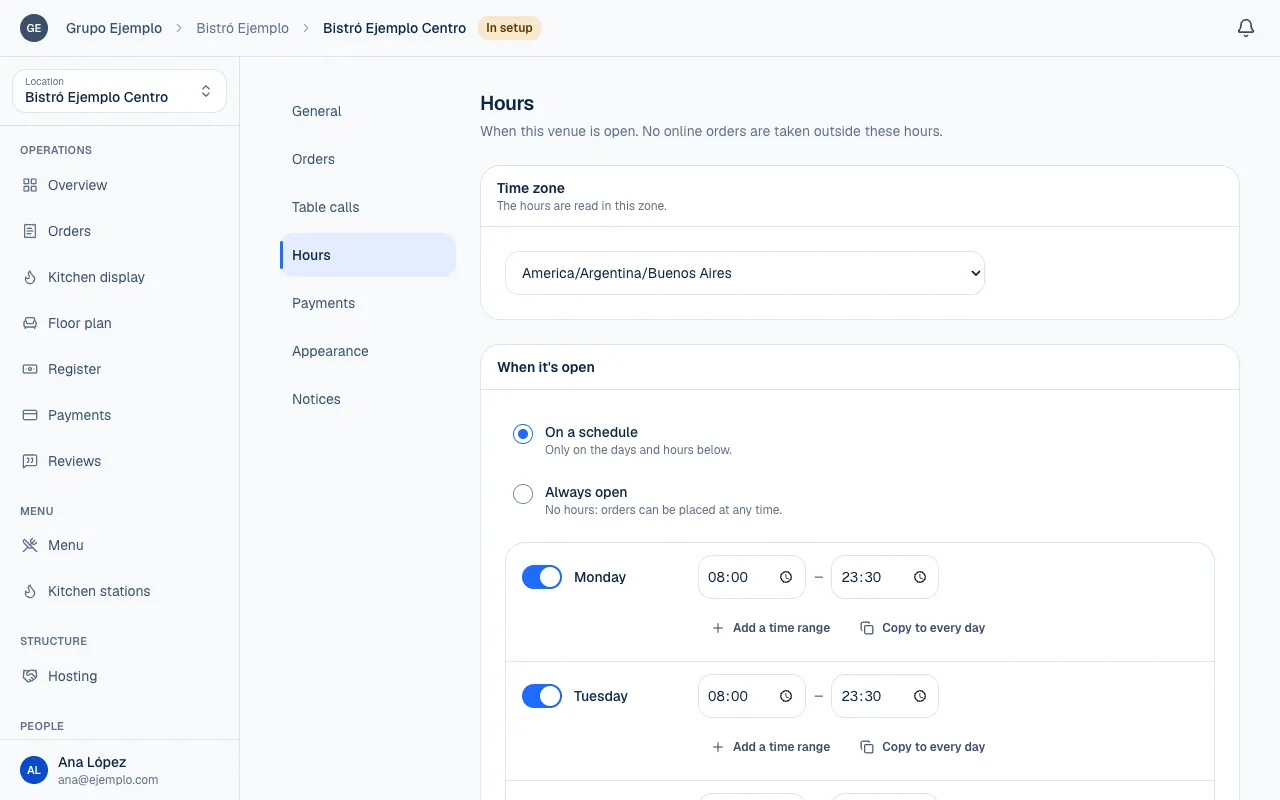
| Option | When to use it |
|---|---|
| Always open | You do not want to limit orders by day or time. |
| On a schedule | You are open on specific days and during specific hours. |
| Closed | You are not scheduled to open that day. |
| Add a time range | You open more than once in a day, with a break between services. |
| Copy to every day | Use this day's hours for the whole week. |
You can add up to three time ranges per day, such as 12:00 to 15:00 and 19:00 to 23:30. The location is closed between those ranges. Enter both times for each range.
Close after midnight
A time range belongs to the day it opens. If you open Friday at 8:00 p.m. and close Saturday at 2:00 a.m., enter it under Friday with Opens at 8:00 p.m. and Closes at 2:00 a.m. The screen says the next day.
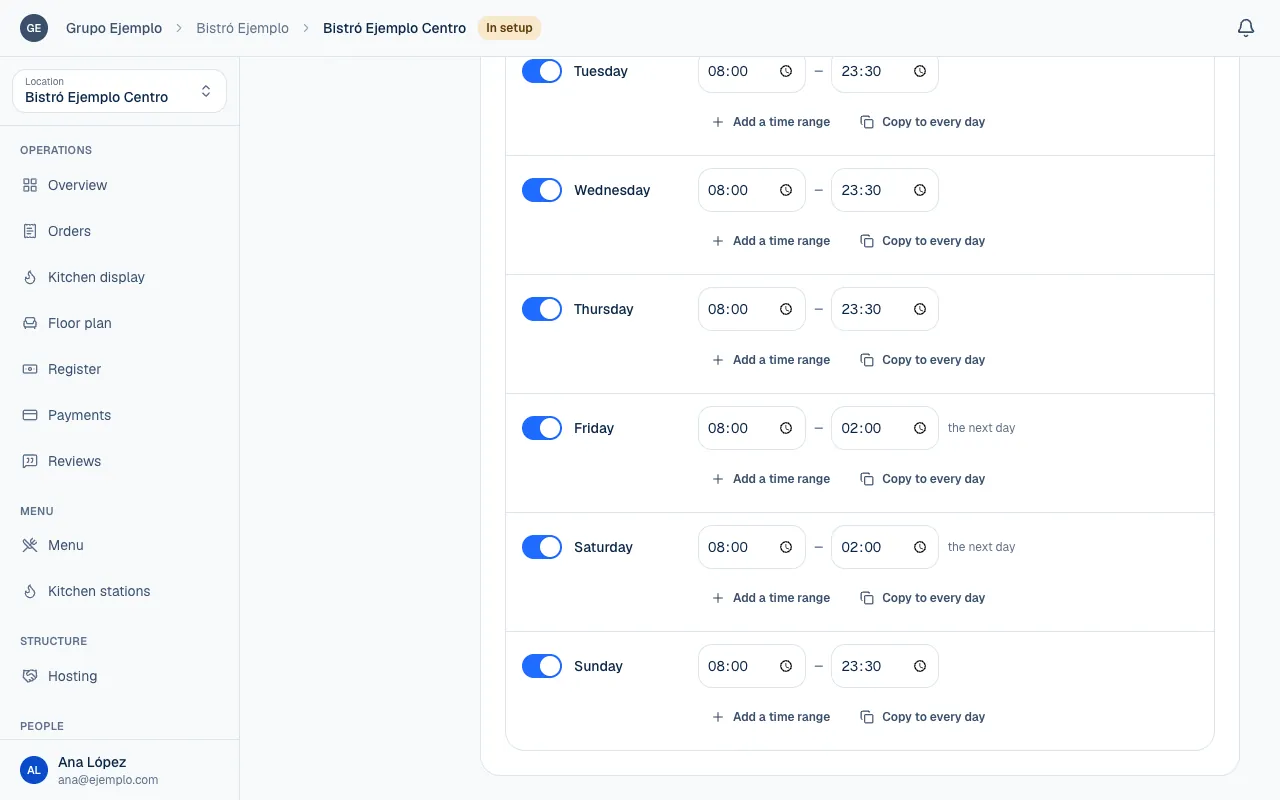
Check that label to distinguish overnight hours from an entry mistake. You do not need to add a second opening at midnight on Saturday to continue the same time range.
Check the time zone
Hours are interpreted in the time zone selected for the location. If you change it, “opens at 7:00 p.m.” means 7:00 p.m. in the new time zone. It does not preserve the same instant. Piqero asks you to confirm the change.
What happens when the location closes
The settings show Closed by hours and the next opening time, when there is one. A published menu stays available, but it will not accept a new online order outside opening hours.
Hours do not replace the other conditions for taking orders. Always open does not turn on online orders, lift a pause or enable a payment method. If the location is not receiving orders, check Status in its settings to find the reason; the full list is at the end of Your first location, step by step.
If the location is hosted in a shared space, the space's hours count too. Your branch being open is not enough if the building is closed. Coordinate both schedules with the host.
For an unexpected service interruption, use a pause for online orders. This avoids changing the entire week's schedule because of a kitchen delay. People with permission to pause also find the pause in Overview, Orders and Kitchen display, next to the online ordering status.
If something isn't working
- Check the hours: every range needs an opening and a closing time, up to 3 a day. Fill in Opens and Closes for every range, or delete the extra one, and select Save hours again.
- The location shows Closed by hours when it should be open: check the time zone (Check the time zone) and, if you close after midnight, that the range is set on the day it opens (Close after midnight).
- It is within opening hours but no orders come in: check Status in Settings → Orders. There may be a pause, a payment method turned off, or the hours of the space that hosts it.
If the problem continues, email support@piqero.app (opens in a new tab). Help and support lists what to include.