


Connect Mercado Pago
Connect the account that receives payments for your location and enable in-person QR payments.
Under Settings → Payments, in the Mercado Pago section, connect the Mercado Pago account that receives payments for your location. Each payment goes directly to that account. Piqero does not receive or keep any part of the payment. The connection lets you accept Mercado Pago payments and refund them under Payments (Review payments and issue refunds).
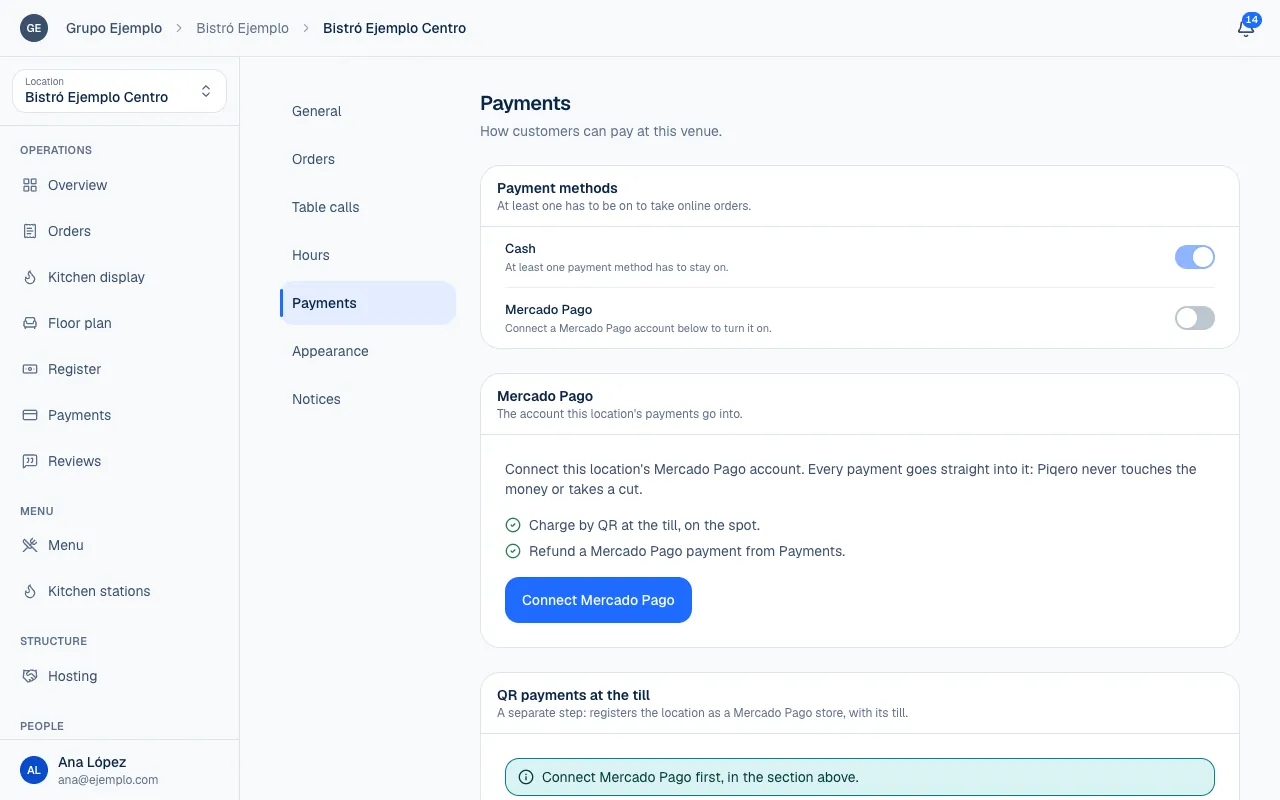
Connect the right account
- Choose the location and open Settings → Payments.
- Under Mercado Pago, select Connect Mercado Pago.
- In Mercado Pago, authorize the account that should receive payments for this location.
- When you return, check that the status is Connected and the Mercado Pago account is correct.
- If customers will pay from the menu, turn on Mercado Pago under Payment methods, higher up on the same screen (Choose payment methods).
You can cancel the authorization without connecting an account and try again later. If the connection takes too long and expires, start again with Connect Mercado Pago. If Piqero says this account already receives payments for another business, use the correct account or email support@piqero.app (opens in a new tab).
| Status | What it means |
|---|---|
| Connected | The account is authorized and ready to use. |
| Expired | You need to authorize the connection again. |
| Test account | Payments from this account do not move real money. |
Pay close attention to Test account before serving real customers. A test account lets you try the workflow; it does not confirm that money reached a production account.
Enable register QR payments
QR payments at the till is a separate step, further down the same screen. It registers the location as a Mercado Pago branch and creates its payment point so the customer can pay the code on screen.
Fill in Street, Number, City and Province. These fields may already be filled from the location's address. Check them before selecting Enable QR payments. Mercado Pago uses the address to identify the branch and calculate taxes.
When the status says Enabled, select Go to the till (Use the register). For an order awaiting payment, you can choose Mercado Pago QR and show the correct amount. The customer does not need to enter it.
Reconnect or disconnect
The connection may need to be renewed over time. If its status is Expired, select Reconnect Mercado Pago and complete the authorization again. If the screen shows a renewal deadline, check it so the connection does not expire during service.
Disconnect asks you to confirm. The register stops offering QR payments; recorded payments remain in the history. To use the account again, connect it through Mercado Pago.
If something isn't working
- The Mercado Pago connection couldn't be read. Refresh the page to try again. Refresh before assuming no account is connected.
- That Mercado Pago account already collects for another business on Piqero. Connect a different account, or write to us if it has to be that one. A Mercado Pago account collects for one business only. Connect the location's account, or email us.
- Mercado Pago couldn't finish the connection. Try again in a few minutes. Wait a moment and select Connect Mercado Pago again.
- Mercado Pago rejected the store. Check the street, number, city and province. Fix the address under QR payments at the till and select Enable QR payments again.
- Mercado Pago didn't answer while creating the till. Try again in a few minutes. (or while creating the store): Mercado Pago did not answer in time. Try again later.
- Mercado Pago isn't available on this server yet. You cannot connect it for now. Email us to find out when you can.
If the problem continues, email support@piqero.app (opens in a new tab). Help and support lists what to include.