


Create your account and organization
How to sign up, create your business's organization, choose a plan, or join a team that already uses Piqero.
Everything in Piqero starts with two things: your account, which is personal, and an organization, which is your business. Each account belongs to a single organization: if you work for two different restaurant groups, you need an account, with a different email, for each one.
Create your account
- Go to dash.piqero.app (opens in a new tab).
- Enter Your full name and your Work email, and select Send code. If you prefer, use Continue with Google.
- We email you a 6-digit code, valid for 15 minutes. Enter it and select Create account to confirm the email is yours.
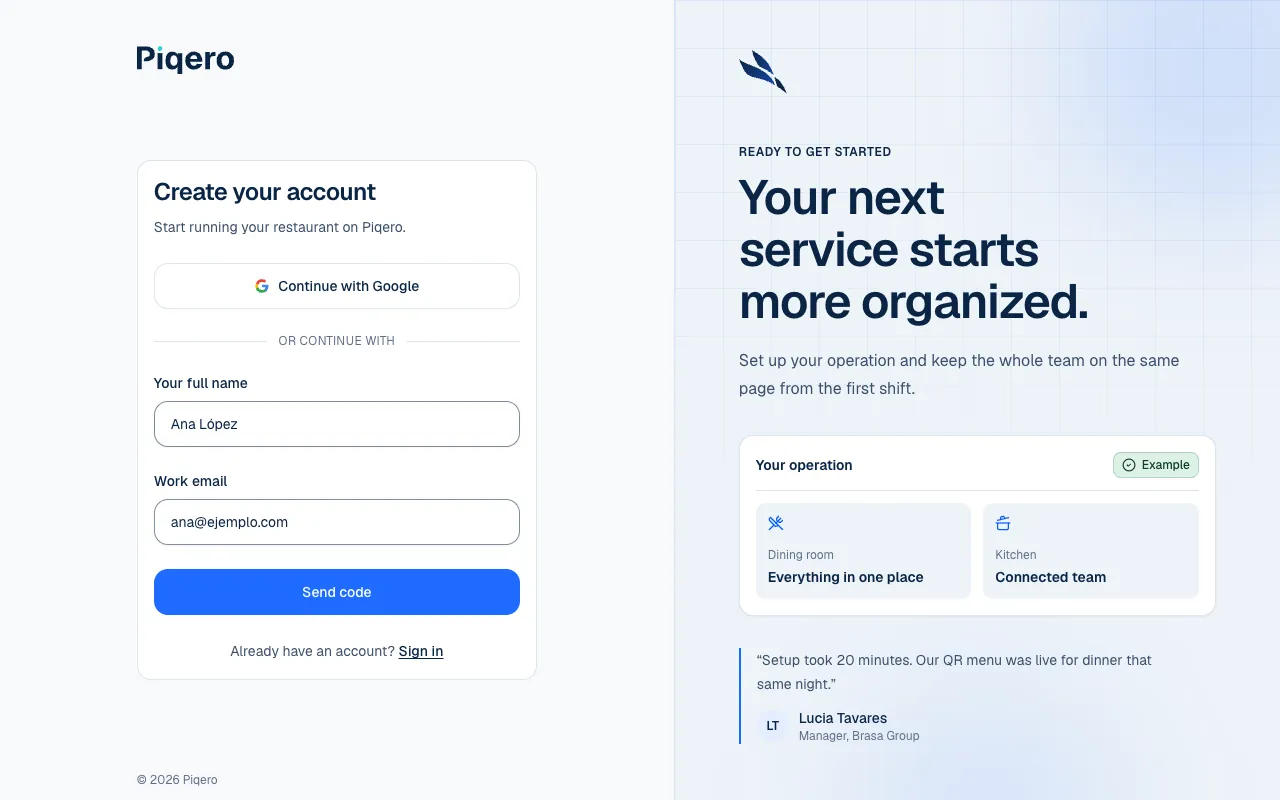
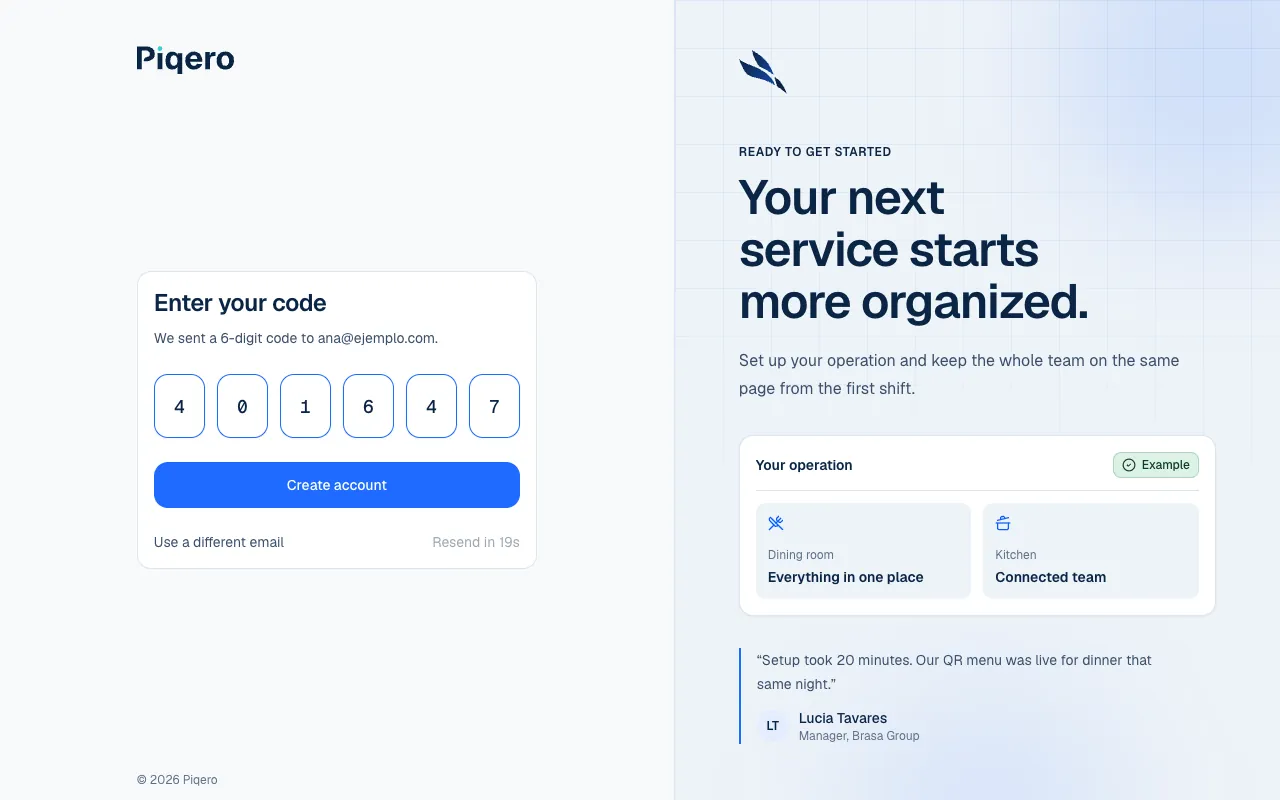
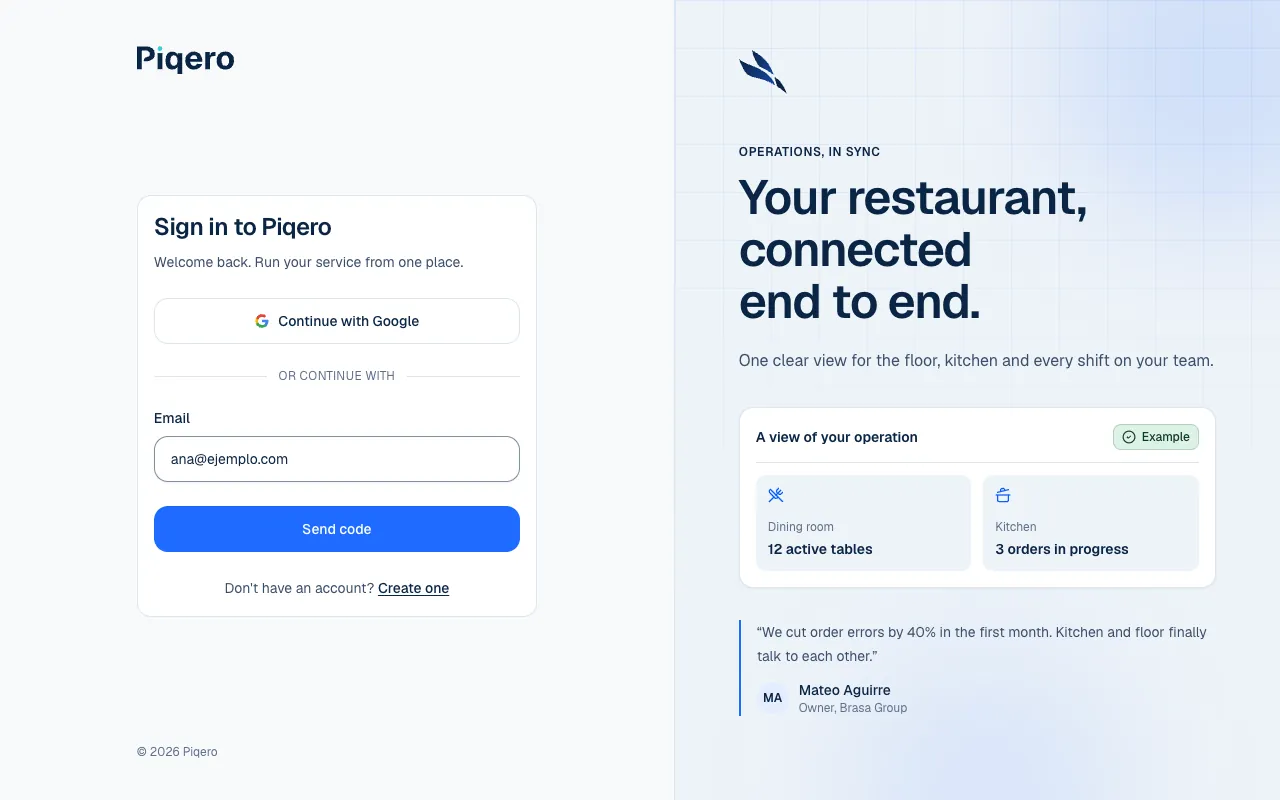
There are no passwords: every time you sign in, Piqero emails you a new code (or you use Google). That way nobody can get in with a leaked or guessed password. If the code does not arrive or you already have an account, see Sign in and get back in.
Create an organization or join one?
The first time you sign in, Piqero asks How do you want to start?
| Option | When to choose it |
|---|---|
| Create my organization | You own or run the business and it is not on Piqero yet. |
| I was invited to an organization | Someone on your team already uses Piqero and sent you an invitation. |
If you were invited, you will see the invitation with the role and the place you were given. Accept it and you are done: you go straight into the operator with the permissions you were given. How an invitation is sent, how long it lasts and how the person who sent it follows it are in Invite and manage members.
If you do not have an account yet, open the link in the email: it takes you to the sign-in screen. Select Create one, sign up with the same email the invitation was sent to and, once you confirm the code, you will be taken back to the invitation.
Create the organization
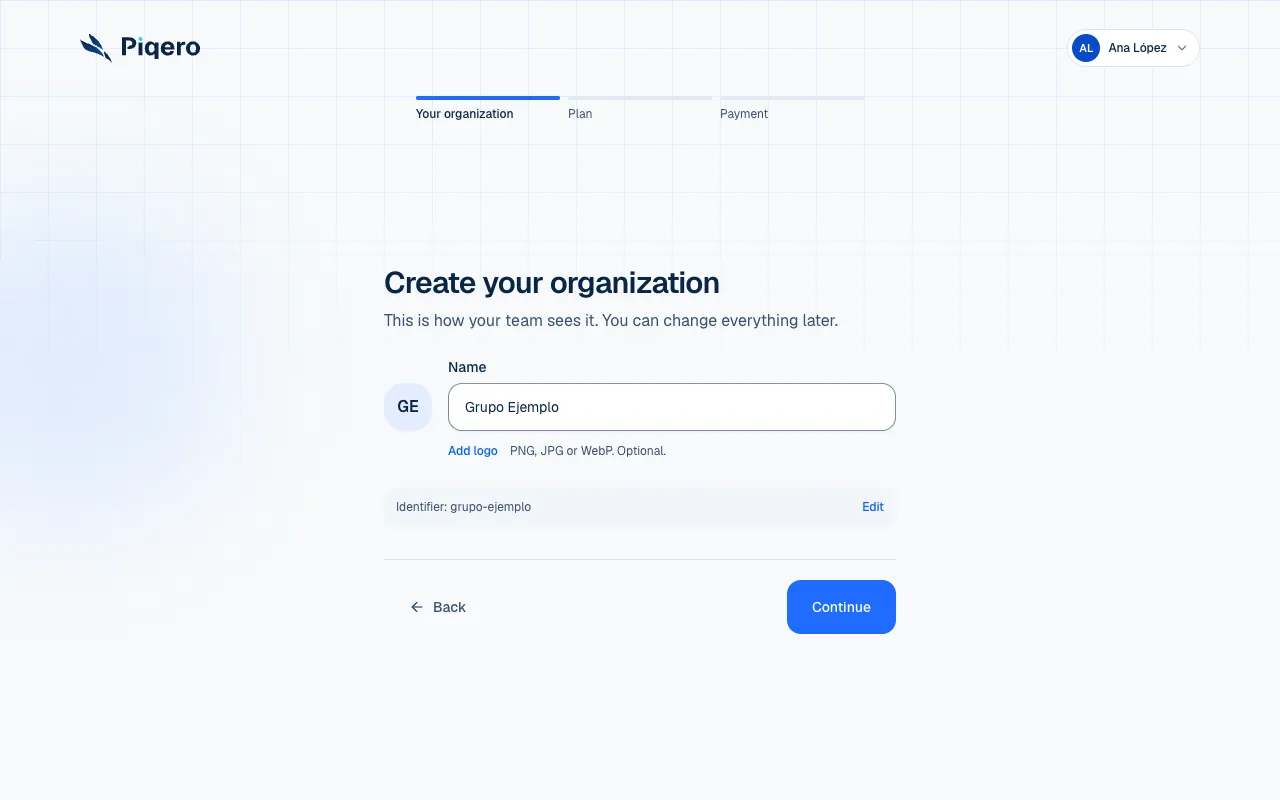
The organization groups your whole business: your brands, your locations, your team and your plan. You create it in three steps: your details, the plan and the payment.
Your organization
Choose the name your team will see (for example, Brasa Group). Piqero builds an identifier from the name, which you can edit, and you can add a logo. Everything can be changed later.
Choosing the plan
The plan sets what you can do and how much: how many brands, locations and people, and whether your locations take orders. The details of each plan are in Choose and review a plan.
| Plan | For whom | Orders |
|---|---|---|
| No plan for now | To show your menu while you decide | No: the menu can be public, but it does not take orders. |
| Starter, Growth and Scale | From a single location to groups with several brands | Yes. Only Starter includes a free trial: 30 days, no card needed. |
| Enterprise | Large groups and food courts | Yes, with custom terms agreed with Piqero. |
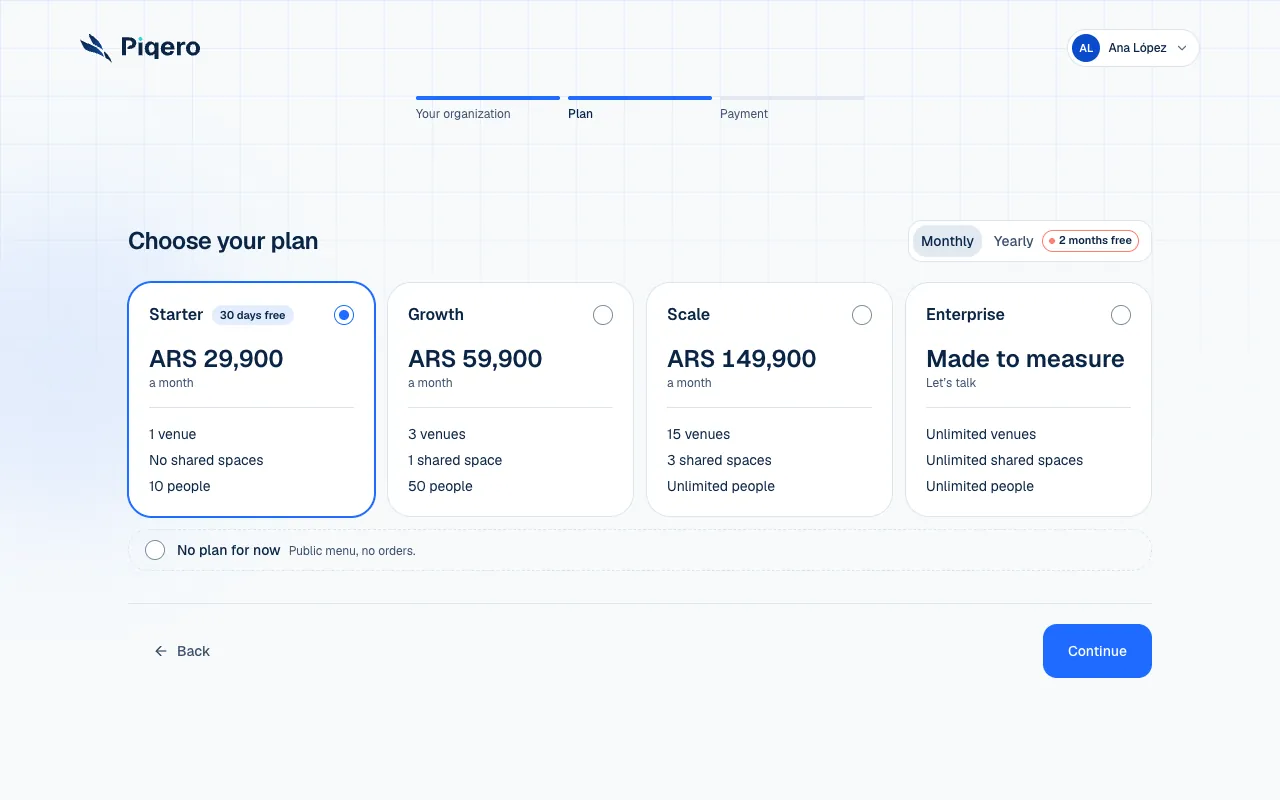
Prices and the details of each plan appear in this step and on piqero.app (opens in a new tab). Growth and Scale have no trial: you pay from the start and orders open with the first payment.
The payment
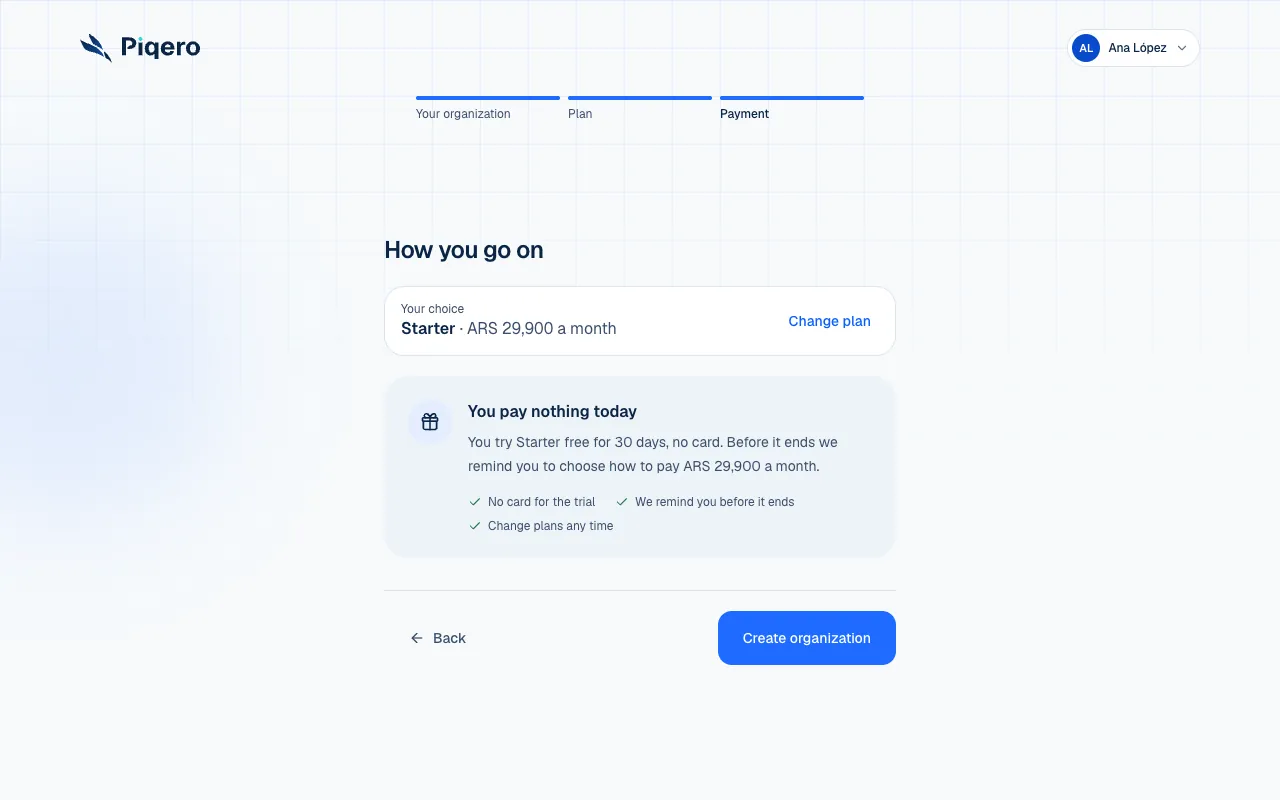
What happens when you confirm depends on the plan you chose:
- You pay nothing today. This is the Starter free trial: 30 days, no card. Before it ends we remind you to choose how to pay.
- You pay with Mercado Pago. We take you to Mercado Pago to authorize an automatic debit. Orders open with the first payment.
- We arrange the payment with you or We build your plan to measure (Enterprise). You create the organization and we notify Piqero. We reply within 24 hours.
- You start without a plan. You pay nothing. When you want to take orders, choose a plan from the settings.
After creating it
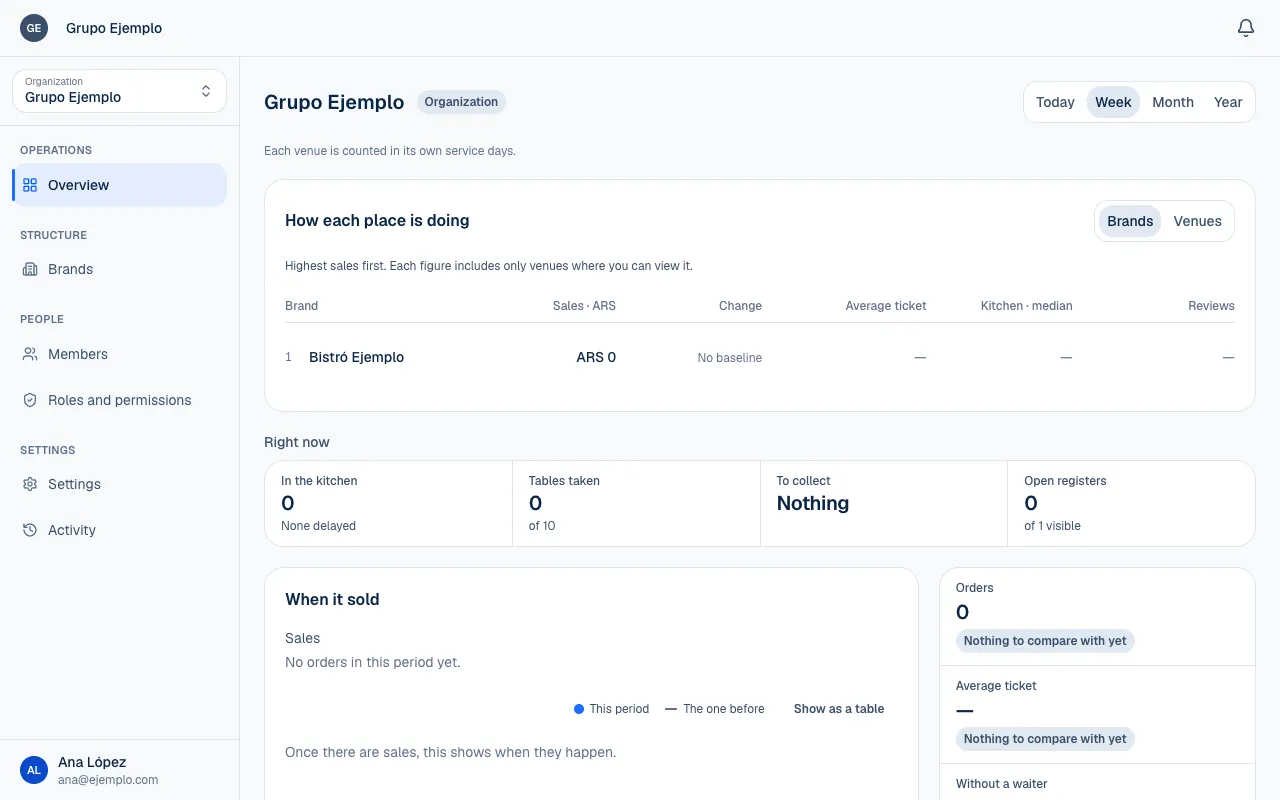
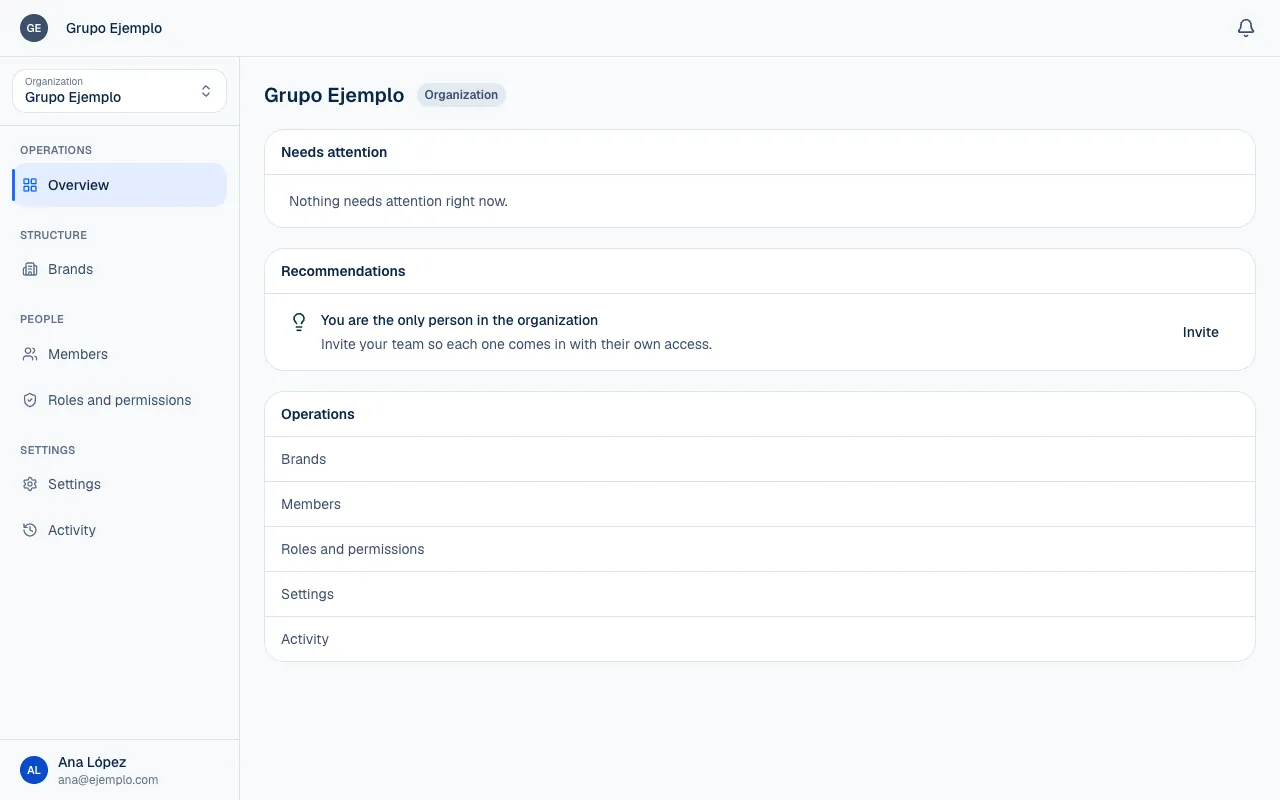
When you finish you land in the operator, on your organization's Overview. It is still empty: the next step is to create your first brand and your first location, which you do with Your first location, step by step. If you want to understand first how everything relates, read How Piqero is organized.
If something isn't working
- An account with this email already exists. That email already has a Piqero account. Sign in with it instead of signing up again (Sign in and get back in).
- That code is invalid or expired. Check that you entered the latest code you received, or request another with Resend code. Each code is valid for 15 minutes.
- Too many requests. Please wait a moment before resending. You requested several codes in a row. Wait a few minutes before requesting another.
- Couldn't continue with Google. Please try again. Try again, or sign up with the emailed code.
- That identifier is already taken. Another organization already uses that identifier. Change it and continue.
- Mercado Pago didn't accept the request. To pay for a plan, your Piqero account's email has to be the one on your Mercado Pago account. Check it and try again.
If the problem continues, email support@piqero.app (opens in a new tab). Help and support lists what to include.