


Receive and follow orders
Use the list, details and statuses to take each order from receipt through delivery.
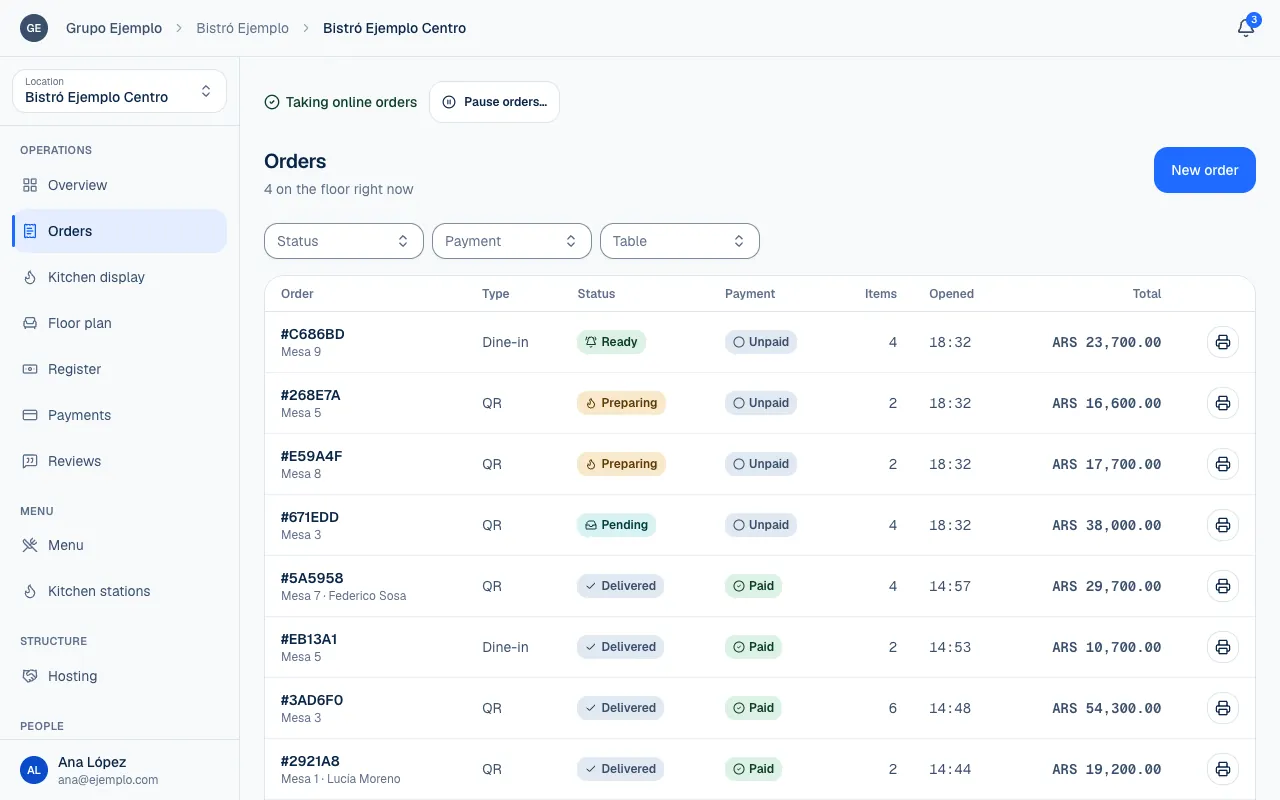
The Orders screen is the location's work list and order history. It brings together customer orders and orders entered by your team (Take an order at the location). Each row shows what the customer ordered, how it came in, when it came in and whether payment is due.
Find an order
- Choose the location and open Orders.
- Combine the Status, Payment and Table filters to narrow the list. Table shows if your role can see the floor plan.
- Open an order to see its products and available actions.
If you cannot find an order, select Clear filters before concluding that it never came in. You can also open an order from a table on the floor plan. That context may filter the list to that table.
| Column | What it tells you |
|---|---|
| Order | The short reference, such as #20869B, with the table and customer underneath. |
| Type | The recorded channel, such as QR, Dine-in or Takeaway. |
| Status | Its preparation step. |
| Payment | Whether it is unpaid, paid, partly paid or refunded. |
| Items | Number of products in the order. |
| Total | The order amount. |
| Opened | The time the order came in. |
Seeing a type in the list does not mean your location has every possible channel enabled. Use the type to recognize where that order came from. The customer sees the order number at the bottom of their screen (Order #…): its first six characters are the ones in the reference you see, although they appear in lowercase for the customer.
Move an order through service
The usual flow is:
Pending
Not taken yet
Preparing
The kitchen is working on it
Ready
Waiting for delivery
Delivered
Work complete
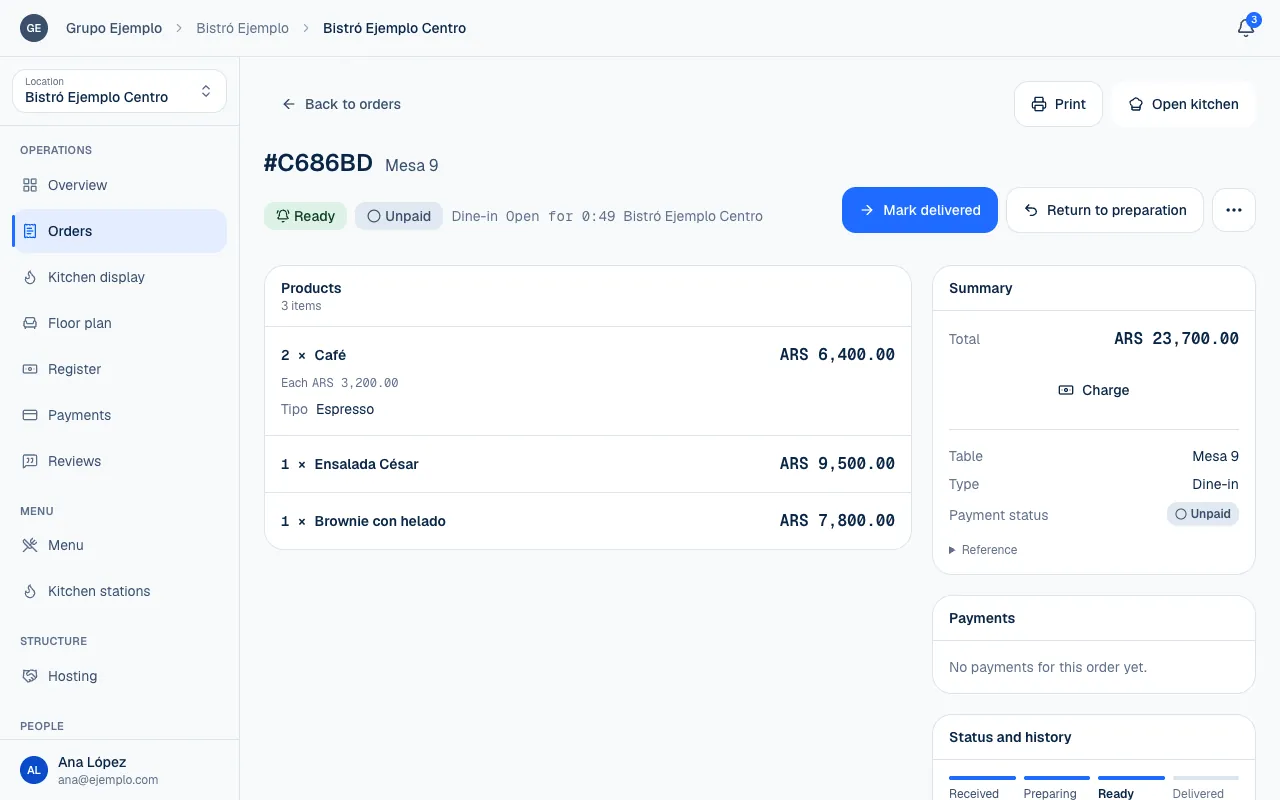
In the details, select Start preparing, Mark ready and Mark delivered as appropriate. Before delivery, check the reference and products so you do not close an order for another table. You can return to the previous step while it is still open. A confirmed delivery cannot be undone with a status change.
Status and history keeps the times for each step. Products shows options and notes; Summary brings together customer, table, total and payment details. If you have permission to take payments, Charge opens that workflow in the Register (Use the register).
Cancel or print an order
Cancel order… asks you to confirm and lets you add an optional reason. Amounts already collected are refunded to the original payment method. For cash, the original register shift must still be open. Read the confirmation before continuing. Cancelled and delivered orders are closed to status changes.
Under Print, choose Kitchen ticket, without prices, or Bill, with prices. A kitchen ticket can be printed Per station or All together. Later copies are marked as reprints and appear in Activity. The bill is not an invoice. The browser's print dialog expects 80 mm paper and margins set to “None”.
Follow up on delays
Running late and Overdue labels show in the order's details and on the Kitchen display, not in the list, and help you find orders that have been open too long. Check whether they still need to be taken, prepared or delivered (Work with the kitchen display). Notices and sounds for orders not taken complement the list. If the screen says it could not load, refresh it before assuming there is no work.
If something isn't working
- The status changed or this action is no longer available. We refreshed the order; review it before continuing. Someone else moved or cancelled the order while you had it open, or a payment could not be refunded when you cancelled it. Check the new status and the Payment status before continuing.
- You do not have permission to do this. Ask your venue administrator for access. Your role lets you see the order but not change its status or cancel it (Roles and permissions).
- Your session expired. Sign in again to continue. Sign in to the operator again and repeat the action.
- The print could not be recorded, so nothing was printed. Try again. Wait a moment and select Print again.
- You cannot see an order in the list: select Clear filters and check that you are at the right location.
If the problem continues, email support@piqero.app (opens in a new tab) with the order number. Help and support lists what else to include.