


Print and replace QR codes
Prepare table codes, share their links and replace them when needed.
Each table has its own QR code. When a customer scans it, the menu opens with that table already selected, so they do not have to enter the table number. Print the codes after checking the names and layout under Floor plan (Build and use the floor plan).
Print QR codes for the dining room
- Open the location's Floor plan.
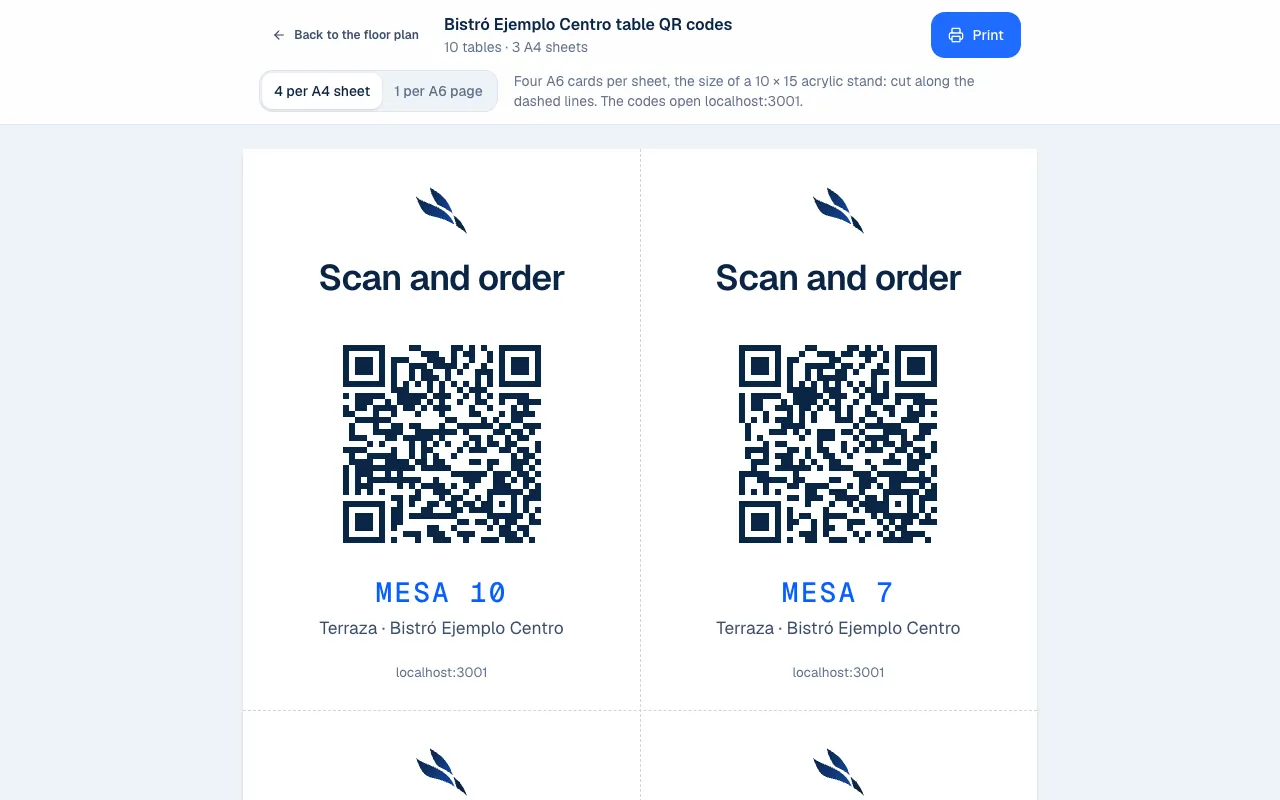
- For the whole dining room, select Print QR codes. For a zone, select the zone and choose Print this zone's QR codes.
- On the print screen, choose a Print format.
- Review the cards and select Print.
- Put each card on the table named on it, then test it with a phone.
| Format | Result |
|---|---|
| 4 per A4 sheet | Four A6 cards per sheet, with dotted cut lines. |
| 1 per A6 page | One card per page, for A6 cardstock or a print shop. |
The cards are designed for a stand about 10 × 15 cm. The screen shows how many tables, sheets or pages will print. Review your browser's print preview before confirming the paper size.
Print or share one table's code
Select the table and open View QR. From there, select Print for that card or Copy link to test the same table link without scanning it.
A table link keeps that table's context. The general location link opens its menu but does not identify where someone is sitting. For table service, use the correct table card.
Reprint or replace a QR code
These are different actions. Reprinting makes another copy of the same code and does not invalidate existing copies. Use it if a card gets wet or is lost.
Replace QR… creates a new code. The old one stops working immediately, whether it was printed or shared as a link.
- Select the table and open View QR.
- Select Replace QR… and read the warning.
- Confirm with Replace QR.
- Print the new code and replace every copy for that table.
Renaming or moving a table does not require a new QR code. Deleting a table makes its code stop working when you save the deletion.
If the code does not open the menu
Check that the table still exists and that its QR code has not been replaced. Also check that the location is published and that its organization, brand and location have not been archived.
A menu that opens but does not accept orders may have another issue: online orders are off, orders are paused, it is outside opening hours, the table is not taking orders, no payment method is active or the plan does not allow orders. Check Status in the settings before printing the code again; each cause is in Configure orders.
In a shared space, print QR codes from the space floor plan. Those tables open the shared menu.
If you checked everything and the code still does not open the menu, email support@piqero.app (opens in a new tab) with the location and table names. Help and support lists what else to include.