


See who changed what
Find changes to prices, permissions, settings and the register in Activity.
Activity records changes your team may need to account for. Use it to find who changed a price, when online orders were turned off or who refunded a payment.
Open the right place
Choose a place with Switch place, then open Activity under Settings. For the whole organization, you can open Activity (opens in a new tab).
| View | What it includes |
|---|---|
| Organization | Changes to the organization and all its places. |
| Brand | Changes to the brand, its locations and spaces. |
| Shared space | Changes to the space. |
| Location | Changes to that location. |
You need permission to view Activity at that place, and a plan that includes the feature (Choose and review a plan). Someone being unable to open this screen does not stop their changes from being recorded.
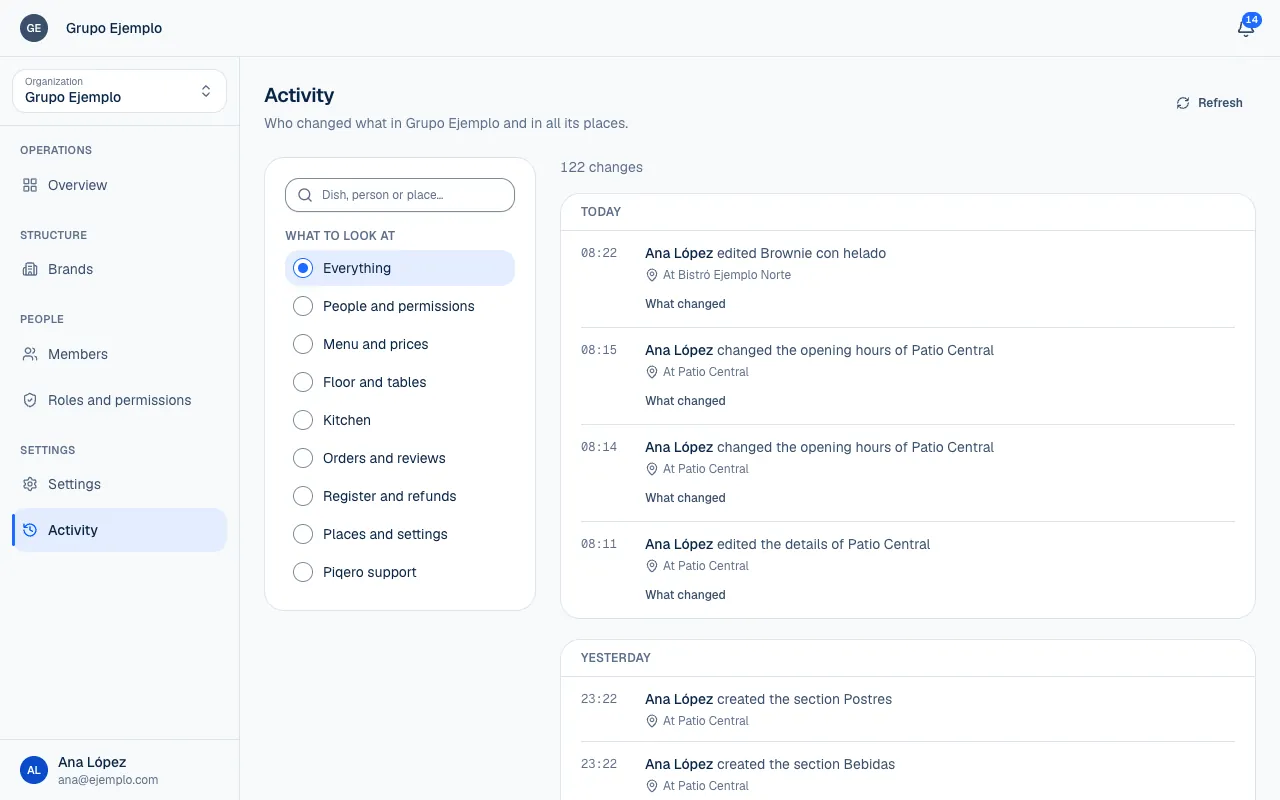
Find a change
- Open Activity at the place you want to review.
- Under What to look at, choose an area or leave Everything selected.
- Use Search the activity to look for a dish, person or location.
- Browse the pages and open the details of the change you need.
- Select Refresh to load recent changes.
Results are grouped by day and show when an action happened, who did it and what changed. To investigate a price, choose Menu and prices and search for the product.
If you cannot find anything, clear the search, select Everything and check the selected place. Activity from another branch appears at that location or in an upper-level view that includes it.
What Activity records
| Area | Examples |
|---|---|
| People and permissions | Invitations, roles, suspensions and ownership. |
| Menu and prices | Products and sections; price changes. |
| Floor and tables | Tables or zones created, edited or deleted; QR codes replaced. |
| Kitchen | Stations and product assignments. |
| Orders and reviews | Cancellations and review replies. |
| Register and refunds | Openings, closings and refunds. |
| Places and settings | Publishing, hours and pauses. |
| Piqero support | Support access, approvals and proposals. |
Plan changes are recorded too, but the What to look at filter has no area for them: they show when Everything is selected.
Read what changed
When an edit changes fields, the entry has a What changed disclosure. Opening it lists each field with the old value crossed out, an arrow and the new value. Only the fields that changed appear. An availability change, for example, reads Available Yes → No, and a price change shows the old and new amounts.
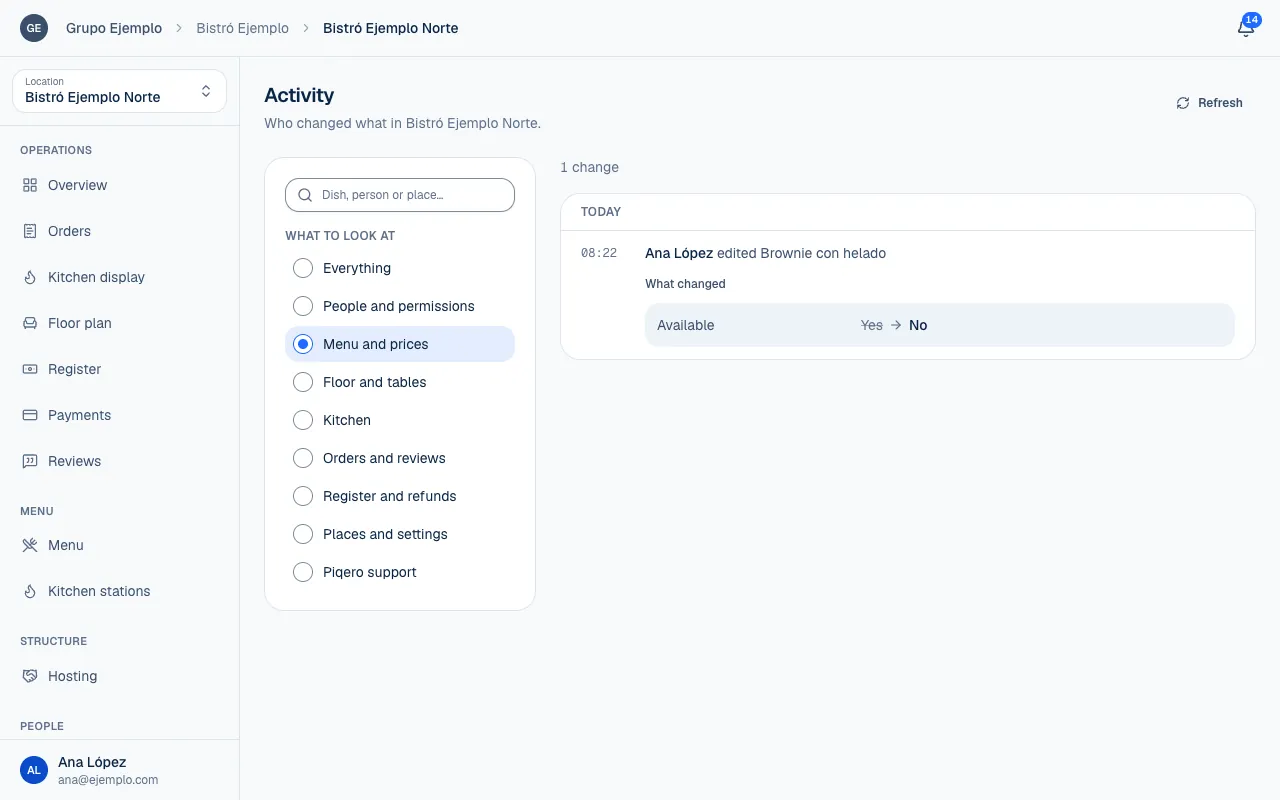
Creating or archiving something appears as an action. Each entry does not need to include every field from the form.
The person who made the change appears by name. The actor may also be The system, Mercado Pago or Piqero support, depending on where the change came from. If an account no longer has an identity, it may say Someone no longer here. The history remains.
This screen is for viewing. Reading a change does not undo it. To correct something, return to its screen and make a new change. That correction gets its own entry.
If something isn't working
- You do not see Activity under Settings: your role does not have permission to view activity at that place. Ask whoever manages your team to check it (Roles and permissions).
- No activity yet: nobody has changed anything at that place yet. If you are looking for a change at a location, open its activity or that of its brand or organization.
- A change you expected is missing: clear the search, choose Everything and select Refresh.
If the problem continues, email support@piqero.app (opens in a new tab). Help and support lists what to include.