


The food court menu
Build shared sections with products from each location while keeping each kitchen responsible for its own menu.
The space menu combines a directory of kitchens with shared sections. The host organizes those sections; each hosted location chooses which of its own dishes to add. A location's entire menu is not automatically copied into the food court's categories.
Set up shared sections
- Choose the space and open Menu.
- Create shared sections such as To share, Drinks or Desserts (Organize categories).
- Arrange them in the order you want customers to browse (Arrange the menu).
- Ask each location to add its dishes from its own menu (Create and edit products).
- Review the result on the space's public menu.
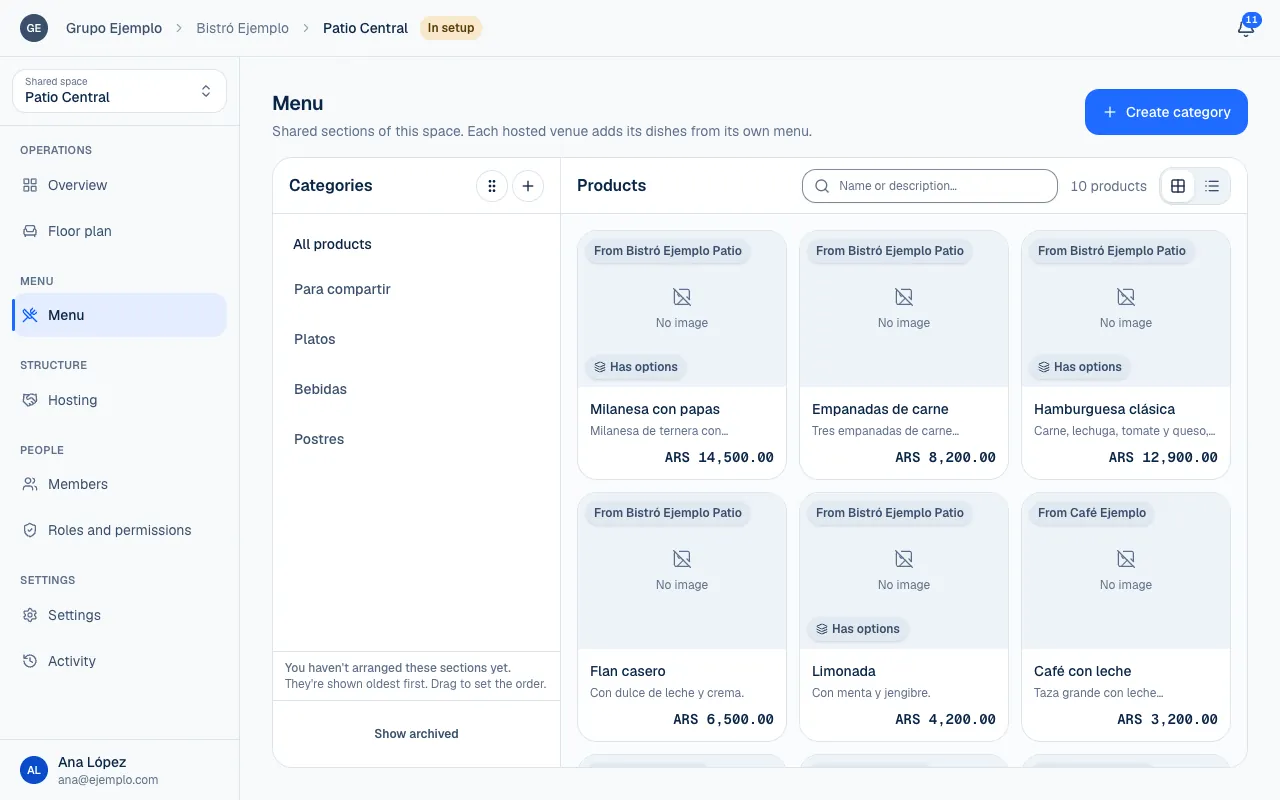
The space does not create its own products. Dishes belong to the locations, and From shows where each one comes from. You can filter by category and review products contributed by each kitchen.
Add dishes from a location
Under Hosting at a location, On the menu of shows the space's sections and how many of your dishes are in each one. Add dishes opens the location's menu filtered to that section.
You can also choose a space section under the location's Menu and select Add dishes. Find and select products you already have, then confirm how many to add.
Products stay where they were and also appear in the shared section. They are neither moved nor duplicated. A space section appears on the space's menu; it does not become a section on the location's own menu.
What each side controls
| Part | What it can change |
|---|---|
| Host | Shared sections, their order and the order of dishes within them. |
| Location | Which products to add, their details, price and availability. |
| Authorized host | Can remove a dish from a shared section without deleting it from the location. |
| Host brand | Logo, colors and how locations appear in the food court. |
Remove from a section removes that appearance. The product stays on the location's menu. Only the location can add it again, so coordinate before removing it to fix a mistake.
What customers see
The space page shows Kitchens and its shared sections. When customers open a location, they browse that kitchen's menu within the food court. The kitchen listings can show the cover with its name above, its name below, or only its logo and name.
Each dish stays with the location that prepares it. A closed or paused location, or one with online orders off, does not become available because another food court location is open (why a location is not getting orders). The menu shows the relevant status to help customers understand.
Archived products are not part of the public menu. Sold-out products remain listed but cannot be ordered. Also check that locations are published and their hosting is still active.
Test the whole menu
Scan a shared table QR code, then browse a shared section and a kitchen. Before placing a test order, check where the dish comes from, its price and options, and which table is selected.
If something isn't working
- This section isn't the shared space's, so venues can't add dishes to it. Choose a section listed under On the menu of, not one of the location's own sections.
- To see a shared space's dishes, choose a section first. In the space's Menu, choose a shared section to see its dishes.
- A location's dish is missing from the shared menu: the location has to add it from its menu. If the host took it out with Remove from, only the location can add it again.
- The dish shows but cannot be ordered: that location may be outside its hours, paused, or have the dish sold out (Availability and sold-out products).
If the problem continues, email support@piqero.app (opens in a new tab). Help and support lists what to include.