


Organize categories
Create and maintain the sections that help customers browse the menu.
Menu sections appear as Categories in the operator. They group products so customers can find starters, drinks or desserts. A product can appear in several categories or none.
Choose where to create a category
Before adding one, choose a place with Switch place. The place determines who manages the category and which menu shows it.
| Place | What it is for |
|---|---|
| Brand | Categories shared by its locations. |
| Location | Sections unique to that branch. |
| Space | Food court sections that feature products from its locations. |
A location's menu combines its own categories with categories inherited from the brand. Space sections belong to the shared menu; they do not become local categories for every hosted location. What to set up at the brand is in The brand menu, and how a space builds its sections is in The food court menu.
Create a category
- Open Menu at the place you chose.
- Select Create category.
- Enter a Name, such as Nonalcoholic drinks.
- Add a Description if a line would help customers.
- Select Create category to save.
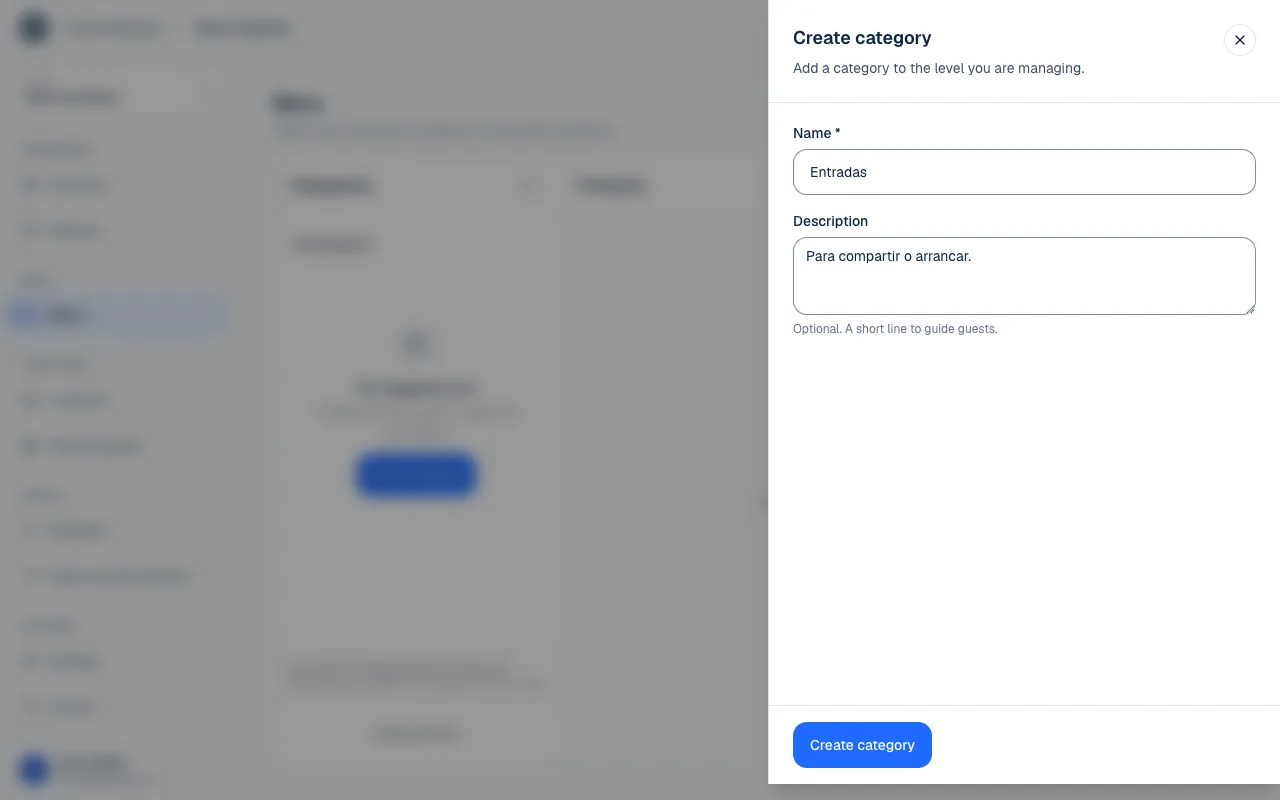
Choose a short name that explains what the category contains. A description is optional and does not need to repeat the name. Add products from their editor (Create and edit products) or select Add dishes in a section.
Creating an empty category does not create products. In a shared space, the host sets up the section and each location adds the dishes it wants to offer there.
Edit and arrange categories
From a category's actions, select Edit category… to change its name or description, then Save changes. An Inherited category is edited where it lives. Use Edit in to go there if you have access.
Select a category to filter products. All products shows the full menu again. If the list looks empty, clear the search and check which category is selected.
To move categories, select Reorder categories. The order is a separate setting; you can change how categories appear at a location without renaming the brand's categories. See Arrange the menu.
Archive and restore categories
Archive category… removes the section from the active menu while keeping its details. This is different from marking a product sold out, and does not delete all products that were once in the category.
- Under Menu, turn on Show archived.
- Find the category you want to restore.
- Select Restore category.
- Return to active categories with Hide archived and review the contents.
You need permission to archive or restore a category where it lives. An inherited section does not become editable just because you opened it from a location.
After restoring a category, also check the products' and place's status. Restoring a section does not publish a location that is still in setup or restore an archived product automatically.
If something isn't working
- This section is archived: restore it to edit it again. Restore it as described in Archive and restore categories, then try again.
- That section is no longer available. Reload the menu. Someone else archived or changed it while you had it open. Reload the screen.
- You do not have permission to do this. Your role does not let you edit the menu at that place. Ask whoever manages your team to check your role (Roles and permissions).
- You cannot see Reorder categories, or the list looks empty: clear the search and select All products.
If the problem continues, email support@piqero.app (opens in a new tab). Help and support lists what to include.