


Arrange the menu
Reorder categories and products, and choose whether each location follows the brand's order or uses its own.
The order determines how customers browse the menu. You can move categories and products without changing their names or prices. The order belongs to the place where you save it, so a location can arrange its menu without changing the whole brand's menu.
Reorder categories
- Choose a brand, location or space and open Menu.
- Clear the search if one is active.
- Select Reorder categories.
- Drag categories into place or use the arrow keys.
- Select Save order. To leave the draft, choose Discard changes.
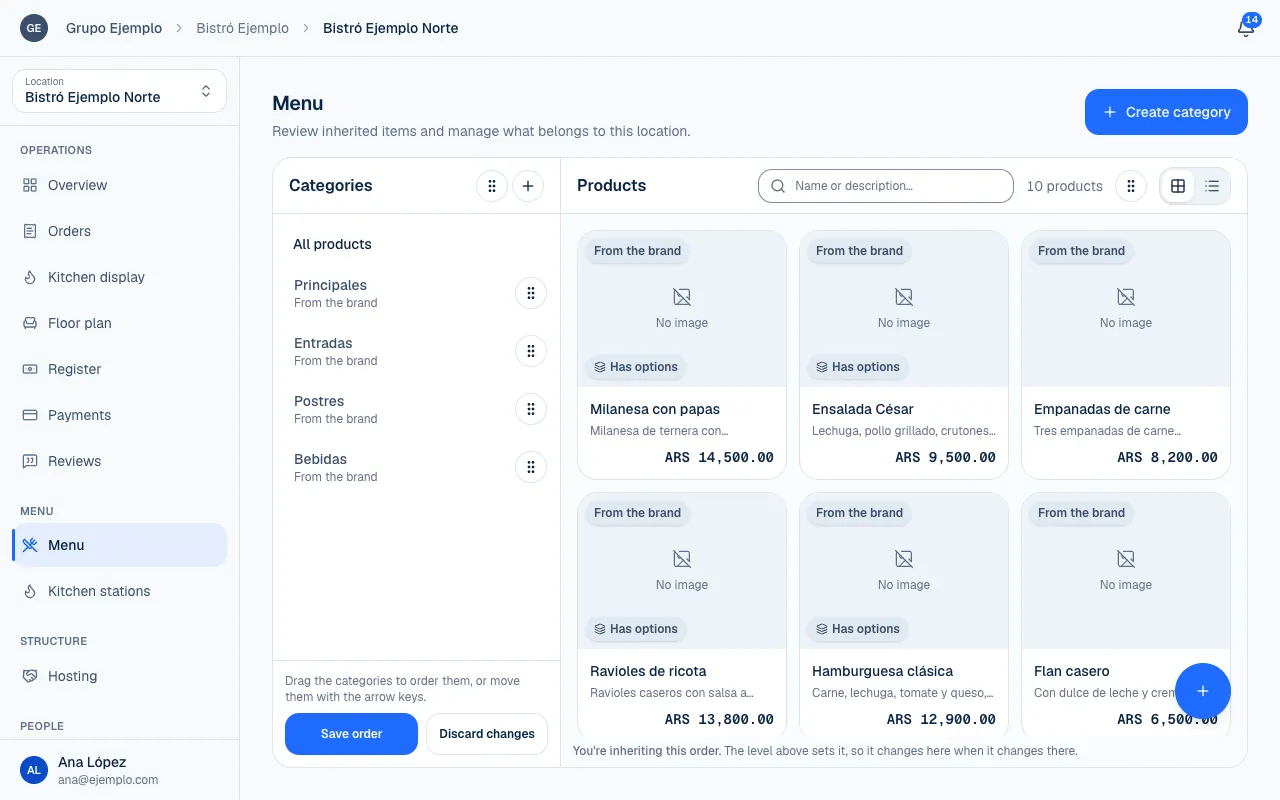
Search must be empty so you reorder the right set of categories. If you cannot enter reorder mode, check the filter and your permission to edit categories at that place.
Reorder products
Choose the view or category you want to reorder and select Reorder dishes. Move products and select Save order. Check which category is selected before saving; the order can be set within a section.
While reordering, the screen may show only products owned by that place and say how many are excluded. Products from another location still belong to its menu, even if you can see them in a shared space section.
In a shared space, the host can order products within its sections. It does not need to change each dish's details or price to choose how they are presented. Space sections are covered in The food court menu.
Understand where an order comes from
| Message | What it means |
|---|---|
| You're inheriting this order | It follows the level above. Changes there also apply here. |
| This order is yours | It was saved at this place; changes above no longer move it. |
| You haven't arranged this menu yet | With no order set, items appear by age. |
A location can define the order of its categories while inheriting the order of its products, or the other way around. These are separate choices. Check the message for the list you are changing instead of assuming the whole menu has the same source.
For example, a branch with busy lunch service can put Mains first, while the brand keeps Starters at the top for other locations. Shared names and products stay the same.
Return to the inherited order
Go back to the inherited order removes the custom order for that view and follows the level above again. The confirmation explains what will be lost. Once confirmed, the discarded order cannot be undone.
At the brand, or anywhere without an ordering level above it, Clear the order I set appears instead. Clearing it returns the menu to age order.
Ordering does not change availability, archiving or category membership. To remove a product, use its own control (Availability and sold-out products). To add it to a different category, edit Where it appears or select Add dishes (Organize categories).
Check the menu presentation
After saving, open the public menu on a phone (Scan and browse the menu) and browse the categories. If a product appears in more than one section, check its order in each one. In a chain, check whether the location uses its own order before looking for a problem at the brand.
If something isn't working
- You do not see Reorder categories or Reorder dishes: clear the search and check that your role can edit the menu at that place (Roles and permissions).
- To see a shared space's dishes, choose a section first. In a shared space, dishes are arranged inside a shared section.
- You do not have permission to do this. Your role does not let you change the menu at that place.
- The order did not change on a location's menu: that location may have its own order (This order is yours). Use Return to the inherited order if it should follow the brand.
If the problem continues, email support@piqero.app (opens in a new tab). Help and support lists what to include.