


Follow your order
Check order status, order number and notifications from your phone.
After confirming, the Your order is placed screen lets you View order or View my orders. From there, follow preparation, check payment and see how to receive the order. The order number is on the last line of the order screen, as Order #…. Keep it handy until service is complete: it helps the team find your order.
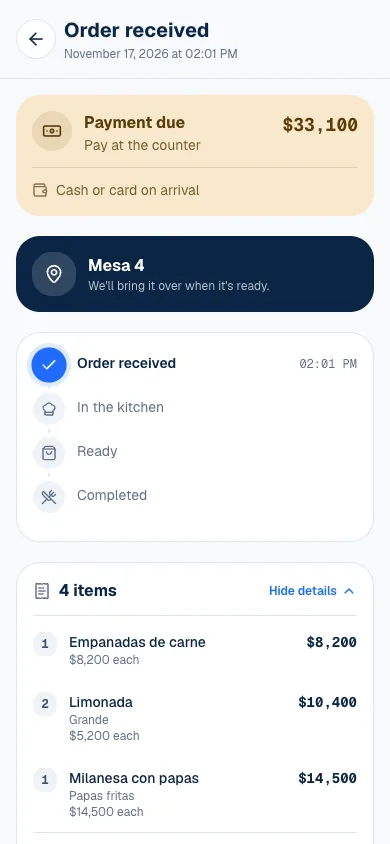
Open order tracking
- Select View order after confirming, or open History.
- Under Active, find the order and select Track order.
- Check its status and table or pickup details.
- Select View details to review products, options, notes or total.
History separates active orders from Past orders. The history belongs to your session and the place you are viewing. If an order is missing, check that you are using the same account or browser you used to place it.
Understand the order flow
Received
The order arrived
Preparing
The kitchen is working on it
Ready
It can be delivered
Completed
It has been delivered
| Detail | What to do |
|---|---|
| Ready for pickup | If you chose pickup, go to the counter. |
| Order number | If the team asks for it, show the Order #… on the last line. |
| Table | Check where the team will bring it. |
| Payment due | Check how to pay the remaining balance. |
| Cancelled | The order is no longer active; check the refund status if needed. |
If you ordered from several kitchens, each prepares its part. Each part is a separate order, with its own number. Do not assume every dish is ready because one kitchen has finished.
Receive notifications
When Want updates on this order? appears, select Notify me and allow notifications in your browser. Notices can tell you when the order moves to preparation or is ready. They may also report payments, refunds or cancellations.
Under Me, check Order notifications. Turning on the preference is not enough if that device has not given permission. Allow on this device completes that step. If notifications are blocked, allow them in your browser settings.
Some browsers need you to add the menu to your home screen. Select Add to Home Screen and follow the steps. The manual flow is Share → Add to Home Screen → Add. Then open the menu from that shortcut.
Cancel an order if it is still possible
Cancel order appears only when cancellation is available. Customers can cancel after receipt but before preparation, subject to payment checks. If a payment is processing, wait for verification to finish. If you already paid cash, ask the location's team to cancel the order.
Cancellation asks you to confirm and cannot be undone. If a refund is needed but does not complete, the order remains active. Contact the location and check the screen before trying anything else. Payments and refunds are covered in Pay and leave a tip.
If something isn't working
- You cannot find the order under History: sign in with the same account, or use the same browser if you ordered as a guest (Order without an account).
- Couldn't turn on notifications. Check that the browser is allowed to show notifications. Meanwhile, follow the status on screen.
- Could not cancel the order. Refresh the page to check its status. The location may have started preparing it. Refresh and, if needed, talk to the team.
- The refund could not be completed. The order is still active; contact the venue. The order was not cancelled. Talk to the location's team.
- Could not verify the payment. Try again in a few minutes. Wait and open the order again before paying again.
For anything about your order, talk to the location's team. If the page is not working, email support@piqero.app (opens in a new tab).