


Work with the kitchen display
Organize tickets by status and station, then update them as you prepare each order.
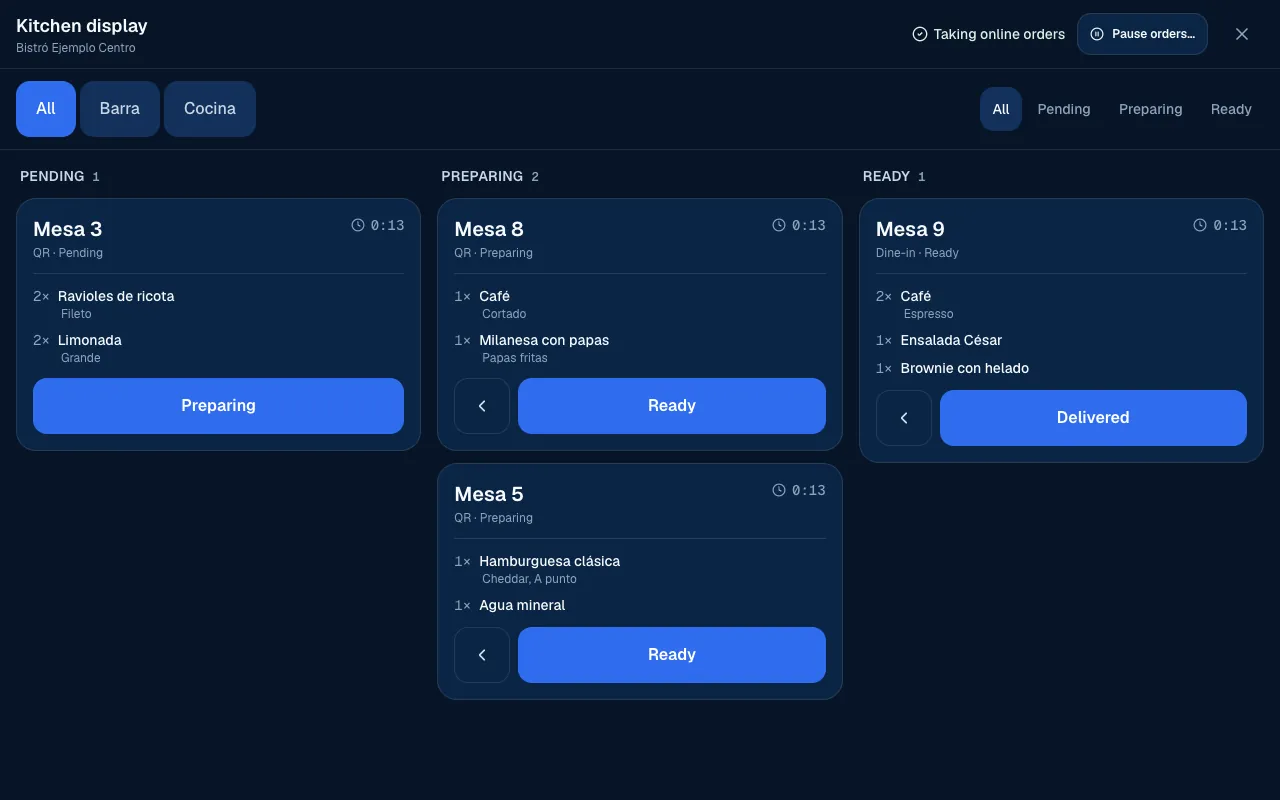
The Kitchen display shows the location's open work in full screen. It is designed to be read at a glance: a dark background, tickets with their items, and large buttons to move an order forward. You can use it on a tablet or a team screen, with an account that can view the location's orders.
Set up the display for service
- Choose the location and open Kitchen display.
- Select All or the station you will work at, if your access lets you view stations.
- Leave All selected to see every lane, or choose a status to focus on that queue.
- Check the intake indicators. A pause affects new orders; it does not remove tickets already on screen. People with permission to pause can do it from that bar (Configure orders).
The station tabs depend on the location's kitchen stations. To organize orders this way, first assign products to their kitchen stations. With no station filter, the display shows all the work.
Read the lanes
| Lane | What to do |
|---|---|
| Pending | Review the ticket and start preparing it. |
| Preparing | Prepare the items, options and notes. |
| Ready | Coordinate pickup or delivery. |
Delivered and cancelled orders leave this queue. To see their history, return to Orders. An empty display only means there are no tickets in the filters you are viewing. Check All stations and All statuses before looking for a missing order.
Each ticket shows its reference, type, status, time open, quantities, options and notes. Running late and Overdue labels help you prioritize by elapsed time. Do not rely on color alone.
When you filter by a station, the ticket still shows items for other stations, with less emphasis and the station name. This helps the team coordinate the complete order. Status belongs to the order: moving it does not create separate statuses for each item or station.
Move a ticket
Select the button for the next status when the work is done. The button to go back corrects a move made too soon, as long as the order is still open. Marking an order Delivered removes it from the display and closes status changes, so make sure someone has actually delivered it first.
If someone else has already moved it, the display says Somebody already moved it. Check the updated status before taking another action. With read-only access, you can follow tickets but cannot move them.
Payment, sound and tablets
Do not treat a ticket appearing here as proof of payment: the screen shows every order as soon as it comes in, paid or not. If your location prepares orders after payment, check Payment status on the order before starting (Receive and follow orders). If a ticket is missing, check its filters and status before entering it again.
Under Sound… in the operator, you can adjust New order, Untaken order, Late order and the volume. Select Play and, if your browser asks, Turn sound on. This preference is tied to your account. Agree with the team on which device should make sound.
On a tablet, check before service that the correct station is showing and that the buttons are easy to tap. To return to the operator, select Leave the kitchen display. If a customer calls the waiter, the Table calls panel also shows here (Table calls).
If something isn't working
- This account cannot see this venue's orders. Ask whoever administers it for access. The account signed in on the display needs View orders at that location (Roles and permissions).
- The session ended. Sign in again to see the queue. Sign in again with the kitchen's account. Until then, the display shows no new tickets.
- Could not move it. Try again. Wait a moment and select the status button again.
- Somebody already moved it and Could not read the kitchen are covered in Move a ticket.
If the problem continues, email support@piqero.app (opens in a new tab). Help and support lists what to include.