


Menu appearance
Choose a location's cover image, and configure its brand's logo, colors and menu presentation.
Under Settings → Appearance, you can preview what customers see on the menu. The brand provides the shared identity: logo, colors and display mode. Each location can have its own cover image.
Change a location's cover
- Choose the location with Switch place.
- Open Settings → Appearance.
- Under Cover, upload or replace the location's image.
- Review the Preview.
- Select Save appearance.
If you remove the location's cover, it uses the brand's cover again. The From the brand section explains where the logo, color and display mode come from. Select Change in followed by the brand's name to update them if you have permission there.
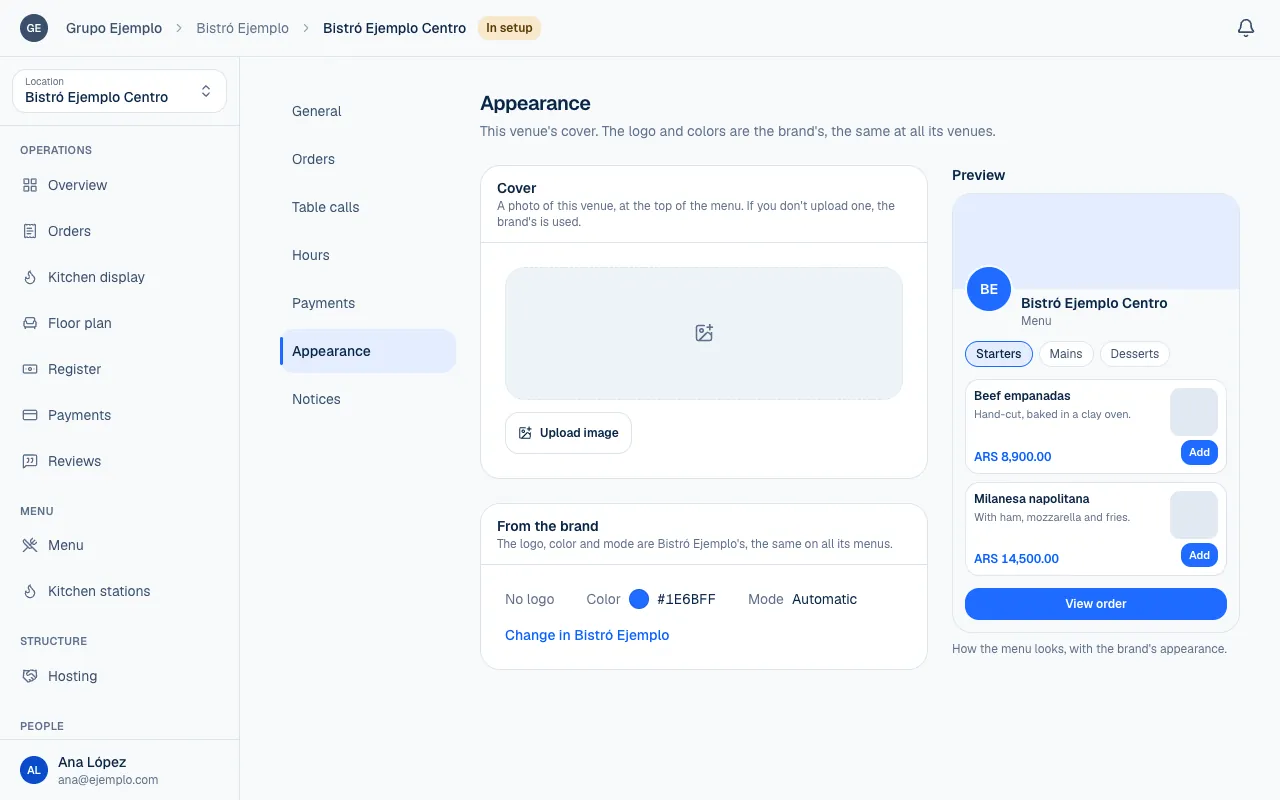
Configure the brand identity
Open Settings → Appearance at the brand. These changes apply to the menus for its locations and shared spaces. The brand's other settings are in Brand settings.
| Setting | What it controls |
|---|---|
| Logo | The image shared by all its locations and spaces. |
| Cover | The default image at the top of the menu. |
| Color | Menu colors in light and dark mode. |
| Mode | Automatic, Light or Dark. |
| Rounding | The corners of buttons, cards and photos. |
| Show dish photos | When off, the menu becomes a text list. |
Automatic follows each customer's phone setting. Light and Dark set the appearance for everyone. Changing the menu does not change the operator's theme. Choose that under Your account.
Choose colors
The Simple editor offers Combinations such as Tomato, Basil and Ocean. You can also choose Brand color and Background color. Automatic text selects text color based on the background; turn it off to choose a Text color yourself.
If a color needs adjustment to remain readable in light or dark mode, the screen explains why and shows How it looks. Review both modes in the preview, even if you usually work in only one.
Under Advanced, you can change each theme color separately or use the CSS view. Fix any readability warnings before saving. Switching back to Simple rebuilds the theme from the three colors and discards the individual adjustments. The screen asks you to confirm.
Choose how spaces present locations
The brand also controls, for shared spaces, How venues are listed in the brand's shared spaces: Name over the cover, Name under the cover or Logo and name only. The last option makes the list shorter.
The preview shows changes before you save them. If you leave with unsaved changes, the public menu has not changed yet. Select Save appearance to apply them.
If something isn't working
- The image is too large. Choose a smaller one. Export it at a smaller file size or as WebP and upload it again.
- That image format can't be used. Try another image. Use a PNG, JPG or WebP file.
- We couldn't read that image. Try another file. The file may be damaged. Open it on your computer, save it again and upload it.
- You cannot change the logo or color from the location: they belong to the brand. Use Change in with the brand's name, or ask someone with permission there.
- The menu does not show the changes: make sure you selected Save appearance, and reload the menu on your phone.
If the problem continues, email support@piqero.app (opens in a new tab). Help and support lists what to include.