


Kitchen stations
Assign products to stations so each team can see what it needs to prepare.
A station is a prep area at a location, such as Grill, Bar or Cold prep. It groups the products prepared there for Kitchen display and its tickets.
Stations are set up for each location. Even if multiple branches share a menu, each one can organize its stations differently.
Create your first station
- Choose the location and open Kitchen stations under Menu.
- Select New station.
- Enter a name your team will recognize, and a Description if needed to tell stations apart.
- Create the station and select it in the list.
- Choose the products it prepares and select Save.
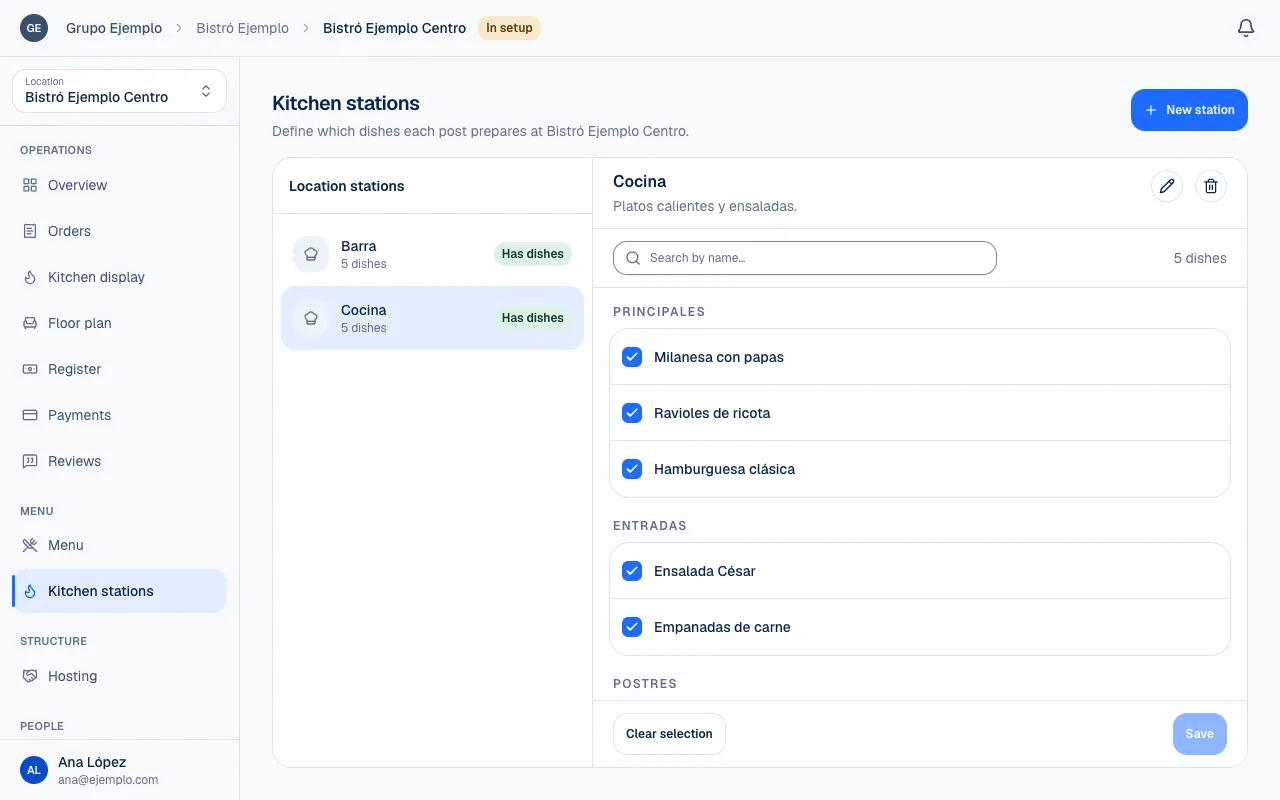
The list shows how many products each station has and whether it is Empty or Has dishes. A new station needs products assigned to it; the name alone does not route tickets.
Assign products
Use Search dishes to find a name, or browse products by section. You need permission to view the menu as well as permission to change the station.
| Action | What happens |
|---|---|
| Select a product | It is prepared at this station. |
| Remove a product | It is no longer assigned to this station. |
| Clear selection | Removes all products from this station's draft. |
| Save changes | Applies the selection. |
A product is assigned to one station at a location. If you move it to another station, it leaves the previous one when you save. A notice says how many products moved. Review these changes with the team before service.
The station is assigned from this screen at the location. The product editor reminds you that its preparation depends on each branch. You do not need to duplicate a product for different branches to prepare it at different stations.
Work in the kitchen
Under Kitchen display, the team can focus on the station it works at. Assignments help separate different preparations on the same order among the responsible stations.
Setting up stations does not change staff permissions. Each person needs the View orders and Change an order's status permissions at that location to view and move orders. Station setup also does not change which orders reach the screen: the kitchen sees every order as soon as it comes in, paid or not.
See Kitchen display to follow tickets and Roles and permissions to set up the team's access.
Edit or delete a station
Edit station changes its name or description. If you change product assignments and leave without saving, the screen lets you discard the draft or keep editing.
Delete station… is permanent. If it still has products, remove them first. The confirmation may offer Clear and delete. Removing a station does not archive or delete menu products; it changes how they are organized for preparation.
Before deleting it, make sure the products still go to the right place for the next service.
If something isn't working
- A station with that name already exists. Each station at the location needs a different name.
- The station still has assigned dishes. Remove its dishes, or use Clear and delete if the confirmation offers it, then delete it again.
- That dish isn't served at this venue, so it can't go to this station. The dish is not available at this location. Check it in Availability and sold-out products.
- One of those dishes is no longer served at this location. Reload and try again. The menu changed while you were editing. Reload the screen and save again.
- The station has too many assigned dishes. Split the dishes across more stations.
If the problem continues, email support@piqero.app (opens in a new tab). Help and support lists what to include.