


Control support access
Review who from Piqero enters your organization, what they can do and what needs your approval.
Under Settings → Piqero support, control how Piqero's team can help inside your organization. Support uses an access with a reason and an expiration. It does not become part of your team; its abilities depend on your support policy and which approvals are still active.
Review a request
- Open Settings → Piqero support at the organization.
- Under Requests, read What they will do, What for, What they ask to be able to do and Where.
- Review how long the request lasts and when it expires if unanswered.
- Choose Approve or Refuse as agreed with support.
- To stop an active approval early, select Take back the approval.
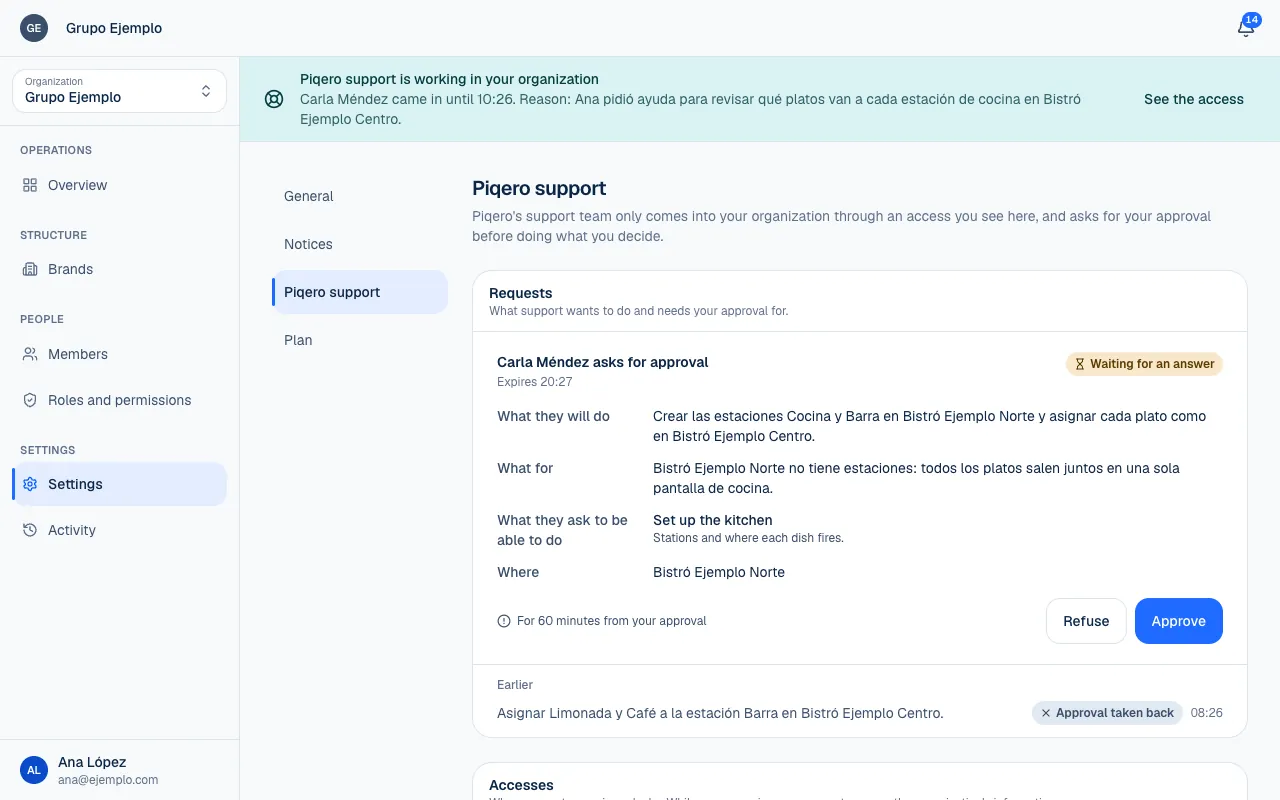
An approval lasts for the time shown from when you grant it, and only while support access remains open. It does not enable other actions or access outside the request. If you reject it, you can leave a reason.
Past requests keep their result: rejected, expired, withdrawn or completed. The history helps you understand what was authorized and avoid approving an outdated request again.
Choose what support can do
Under What support may do, each permission shows Piqero's policy and your choice when you can make it stricter.
You can choose between two options:
| Option | Effect |
|---|---|
| Asking for approval | A current, approved request is required. |
| As Piqero | Uses Piqero's default policy for that permission. |
Piqero's default policy, which you do not choose, can be Without asking (support may use it while access is open without a separate approval), Asking for approval or Never (support cannot use it). When Piqero allows a permission Without asking, you can change it to Asking for approval or return it to As Piqero. Permissions Piqero already limits to approval or marks Never do not offer a less strict option. Making a rule stricter limits active accesses and approvals immediately. Loosening it later does not restore approvals that were cut off; support must request the access again.
View and end access
Under Accesses, see who entered, why and until when. Cut the access asks you to confirm and ends it immediately. Any approvals tied to that access end too.
The banner Piqero support is working in your organization appears for people who can view support access at the organization, with See the access. Someone with access only at one location may not see the banner. Its absence from an account does not prove that support is not working.
Changes to your team
For invitations, suspensions, removals and role changes (Invite and manage members), support uses Proposed changes. It does not make the change directly. A person in your organization with the required permission must review and Accept the proposal.
When accepted, the change is made in your name under the same rules as a change made from the relevant screen. Activity shows both who proposed it and who accepted it. Reject leaves the team unchanged and lets you explain why. Review the names, place and permissions before confirming.
Support changes also appear in Activity, identified as support actions. Use this record to reconstruct what happened during support.
If something isn't working
- This request expired without an answer. The time to answer ran out. If support still needs it, you will get a new request.
- This request was already answered or withdrawn. Someone else approved or rejected it, or support withdrew it. Check its result in the history.
- Since it was asked, the customer stopped allowing something in this request: it can no longer be approved. Someone made the policy stricter after the request. If you want to approve it, change the rule first in Choose what support can do.
- This proposal was already answered, withdrawn or expired. The proposed team change is no longer pending. Reload the screen.
- That access has ended. The access expired, or someone ended it earlier.
If you have questions about a support access or request, email support@piqero.app (opens in a new tab). Help and support explains how support works.