


Build and use the floor plan
Organize zones and tables, save the layout and follow table activity during service.
The Floor plan combines the physical layout with table activity. You can view it on a phone. To edit it, use a tablet or computer and an account with the right permissions.
Draw the dining room
- From a tablet or computer, open Floor plan and select Open the editor or Edit layout.
- Use Zone to draw the dining room, patio or bar.
- Add a Square table or Round table inside a zone.
- Select each item and fill in its Properties.
- Fix the issues shown, then select Finish editing to save.
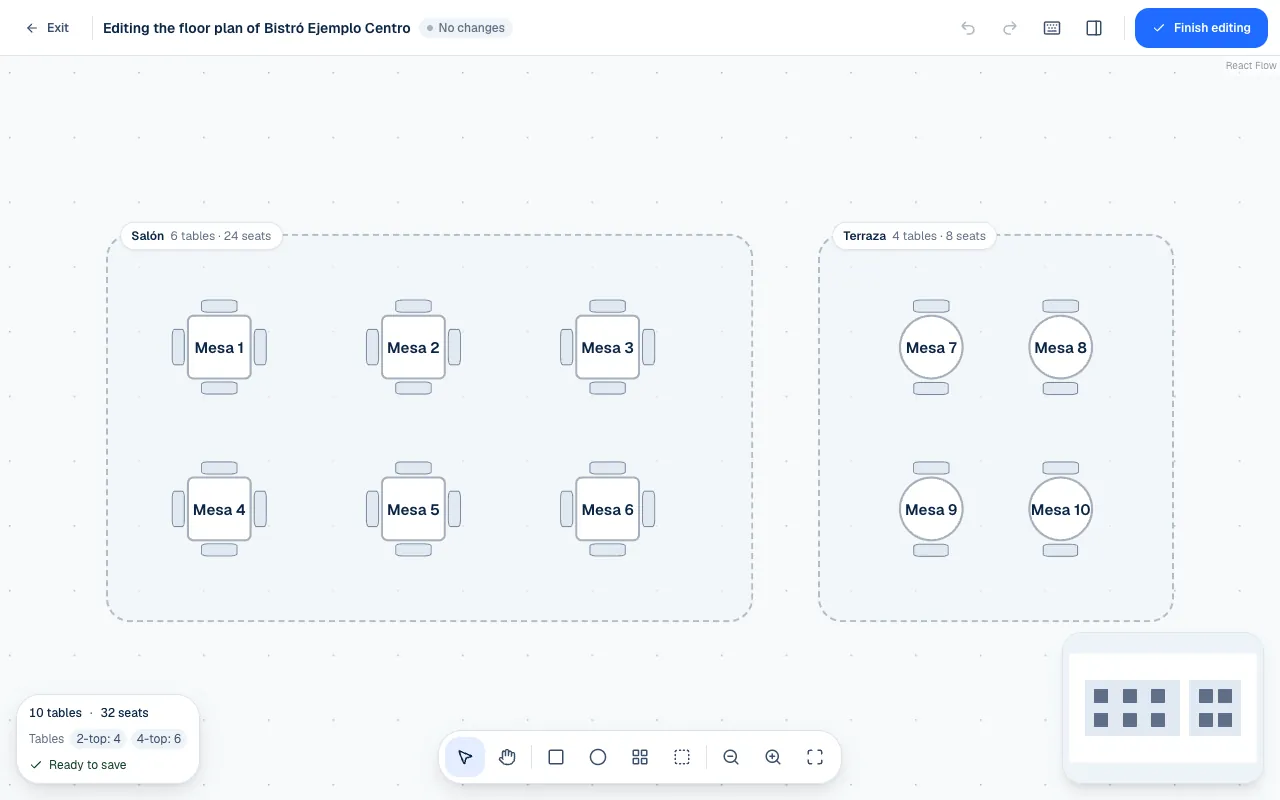
Zones group tables. Every table must fit inside a zone, and zones cannot overlap. Use names that distinguish tables and zones. The editor warns you about names that are missing or repeated.
Add several tables… creates rows inside a zone and numbers them after the existing tables. If the zone fills up, a notice says how many tables fit.
Properties and tools
| Control | What it is for |
|---|---|
| Name or number | The label your team will recognize. |
| Zone | The zone a table belongs to. |
| Seats | Its capacity; leave this blank if you do not know it. |
| Shape and Rotation | Show how the table is arranged. |
| Taking orders | Pauses the table without deleting it or changing its QR code. |
| Undo and Redo | Correct the draft before you save it. |
Drag to move or resize an item. Use Properties to enter exact measurements. Select Show the whole floor if you lose sight of a zone. The editor also shows Keyboard shortcuts.
If someone saves changes while you are editing, Piqero lets you know. Leave without saving, then open the editor again to work from the current layout.
During service
Select a table to see whether it is Free or has an Active order, with status Received, Preparing or Ready. View order opens its details; New order lets you take one if you have permission.
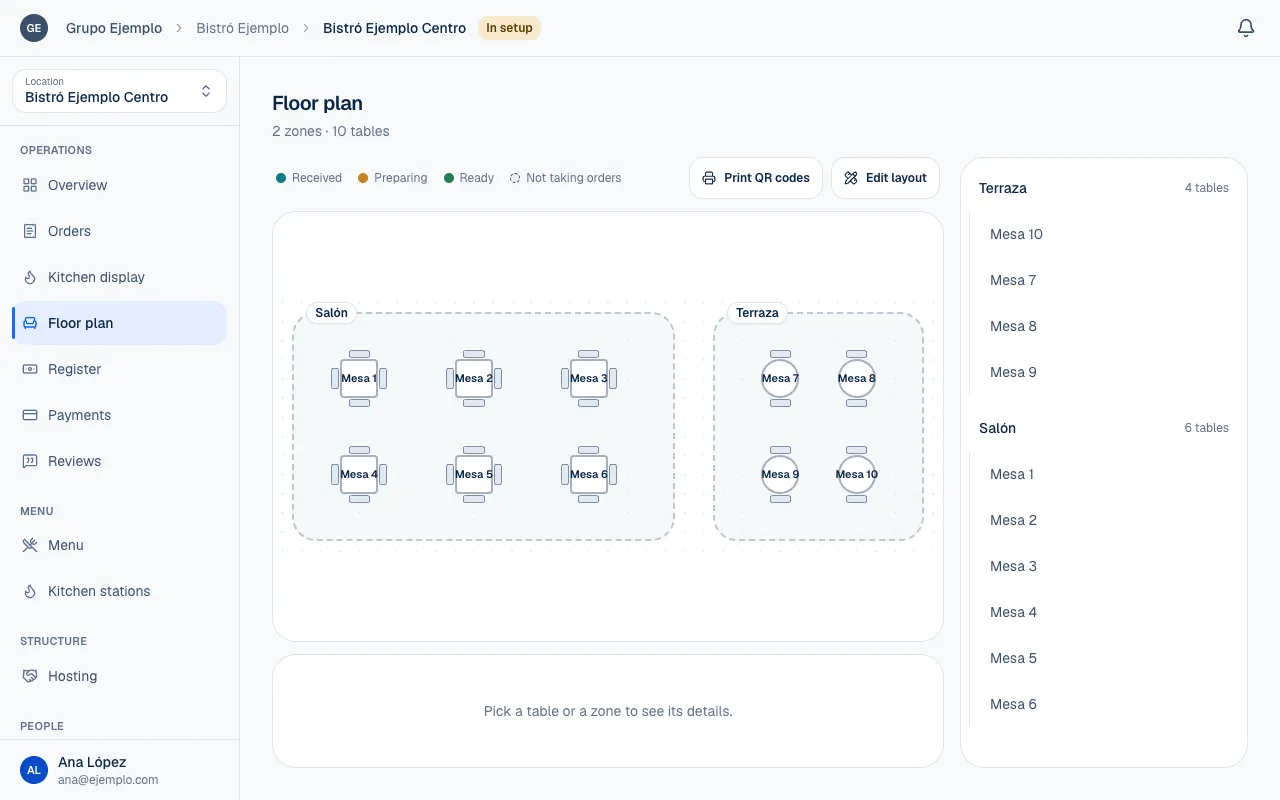
History shows the table's latest orders and lets you go to Orders to see more. View QR opens the table's QR card (Print and replace QR codes). Customer calls are also marked on the floor plan so the team can respond.
A paused table keeps its place and QR code. Its Not taking orders status means it will not receive orders from that table; it does not disappear from the layout.
If the location is hosted
A hosted location uses its host's shared floor. It can view live table activity there, but the space manages the layout. You cannot edit the location's own floor plan while it is hosted. See the space floor plan to set up shared tables.
If something isn't working
- The zone overlaps another one. Move it or make it smaller. Two zones cannot take up the same part of the plan.
- That table doesn't fit in the zone. Move it or enlarge the zone. Each table has to stay inside its zone.
- Another table at this place already uses that label. Each table needs a different name. Change the label.
- The zone still has tables. Move them to another zone before deleting it. Move or delete those tables, then delete the zone again.
- The floor plan can't change while the venue is hosted: the shared space runs it. See If the location is hosted.
- The floor plan changes couldn't be applied. Reload the plan and try again. Someone else changed the plan while you were editing it. Reload and repeat your changes.
If the problem continues, email support@piqero.app (opens in a new tab). Help and support lists what to include.