


Options and extras
Set up variations, required choices and extras with prices and selection limits.
Options let customers customize a dish before ordering. A group collects related choices, such as how a steak is cooked. A standalone extra is separate, with its own checkbox, such as adding cheese.
Create a group
- Open a product from Menu (Create and edit products) and find Options.
- Select Add group and enter a Group name.
- Choose How many they may pick.
- Select Add option to enter names and price differences.
- Review each option's settings and save the product.
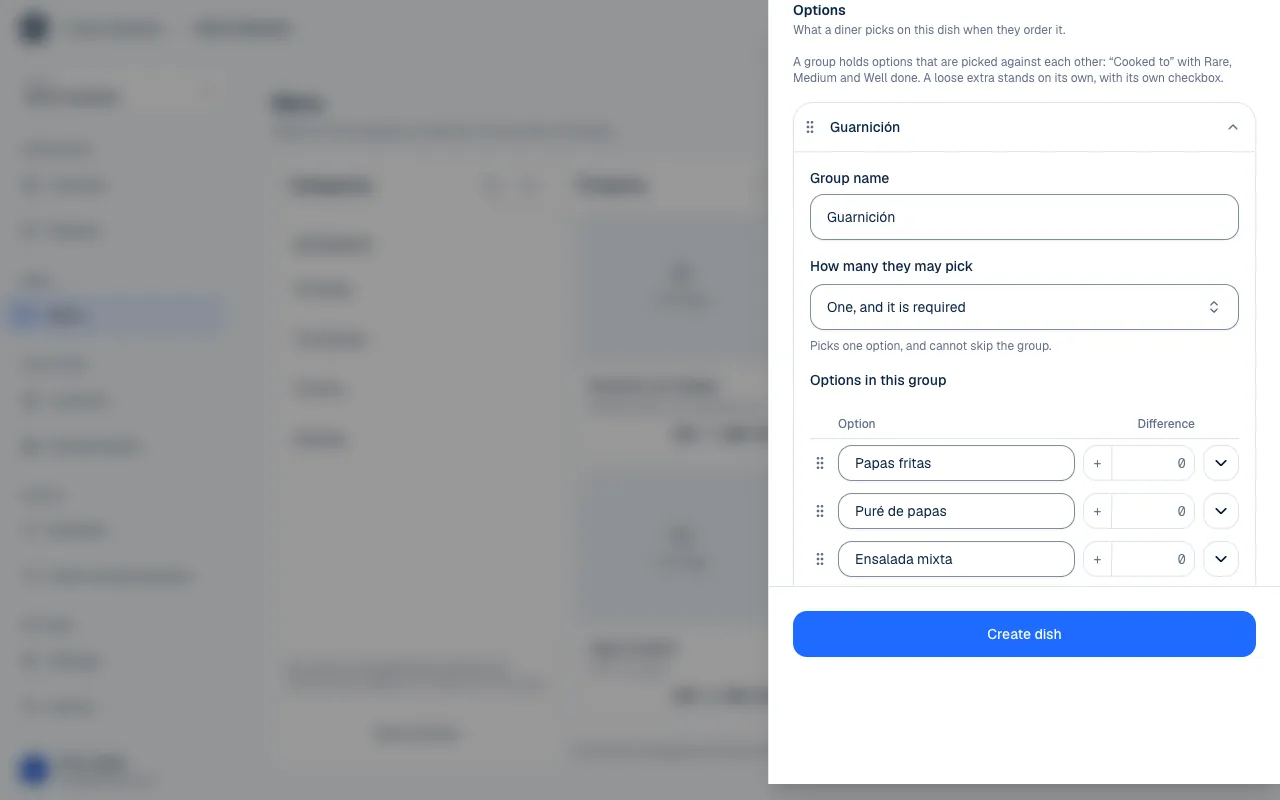
Each group needs a name and at least one option. For example, “Steak temperature” may include Rare, Medium and Well done, with a required single choice.
Choose selection rules
The screen separates Just one and Several rules. Choose the one that matches what customers can actually order.
| Rule | What it allows | Example |
|---|---|---|
| One, and it is required | Exactly one; it cannot be skipped. | Steak temperature. |
| One, if they want | One or none. | Optional sauce. |
| Any number | Any combination, including none. | Optional ingredients. |
| Up to a number | From zero to the limit. | Up to two toppings. |
| At least a number | A minimum, with more choices allowed. | At least one side. |
| An exact number | No more and no fewer than the amount. | Two ice cream flavors. |
| Between two numbers | A minimum and a maximum. | Two to four sides. |
Rules that need a number show Quantity, Minimum or Maximum. If you change the rule, check those numbers again. Do not require more choices than there are options.
Set price differences
The Difference column shows how much is added to or subtracted from the base price. A zero difference is No charge. A negative amount discounts the price; you can switch between adding and subtracting with the difference control.
For example, a $12.00 burger with a $1.50 cheese option costs $13.50 before other extras. A discounted variation lowers the amount by the difference you enter. Check the total on the public menu.
More option settings
Under Show more settings, you can find:
| Setting | What it is for |
|---|---|
| Detail | An optional line describing what it includes. |
| Available | Whether it can be selected now. If off, it stays visible but cannot be ordered. |
| Can be ordered more than once | Adds a quantity for extras charged per unit. |
| Cap per order | Limits repeats; leave blank for no limit of its own. |
The repeat quantity for an option and the group's rule are separate settings. Repeating a bread option does not turn it into several different ice cream flavors. Test both limits before publishing. To mark a single option sold out during service, see Availability and sold-out products.
Standalone extras and order
Use Add loose extra for independent choices. Each has a name, difference, availability and the same additional settings. Drag groups and options, or use their arrows, to set their order.
You can add up to twenty groups per product, fifty options per group and fifty standalone extras. Keep the list easy for customers to browse.
After saving, open the dish on a phone. Check that required choices cannot be skipped, extras are clear and the total is correct.
If something isn't working
- A group needs at least one option. Add one with Add option or remove the group.
- A group's maximum cannot be lower than its minimum. Check Minimum and Maximum after changing the rule.
- A cap per order only applies to an option that can repeat. Turn on Can be ordered more than once or leave Cap per order blank.
- An option name cannot go past 80 characters. or An option detail cannot go past 160 characters. Shorten the text.
- Up to 20 option groups per dish. or There are too many options on this dish. You reached one of the limits above: merge similar groups or remove options.
- That surcharge is too high. or That discount is too large. Check the Difference you entered.
If the problem continues, email support@piqero.app (opens in a new tab). Help and support lists what to include.