


Invite and manage members
How to invite your team, track invitations, change roles, suspend someone, or remove them from a location or organization.
Members are the people who work in your organization. Each person signs in with their own account and has one or more roles at different places. This is where you add and manage them.
Where to find it
In the left menu, under People, open Members (open it (opens in a new tab) for the whole organization). The same screen is available at each brand, shared space and location. It shows people with a role at that place or below it.
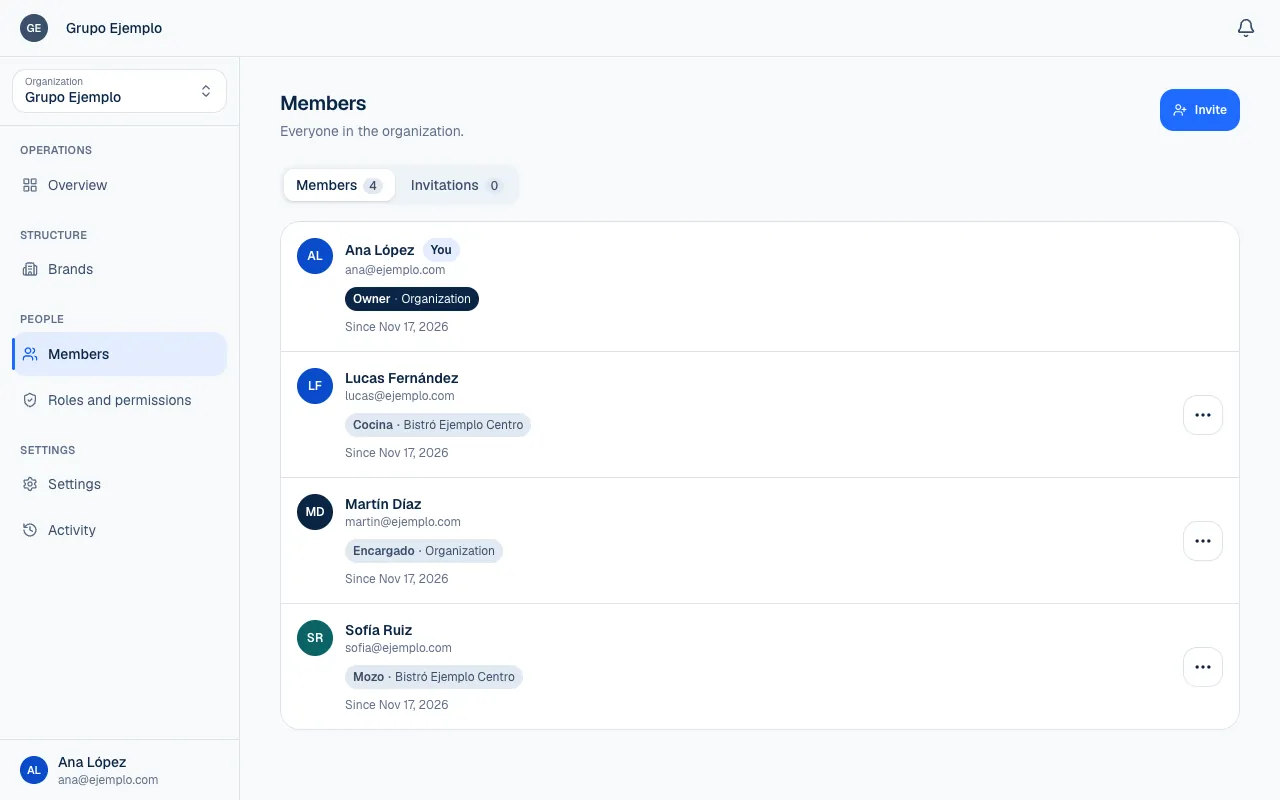
The screen has two tabs, each with a count:
| Tab | What you see |
|---|---|
| Members | Each person, their email, their roles (and where each role applies), when they joined, and whether they are Suspended. Your own row is marked You. |
| Invitations | Invitations that have not been accepted yet, with a Pending or Expired status. |
If someone has access elsewhere too, their row says Also has access elsewhere. To see another person, switch places with Switch place.
Invite someone
- Open Members at the place where the person will work. For example, invite a server from the location's Members screen. If you are unsure which place fits, see Where each access applies.
- Select Invite.
- Enter the person's Email.
- Choose a Role. You only see roles you can give at that place.
- Select Invite again.
What happens next depends on the person:
- If they are not in the organization yet, they get an email with a link. The invitation stays on the Invitations tab until they accept it.
- If they are already in the organization, no email is sent. They get the role at that place right away and appear under Members.
You cannot invite the organization's owner. Ownership is transferred with an email confirmation from Settings. See Roles and permissions.
What the invitee sees
The person opens the link and signs in with the same email address the invitation was sent to. If they do not have an account yet, on the sign-in screen they select Create one and sign up with that same email: once they confirm the code they go back to the invitation. More in Sign in and get back in. They see who invited them, their role and place, when the invitation expires, and two buttons: Accept invitation and Decline.
Keep these limits in mind:
- The invitation expires after 7 days. After that, its status is Expired and the link no longer works.
- An account can belong to one organization only. If the person already belongs to another organization, they need to use a different account.
- If they sign in with a different email, they will not find the invitation.
Track invitations
On the Invitations tab, each row shows the email, role and place, along with when the invitation was sent and when it expires. You can:
| Action | What it does |
|---|---|
| Resend | Sends a new invitation to the same email with a new expiration date. Use this for expired invitations. |
| Cancel… | Makes the link they received stop working. You can invite them again if you change your mind. |
Change someone's role
Open the row's actions menu and select Change role…. A panel opens with the current role and New role. Select Change role to confirm.
This changes only the role the person has at that place. They remain in the organization and keep their access elsewhere. If they received the role at a lower level, change it from that place's screen. You can only give roles that do not grant more access than you have (more in Roles and permissions).
You can also select Permission exceptions… from the same menu. An exception gives or removes a permission for that person alone, on top of their roles. This feature depends on your plan.
Suspend, remove, or delete
There are three ways to take away someone's access, from least to most permanent:
| Action | What happens | Can it be undone? |
|---|---|---|
| Suspend… | They lose access throughout the organization but keep their roles. | Yes, with Reactivate |
| Remove from (a place) | They lose the roles and exceptions they have at that place and its owned places below. They keep their roles elsewhere. | Invite them again |
| Remove from organization… | They lose their place in the organization and all their roles. | No |
Suspend and Remove from organization only appear when all of the person's access is within the place you are viewing. If they also work elsewhere, use Remove from that place.
These rules protect your team:
- You cannot use these actions on yourself.
- The owner of a place cannot be suspended or removed from here.
- If someone has permissions you do not have at that place, the menu says that an owner of the place must make the change.
All these changes appear in Activity.
If something isn't working
- That account already belongs to an organization. An account can be in only one organization. Ask the person for another email and invite them with that one.
- That address already has an open invitation you can't withdraw. Ask whoever sent it to cancel it. Someone already invited them from a place where you cannot cancel invitations. Wait for them to accept it, or ask whoever sent it to cancel it.
- That role has permissions you don't hold here. You can only give roles that do not grant more than you have. Choose another role, or ask someone with more permissions to send the invitation.
- You've reached what your plan includes. Members and pending invitations have filled the plan's people allowance. Cancel invitations that will not be used, or review the plan.
- Check the email. The email has a mistake. Fix it and select Invite again.
- The invitation does not work for the person. If Invitations shows it as Expired, select Resend. If they already have an account with another email, they have to sign in with the email the invitation went to.
If the problem continues, email support@piqero.app (opens in a new tab). Help and support lists what to include.